Hours recap & attendance sign-off
Check each employee's hours for a pay period, correct single days, send it to the pay period, then a director approves or returns it — no spreadsheet, and no access to salaries.
The monthly hours recap that used to be built by hand in a spreadsheet is now assembled from attendance automatically. The attendance checker reviews and corrects it, then sends it to the pay period; a director or finance approves it before salaries are calculated. This page shows hours only — the attendance checker never sees pay figures.
Before you start
- The pay period exists — see Running monthly payroll.
- Who checks and sends: a position with attendance-verification permission (Admin, HR Manager, or a dedicated position such as Verifikator Absensi with no payroll access). Who approves: a position that may manage pay periods (Admin, HR Manager, Finance). Set positions in Roles & permissions.
How a day is counted
| Status | Meaning |
|---|---|
| Hadir (hari penuh) (full day) | Net hours (total minus the shift break) reach the shift's required hours. |
| Kurang jam (short day) | Present but short; counted as a fraction of a day (e.g. 6 of 8 hours = 0.75). |
| OFF / tidak masuk (absent) | A rostered workday with no punch and no leave. |
| Cuti / Cuti sakit (leave / sick leave) | Approved leave on that day. |
| Luar kota / WFH (out of town / WFH) | Only set through a correction. |
| Libur (holiday) | A calendar holiday, nobody clocked in. |
| Belum clock-out (no clock-out) | Clocked in, never clocked out — must be corrected before sending. |
Only approved overtime counts. Each employee's TTL = full days + short-day fractions + out of town + WFH.
Part A — Checking and sending the recap (attendance checker)
Step 1: open the period's hours recap
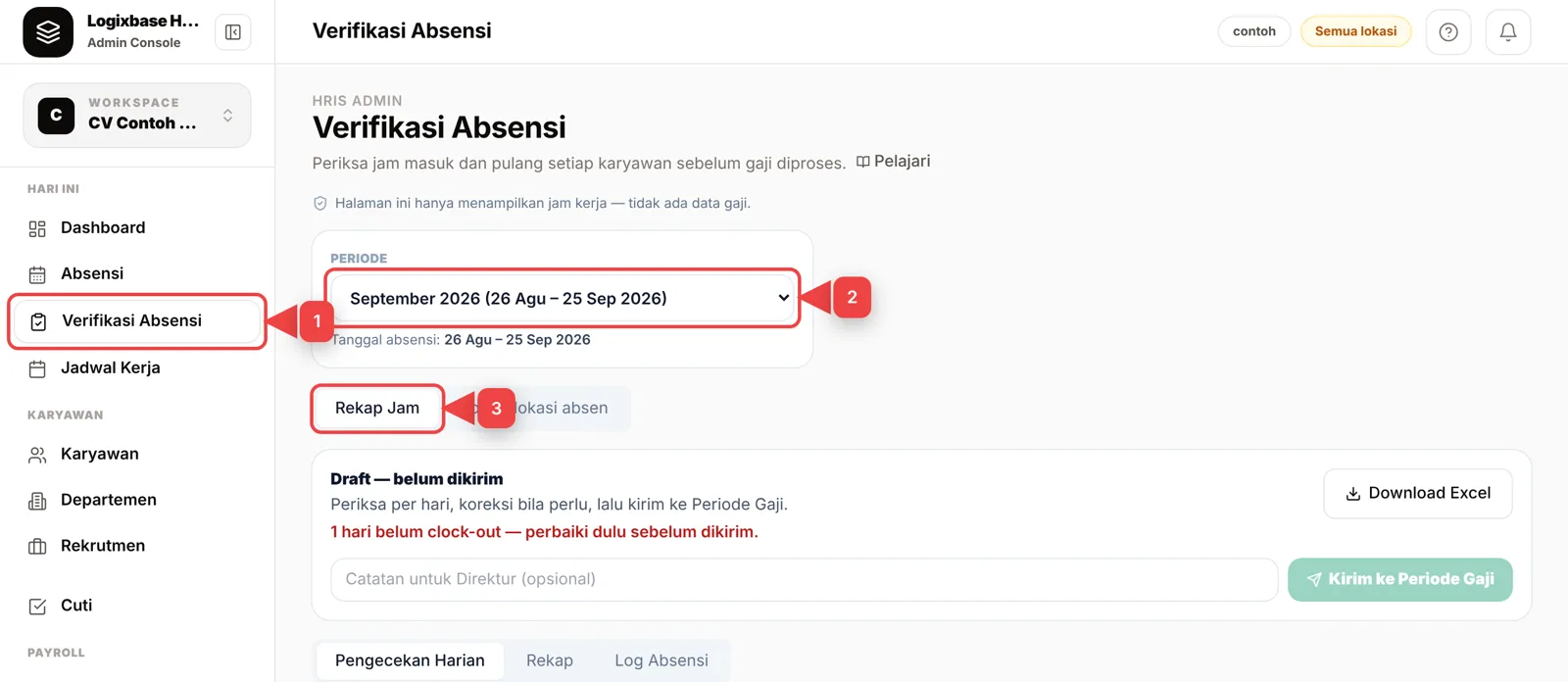
- In the left menu, click Verifikasi Absensi (Attendance verification) (1).
- Choose the pay Periode (period) to check (2) — e.g. September 2026 (26 Aug – 25 Sep).
- Click Rekap Jam (Hours recap) (3). The recap status shows at the top: Draft — belum dikirim (draft, not sent).
Step 2: check day by day
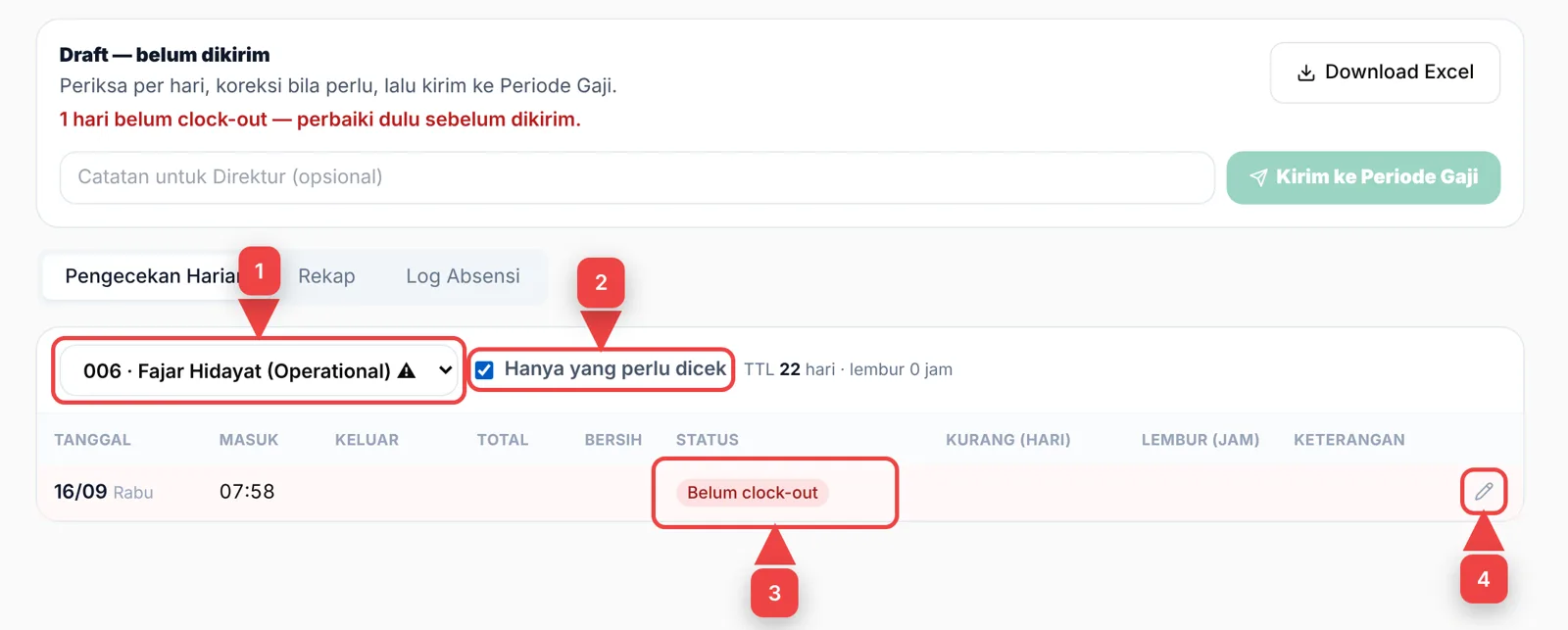
- On the Pengecekan Harian (Daily check) tab, pick an employee (1). Names marked ⚠ have a day that must be fixed.
- Tick Hanya yang perlu dicek (Only what needs checking) (2) to show problem days only — no clock-out, short days, OFF, or overtime.
- Look at the Status column (3). Belum clock-out means the employee forgot to clock out.
- Click the pencil (4) on the day to correct.
Step 3: correct a day
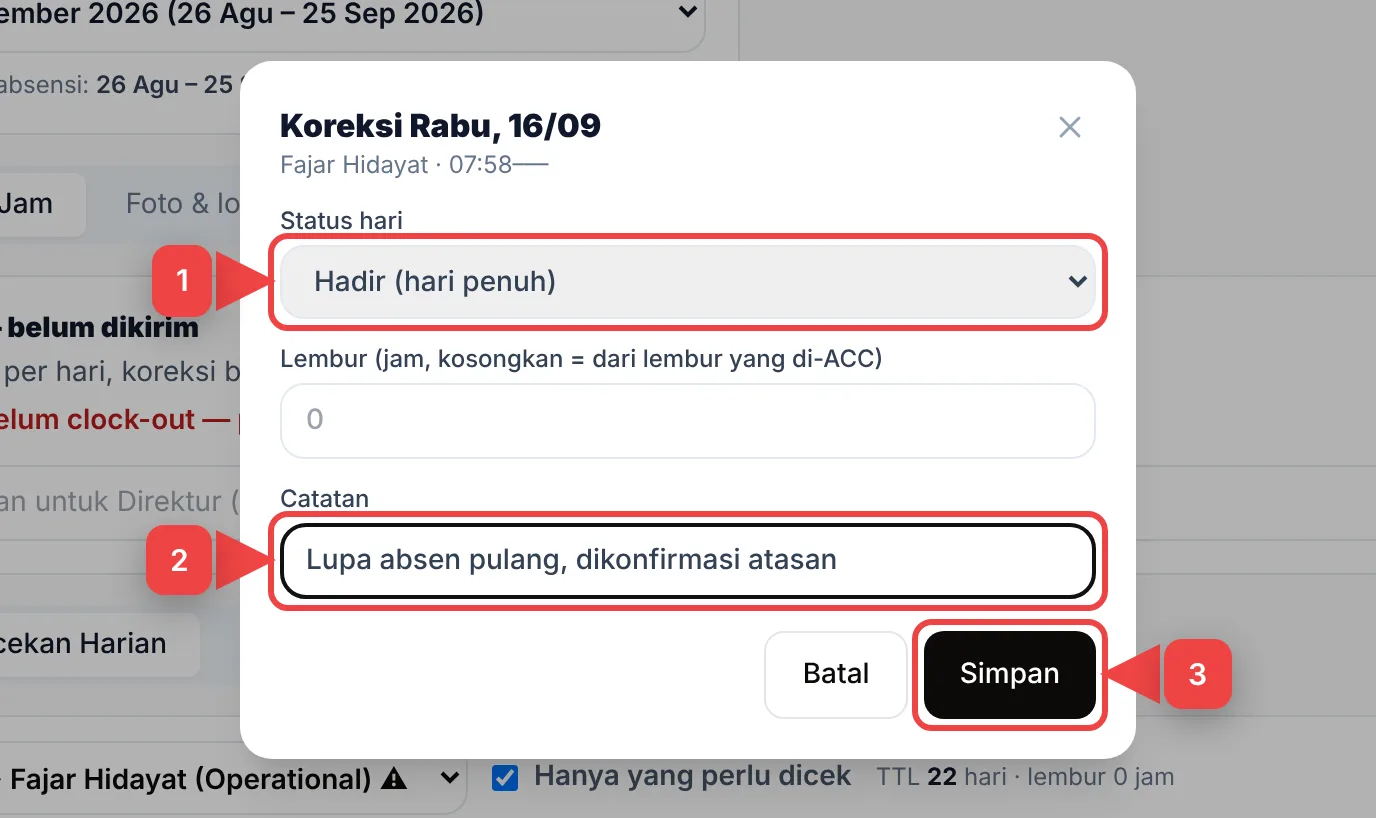
- Choose the Status hari (day status) (1): Hadir (hari penuh) (full day), Kurang jam (short day), OFF / tidak masuk (absent), Cuti (leave), Cuti sakit (sick leave), Luar kota (out of town), WFH, Libur (holiday), or Otomatis dari absensi (automatic) to undo a correction. For Kurang jam, enter the net hours worked (in steps of 0.25, e.g. 6.5). Fill in Lembur (overtime) only if it differs from approved overtime.
- Write the reason in Catatan (note) (2), e.g. "Forgot to clock out, confirmed by supervisor".
- Click Simpan (Save) (3). The day now shows (dikoreksi) (corrected) and the note appears under Keterangan.
Corrections never change the employee's original attendance record; every change is kept in the audit log.
Step 4: check totals per employee
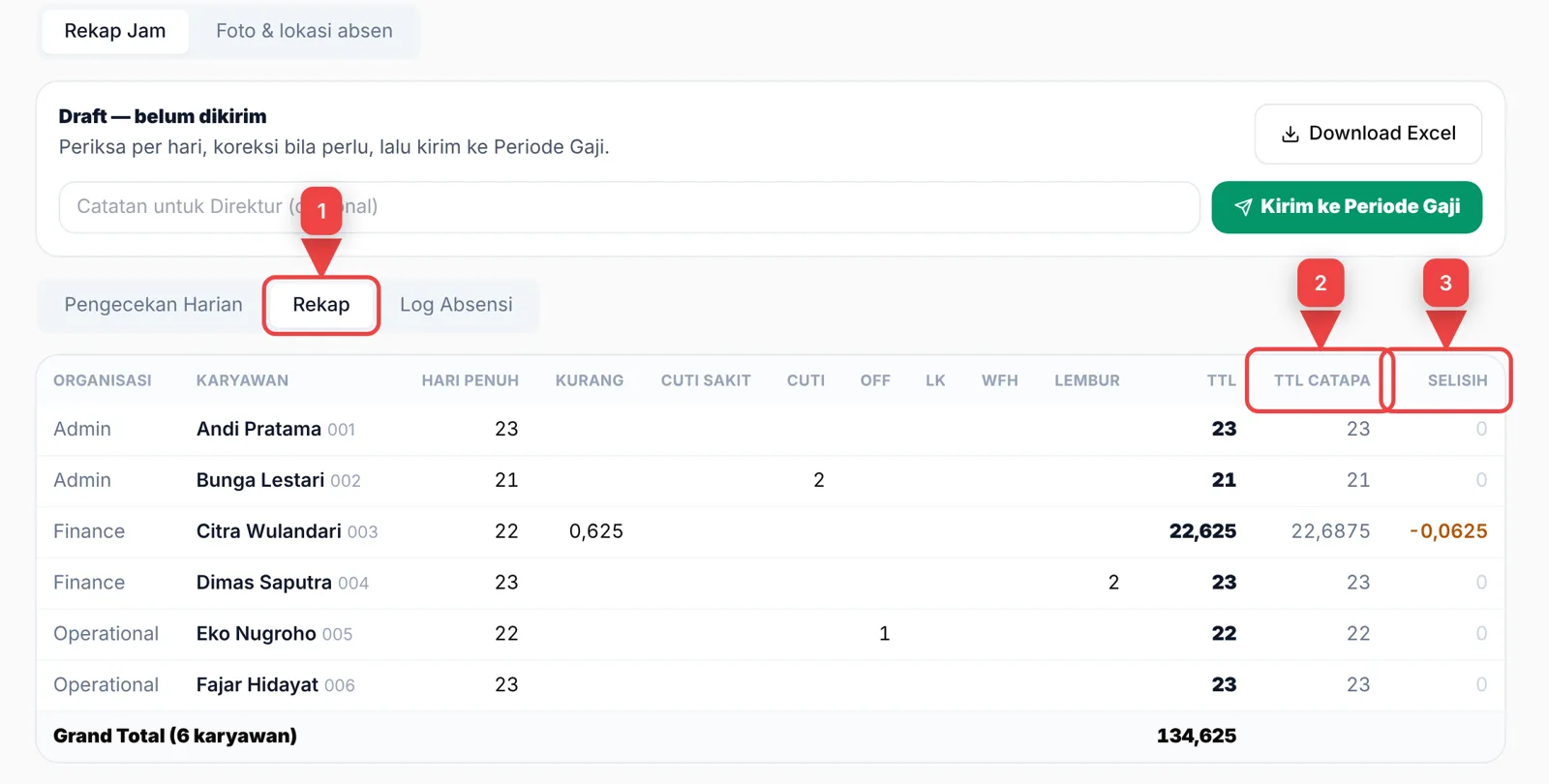
- Click the Rekap tab (1): full days, short days, sick leave, leave, OFF, out of town, WFH, overtime and TTL per employee, plus a Grand Total.
- When a comparison source was imported (e.g. Catapa), the TTL Catapa column (2) shows its figure.
- A non-zero Selisih (difference) (3), shown in orange, needs a look: click that employee's row to jump to their Pengecekan Harian.
Step 5: search the attendance log (optional)
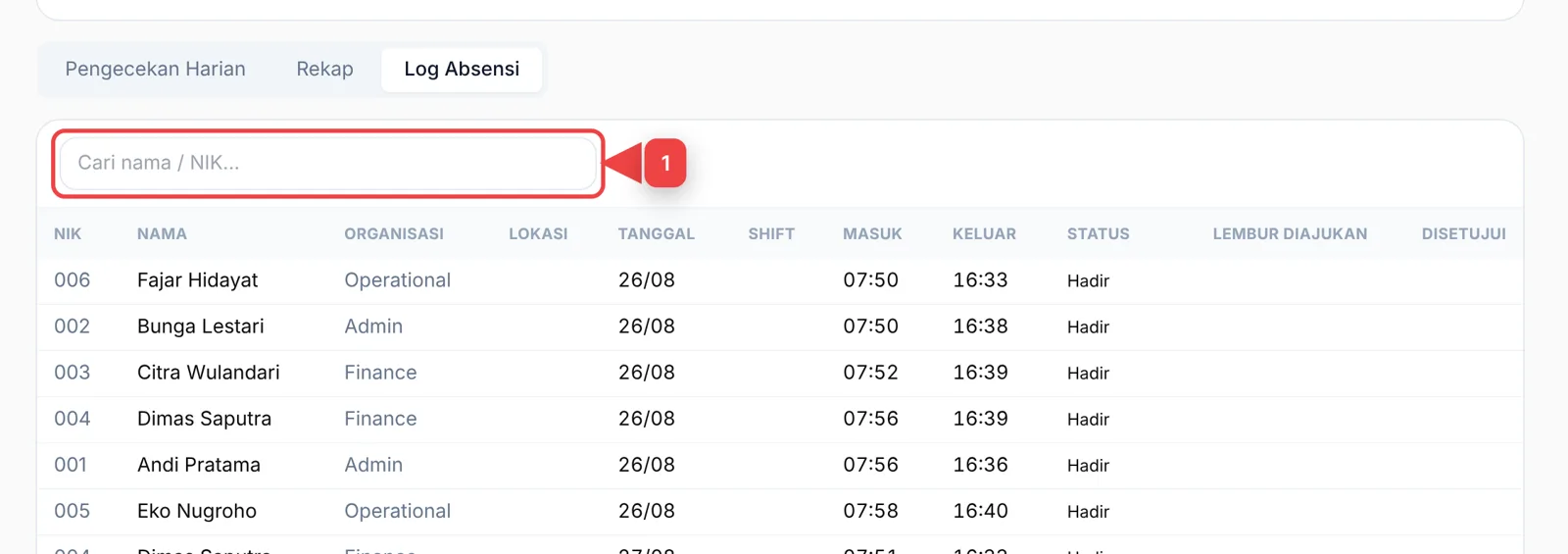
The Log Absensi (Attendance log) tab lists every punch in the period — date, shift, clock-in/out, status and overtime. Type a name or employee number in the search box (1).
Step 6: download and send to the pay period
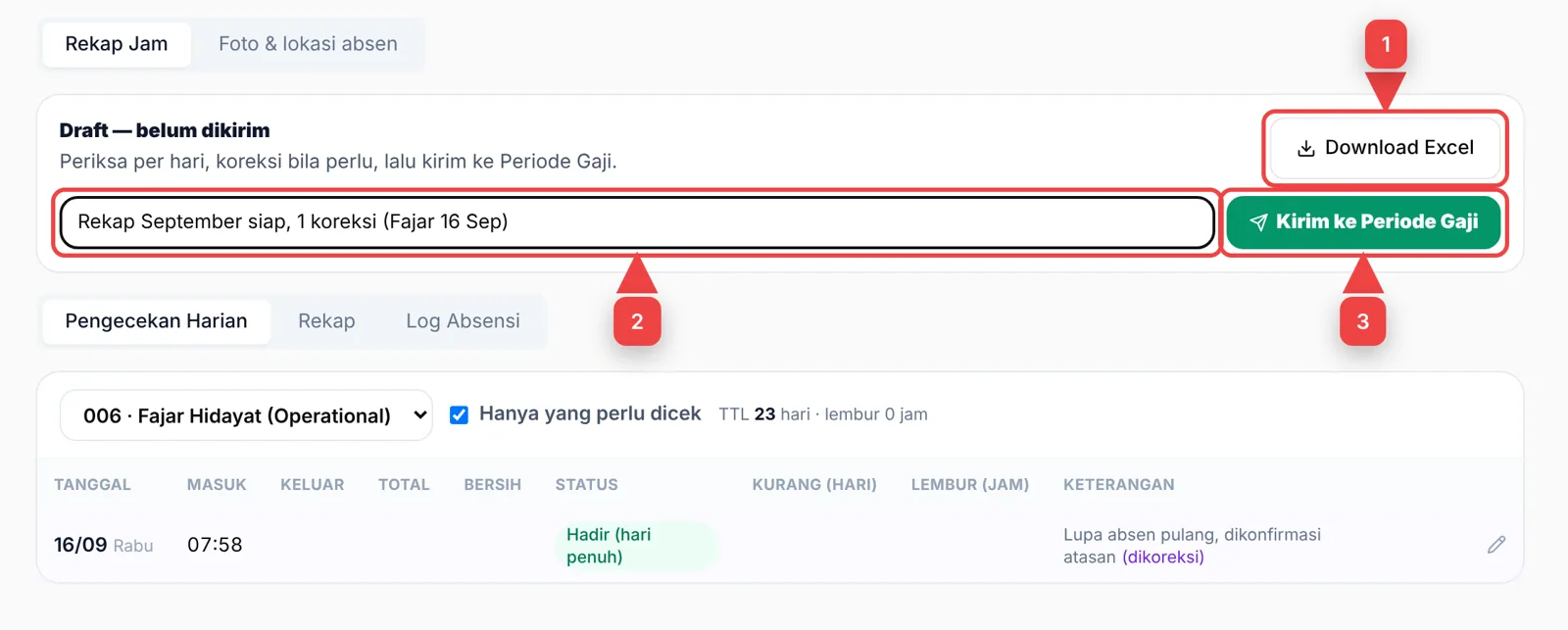
- Click Download Excel (1) if you want a copy — all three tabs (attendance log, daily check, recap) are in one file.
- Write a Catatan untuk Direktur (note for the director) (2), e.g. how many corrections you made. Optional.
- Click Kirim ke Periode Gaji (Send to pay period) (3). The status becomes Terkirim ke Periode Gaji (sent) and the recap is locked.
Send button disabled?
There is still a Belum clock-out day. The red message above the button gives the count — correct that day first (Step 3).
Part B — Approving or returning (director / finance)
Step 1: open it from the pay period
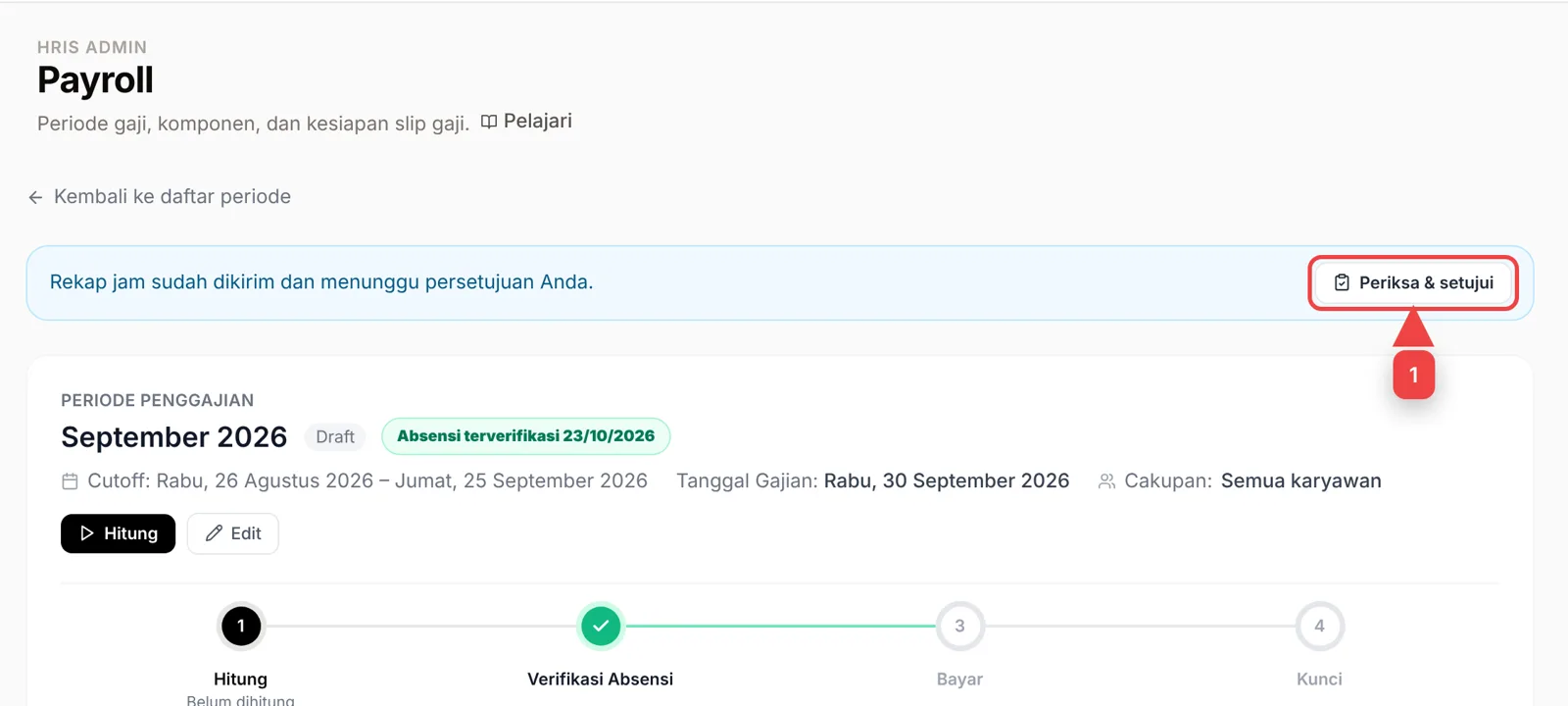
Open Payroll › Periode Gaji (Pay periods) and choose the period. A banner says the hours recap was sent and is waiting for your approval. Click Periksa & setujui (Review & approve) (1).
Step 2: review and decide
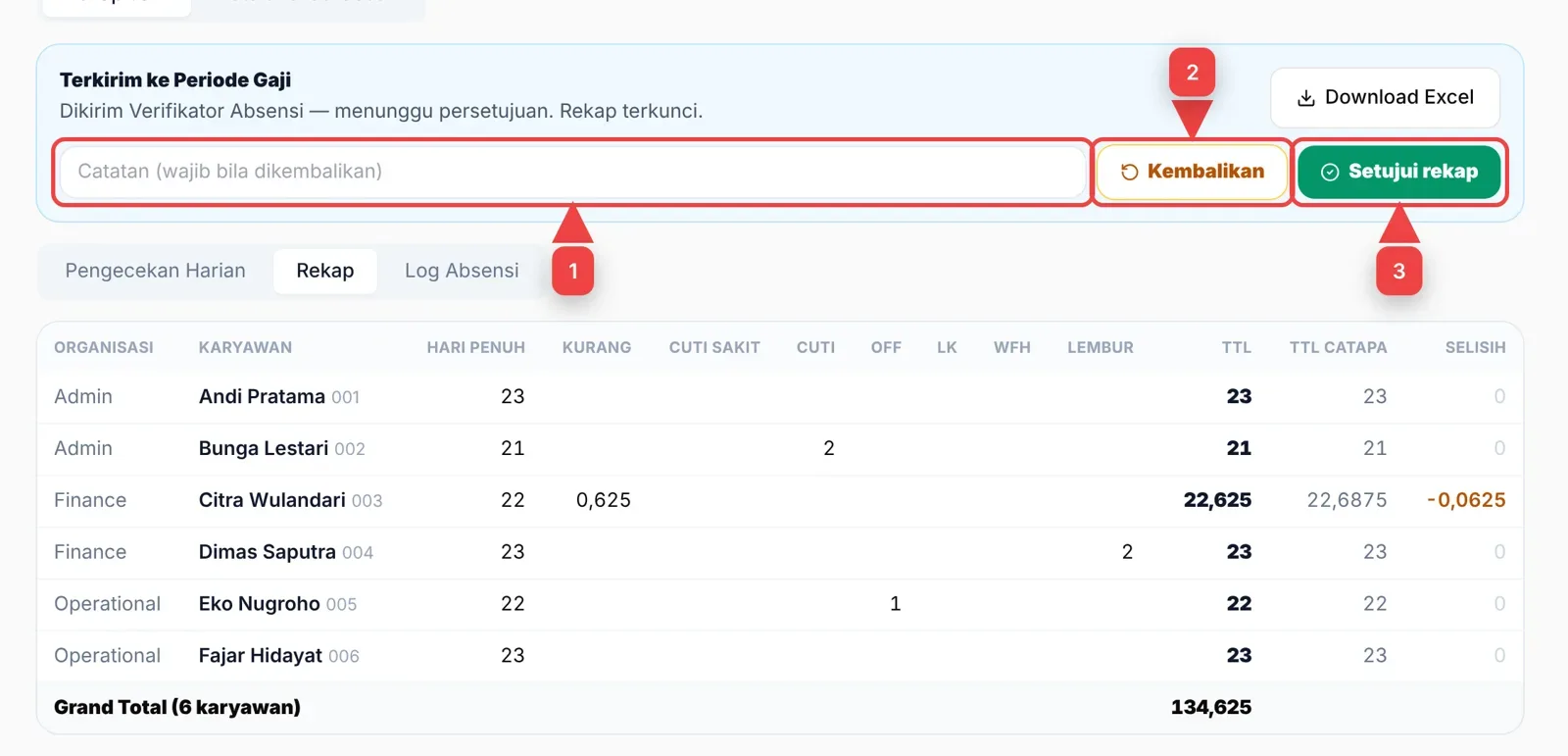
- Review the Rekap tab — especially the Selisih column — and open the Pengecekan Harian of anyone you want to check.
- If something needs fixing: write the reason in the Catatan (note) field (1), then click Kembalikan (Return) (2). A note is required (at least 5 characters). The attendance checker is notified with your note, fixes it and sends it again.
- If it is correct: click Setujui rekap (Approve recap) (3).
Step 3: recap approved
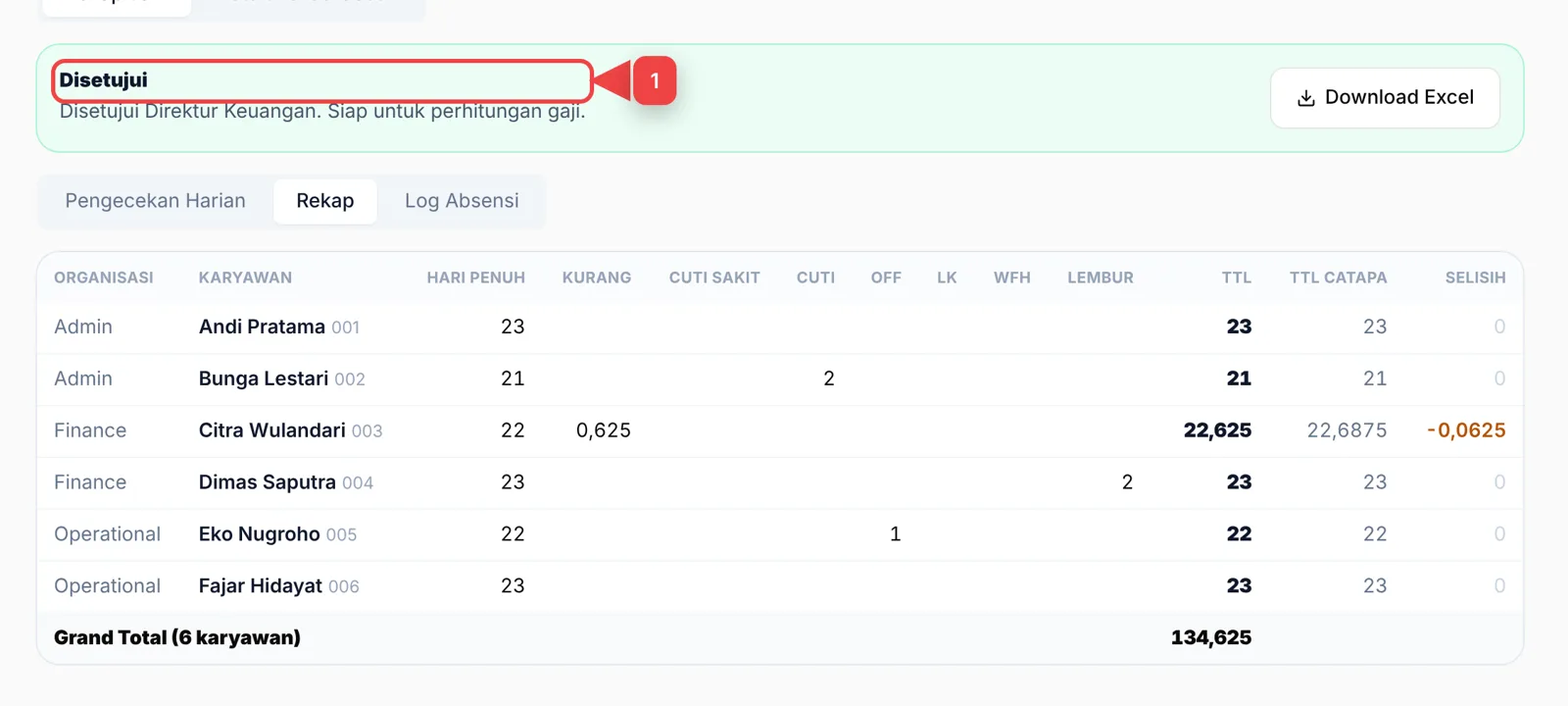
The status becomes Disetujui (Approved) (1) and the period's attendance is marked verified on the period page. Continue with Hitung (Calculate) — see Running monthly payroll.
Four eyes
Whoever sent a recap cannot approve it themselves — the Setujui rekap and Kembalikan buttons are not shown to them.
Common problems
- No Rekap Jam tab — the feature is not active for your company yet; contact us.
- Cannot correct a day — the recap is Terkirim (sent) or Disetujui (approved); ask the approver to return it. A Terkunci (locked) period cannot be changed at all.
- Numbers differ from the old spreadsheet — check the Selisih column, then open that employee's Pengecekan Harian (click their row in the Rekap tab).