Invite employees to the app
Share an invitation link over WhatsApp so employees sign in with Google and clock in from their own phone. Links are valid for 7 days and can be regenerated any time.
Employees clock in from their own phones — no fingerprint machine and no buddy punching. To sign in, each employee needs a personal invitation. The app does not send emails: you copy a ready-made invitation message and send it yourself, for example over WhatsApp.
How it works
- You create an invitation link for one employee.
- The employee opens the link and signs in with Google using the email on their employee record.
- That Google account is connected to the employee record, and the employee can clock in straight away.
Links are valid for 7 days. Once connected, the employee simply signs in with the same Google account; the link is no longer needed.
Before you start
- The employee has been added and is active (Adding and managing employees).
- The email on the employee record is the Google account email the employee uses on their phone, usually a Gmail address. Only a Google account with that email can accept the invitation.
- You are signed in as Admin or HR Manager.
Send an invitation
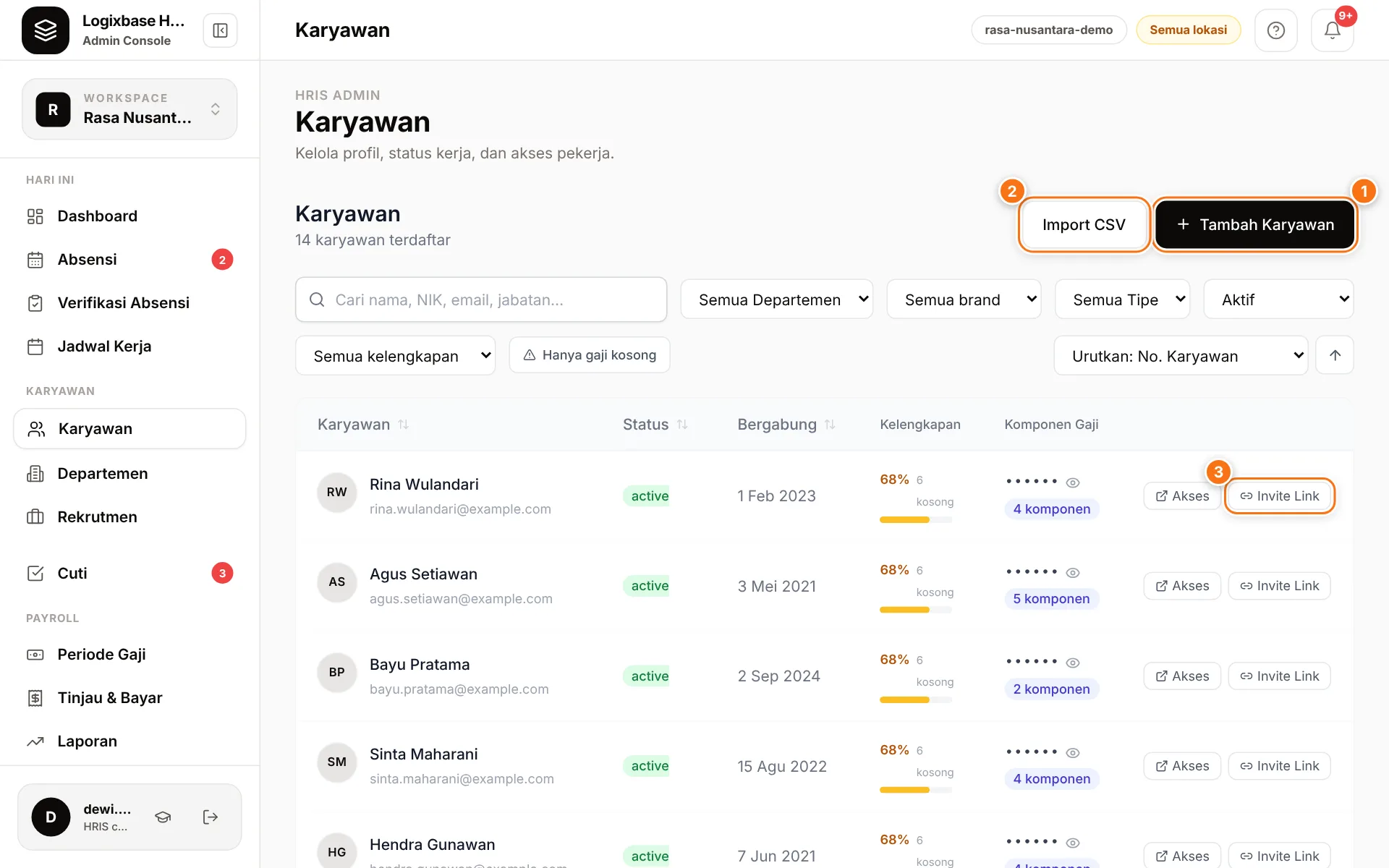
- Open Karyawan (Employees) and find the employee. Click Invite Link (3) on their row.
- The Bagikan undangan (share invitation) window opens with a ready-to-send message: company name, the employee's email, the link and the 7-day validity.
- Click Salin pesan (copy message) (1 in the image below).
- Paste the message into WhatsApp or another chat app and send it to the employee.
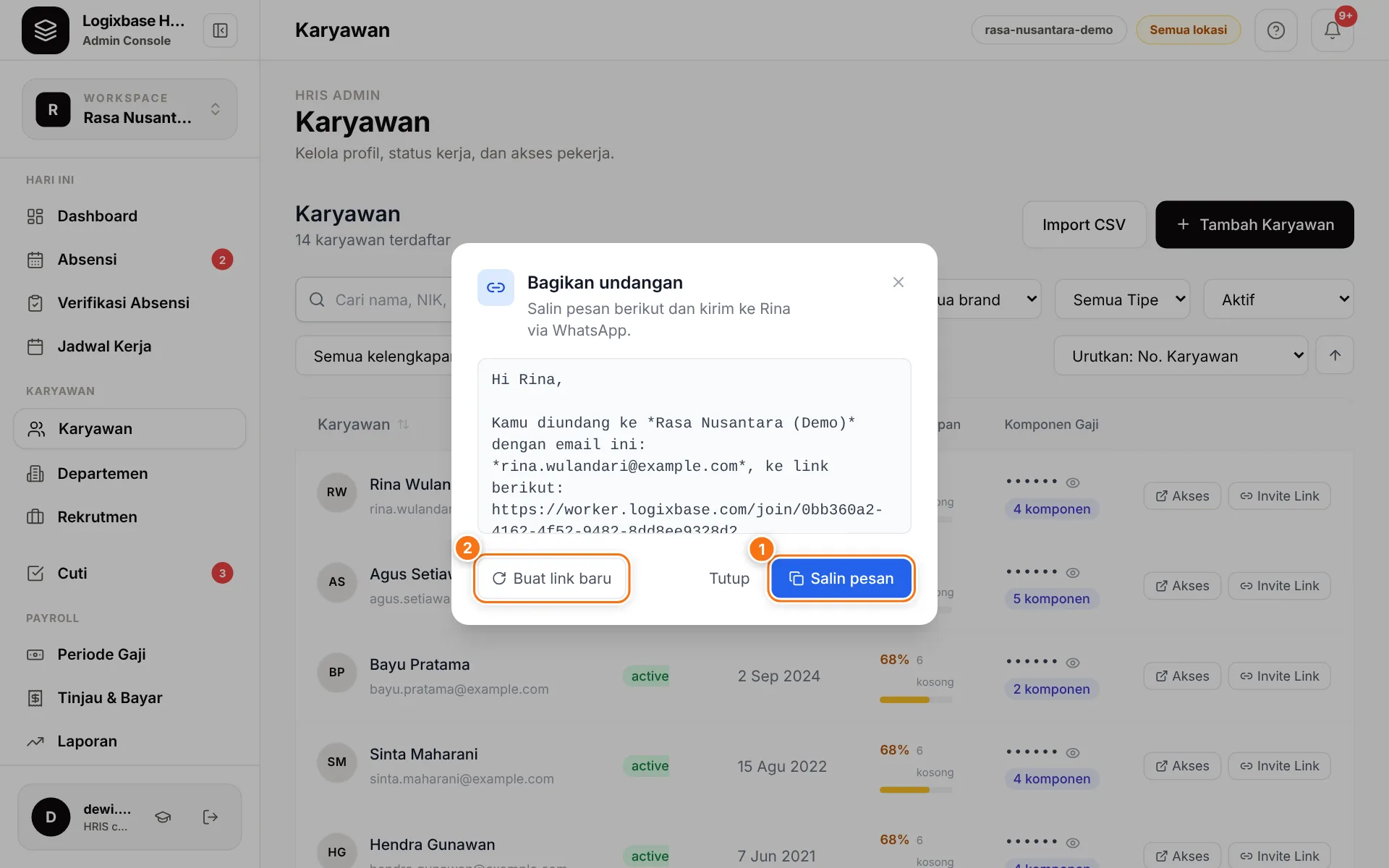
The same window opens automatically after you save a new employee with Kirim undangan login ke karyawan (send login invitation) ticked.
Tip
Send the invitation on the employee's first day, while they are with you. They can sign in and try their first clock-in right away, and you can help if anything goes wrong.
What the employee sees
- The link opens an Anda diundang (you're invited) page showing Perusahaan (company), Peran (role: Karyawan, employee), Untuk akun (for account — the email, partly masked) and Berlaku hingga (valid until).
- The employee taps Masuk dengan Google untuk menerima (sign in with Google to accept), picks the matching Google account and lands in the employee app.
- After that they can add the app to their home screen. Share the employee guides Sign in and install the app and Employee quick start.
Track who has joined
In the Karyawan list, each active employee shows a tag:
| Tag | Meaning |
|---|---|
| Undangan terkirim (invitation sent) | A link exists and is still valid; the employee has not signed in yet. |
| Kadaluwarsa (expired) | The link is older than 7 days. Create a new one. |
| Joined | The employee is connected to the app. |
Choose the Kelengkapan Data › Belum punya akun (no app account yet) filter to see everyone who has not connected. On the Dashboard, the setup step Undang karyawan ke aplikasi (invite employees to the app) is ticked once the first employee connects.
Resend or create a new link
- Message lost or not read: click Invite Link again. While the link is still valid, the same message is shown — just Salin pesan again.
- Link expired: the window shows Link kadaluwarsa (link expired). Click Buat link baru (create new link) (2).
- Link sent to the wrong person: click Buat link baru (2) and confirm. The old link stops working immediately.
Warning
Bagikan Undangan on the employee profile always creates a new link, so any link you sent earlier stops working. To resend the same link, use Invite Link in the employee list.
Common problems
- The employee sees "Akun Google tidak cocok" (Google account doesn't match): they signed in with a different Google account. Ask them to tap Ganti akun Google (switch Google account) and pick the account with the invited email. If the email on the employee record is wrong, fix it on the profile, then click Invite Link to create an invitation for the right email.
- "Undangan tidak tersedia" (invitation not available): the link has expired or was replaced by a newer one. Send the latest link.
- You see "Sudah terhubung" (already connected) when clicking Invite Link: the employee already has a registered Google account with that email and was connected automatically. Copy the message — it asks the employee to open worker.logixbase.com with that account.
- The employee is Joined but used the wrong Google account, or changed accounts: click Kirim ulang (resend) next to Joined, then Putus & kirim ulang (disconnect and resend). The old account is disconnected and a new link is created for you to send.
- The app shows "Akses worker belum tersedia" (worker access not available yet): the Google account used is not connected to an employee record. Make sure the employee opens their invitation link with the right account.
Inviting many employees at once?
The optional Masuk otomatis dengan email terdaftar (automatic sign-in with registered email) feature lets active employees sign in with a Google account whose email matches their employee record, without a personal link. Optional feature — contact us to enable it.