Employee guide: getting started
A short guide for new employees — open the invite from HR, sign in with Google, install the app on your phone, and do your first selfie + GPS clock-in.
Welcome! With the Logixbase HRIS employee app you clock in and out from your phone, check your schedule, request leave and open your payslips — no paper forms. Follow the five steps below. It only takes a few minutes.
The app is in Indonesian, so this guide shows each button in bold exactly as it appears, with the English meaning in brackets the first time.
Before you start
- The invite link from HR. It usually arrives on WhatsApp. The link is valid for 7 days.
- A Google account with the email address HR registered for you. It can be a personal Gmail or a work email that runs on Google.
- A phone with internet, a front camera and GPS. Use Chrome on Android and Safari on iPhone.
Step 1: Open the invite and sign in
- Tap the link from HR. It starts with worker.logixbase.com/join/.
- Check the Anda diundang (You're invited) card: the Perusahaan (Company), the Peran (Role — Karyawan, meaning employee) and the email under Untuk akun (For account).
- Tap Masuk dengan Google untuk menerima (Sign in with Google to accept).
- Choose the Google account whose email matches Untuk akun. You land straight on Beranda (Home).
Seeing "Akun Google tidak cocok"?
It means "Google account doesn't match": you signed in with a different Google account. Tap Ganti akun Google (Switch Google account) and pick the account HR registered. The full sign-in guide explains the other messages.
Step 2: Install the app on your home screen
Once installed, you open the app with one tap from the HRIS Worker icon — no typing an address.
- Android (Chrome): when the Pasang HRIS Worker (Install HRIS Worker) card appears at the bottom of the screen, tap Pasang aplikasi (Install app) and follow Chrome's prompt.
- iPhone (Safari): tap the Share button (the square with an arrow pointing up), then choose Add to Home Screen (on an iPhone set to Indonesian: Tambah ke Layar Utama).
Step 3: Your first clock-in
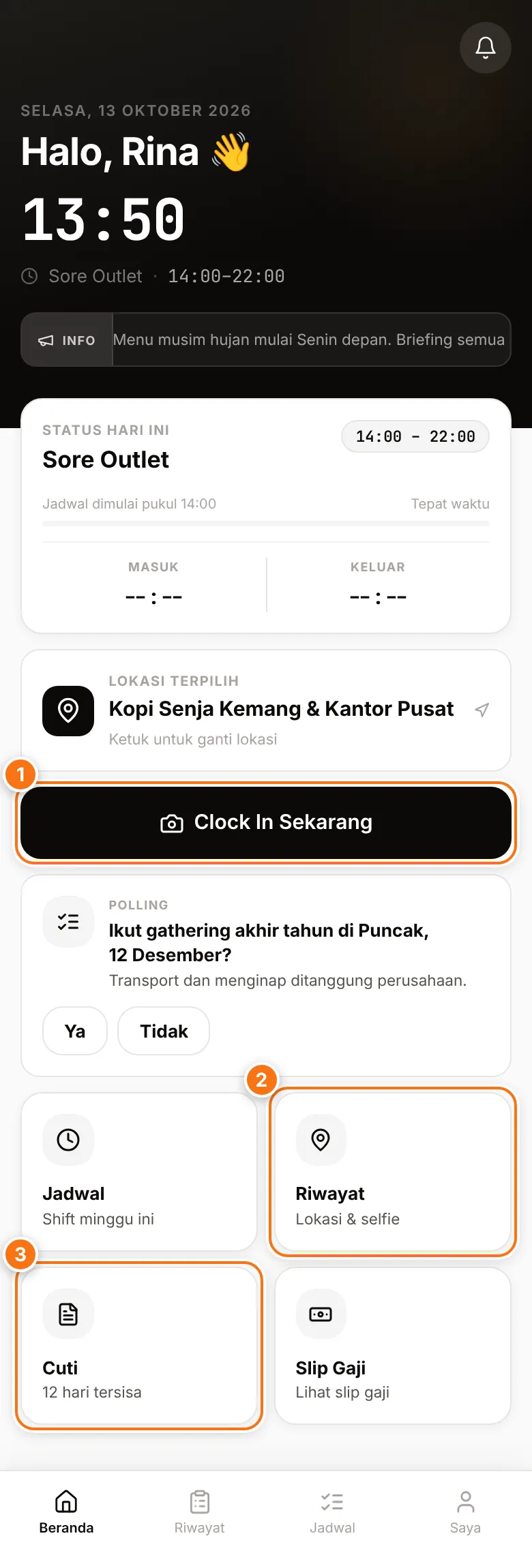
- On Beranda (Home), tap Clock In Sekarang (Clock in now) (1).
- Make sure the Brand (the business unit or task you work for) is right, then tap Lanjut verifikasi GPS (Continue to GPS check).
- Allow location access if your phone asks. When GPS berhasil diambil (GPS captured) appears, tap Lanjut ambil selfie (Continue to selfie).
- Allow camera access. Fit your face inside the frame, tap the round button to take the photo, then tap Lanjut (Continue).
- Check the summary under Konfirmasi presensi (Confirm attendance), then tap Kirim (Send).
- Clock In berhasil (Clock-in successful) appears. Your start time is recorded.
Don't worry — your attendance is always recorded
The app never rejects a clock-in because of your location. If GPS won't lock, tap Lanjut tanpa lokasi (Continue without location) and HR will review it. If you lose internet, the clock-in is saved on your phone and sent automatically once you're back online.
Step 4: Clock out
When you finish work, tap Clock Out Sekarang (Clock out now) on Home. The steps are the same — location, selfie, then Kirim until Clock Out berhasil (Clock-out successful) appears. The clock-in and clock-out guide has the details.
Step 5: Find your way around
| What you need | Where |
|---|---|
| Your 2-week shift schedule | Bottom menu Jadwal (Schedule) |
| Attendance history and corrections | Bottom menu Riwayat (History) |
| Leave balance and requests | The Cuti (Leave) tile on Home |
| Payslips | The Slip Gaji (Payslip) tile on Home |
| Profile, ID card and sign out | Bottom menu Saya (Me) |
| Notifications from HR | The bell icon at the top right of Home |
Need help?
For anything about your account, schedule, leave or pay, contact your company's HR. They manage your data in the app and can fix it.