Invite your team and set access
Invite admins, HR and managers with their own Google accounts, set positions and permissions including sensitive fields, add Finance staff, and remove access at any time.
Share the HR workload without sharing passwords. Every team member signs in with their own Google account, and you decide what they can see and change. Permissions are enforced on the server, not just by hiding menus — so pay data stays protected even if someone guesses a page address.
Before you start
- Only an Admin can open Pengaturan (Settings) › Tim & Hak Akses (Team and permissions).
- Have the Google account email of each person you want to invite.
- To invite a Manager, create their department first (Departments).
- Want the full picture of each role? Read Roles and permissions.
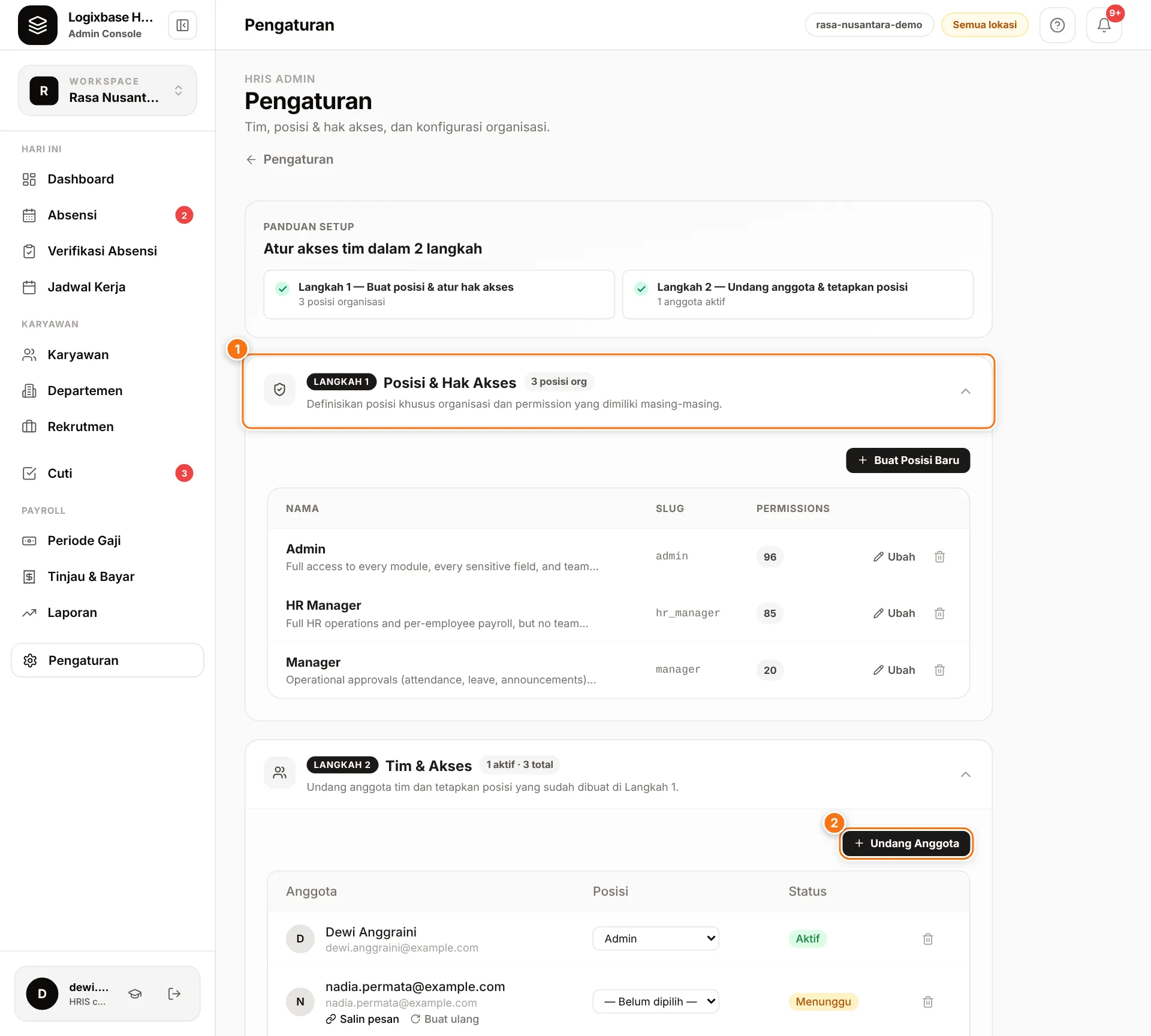
The page has two steps: Posisi & Hak Akses (Positions and permissions) (1) to build permission bundles, and Tim & Akses (Team and access) to invite people and give them a position.
Roles when inviting
| Role | Best for | In short |
|---|---|---|
| Admin | Owner or main administrator | Everything, including team and permissions, locking payroll periods and termination (PHK). |
| HR Manager | HR team | Almost everything, except team and permissions, locking or deleting payroll periods, the payroll cycle (Siklus Penggajian), creating salary components, termination and deleting departments. |
| Manager (butuh departemen) (needs a department) | Team, outlet or warehouse leads | Only employees in their department: attendance, corrections, leave approvals and non-payroll reports. No salary, bank account, NIK or NPWP. |
Finance is not in the Role list; add it through a position (see Adding Finance staff).
Step 1 — Positions and permissions
A position is a bundle of permissions you assign to team members. New workspaces already have Admin, HR Manager and Manager positions.
- Buat Posisi Baru (create new position): enter a Nama (name, e.g. Warehouse Manager) and Deskripsi (description), then tick permissions per module — employees, attendance, leave, payroll, reports and more. Use Pilih semua (select all) or Kosongkan (clear) per module.
- Bidang Sensitif (sensitive fields) sits at the bottom, collapsed by default and marked with a lock: base salary, allowances, deductions, bank account, NIK and NPWP. Grant these only to people who truly need them.
- Template Sistem (system templates, read-only) holds global templates such as Finance. Click Duplikat ke organisasi (duplicate to organization) to make a copy you can edit and assign.
- Edit a position with Ubah (edit). Deleting a position sends its holders back to the access of their base role.
Step 2 — Invite members
- In the Tim & Akses section, click Undang Anggota (invite member) (2).
- In the Undang Anggota Tim window, enter the Email (the person's Google account) and choose a Role: Admin, HR Manager or Manager (butuh departemen). For a Manager, also choose the Departemen (department).
- Click Buat Link Undangan (create invitation link).
- In the Link Undangan Siap (invitation link ready) window, click Salin pesan (copy message) and send it over WhatsApp or email. The link is valid for 7 days.
- If needed, pick a more specific position in the Posisi (position) column on that member's row.
The invitee opens the link, sees an Anda diundang (you're invited) page with the company, role, account and expiry, and taps Masuk dengan Google untuk menerima (sign in with Google to accept). They must use the Google account with the invited email; otherwise they see Akun Google tidak cocok (Google account doesn't match) with a Ganti akun Google (switch account) button. Once accepted, their status in the list changes from Menunggu (waiting) to Aktif (active).
Two special cases:
- Akses Langsung Aktif (access active immediately): the email already has an HRIS account, so access is active right away with nothing to accept. Send the message anyway — the link opens your workspace directly.
- Email ini sudah terdaftar sebagai pekerja (this email is already registered as a worker): you can give them a staff role with Ya, Jadikan … (yes, make them …). Their worker access (attendance, schedule, payslips) stays active, and the new access applies after they sign in again.
For invitations not yet accepted (Menunggu penerimaan, awaiting acceptance), click Salin pesan to copy the message again, or Buat ulang (regenerate) to create a new link — the old link stops working immediately.
Adding Finance staff
The Finance position suits staff who run payroll from start to period lock and read payroll reports, without access to attendance, schedules or leave approvals.
- Under Posisi & Hak Akses, find Finance in Template Sistem, click Duplikat ke organisasi, then Duplikat Posisi (duplicate position).
- Invite the person through Undang Anggota with the HR Manager role.
- Before sending the link, change the Posisi column on that member's row to Finance. You can set the position even before the invitation is accepted.
Removing access
Click the trash icon on the member's row, then Ya (yes) at the Hapus? (remove?) prompt.
- For an invitation not yet accepted, the link stops working immediately.
- If the person is also an active employee, only their staff access is removed (Akses Staf Dicabut, staff access revoked); their worker access for attendance, schedule and payslips keeps working. To close that too, set the employee inactive or terminate them on the Employees page.
- You cannot remove your own account.
Common problems
- "Email ini sudah menjadi anggota organisasi." (this email is already a member) — the person is already active. Change their Posisi instead of inviting again.
- The link is older than 7 days — click Buat ulang and send the new message.
- A new member doesn't see the menus you expect — check their Posisi. Ask them to sign out and sign in again so the new access is picked up.