Bulk-import employees
Upload one file with your employee list so everyone is added at once, learn the column format, fix import errors, and know when to use the onboarding template instead.
Dozens or hundreds of employees? Instead of typing them in one by one, upload a single file and add everyone at once. It is faster, and typos are easier to spot in a spreadsheet before you upload.
Pick the right method
| Import Karyawan (employee import) | Template Onboarding (onboarding template) | |
|---|---|---|
| What the file holds | Employee list only (one sheet) | The full setup: brands, departments, attendance locations, shifts, schedules, pay and employee data |
| How it is processed | You upload it yourself on this page | You fill it in and send it to the Logixbase team to process |
| Best for | Adding employees to a workspace that is already running | New companies that want everything ready at once |
Before you start
- Sign in as Admin or HR Manager.
- Imported employees are added to the company's main brand. For multi-brand businesses, set their brand afterwards with Pindahkan Brand (move brand) or Brand / Task on the employee profile.
- If you want to fill in departments, create them first, each with a Kode (code) (see Departments).
- The file must be .xlsx, .xls or .csv, up to 5 MB. Only the first sheet is read.
Prepare the file
Row 1 holds the column names exactly as below (upper and lower case must match). One employee per row, starting on row 2.
| Column | Required | Content |
|---|---|---|
firstName |
Yes | First name |
email |
Yes | The employee's Google account email, unique |
jobTitle |
Yes | Job title |
joinDate |
Yes | Join date, formatted 2026-01-15 |
nik |
— | 16-digit national ID number; may be empty |
lastName, phone |
— | Last name, phone number |
employeeNumber |
— | Employee number; generated if empty |
departmentCode |
— | Code of an existing department |
jobLevel |
— | staff, supervisor, manager or director |
employmentType |
— | permanent (default), contract, probation or freelance |
baseSalary |
— | Base salary, digits only (e.g. 5000000) |
taxStatus |
— | TK0 (default), TK1–TK3, K0–K3 |
bankName, bankAccountNumber, bankAccountHolder |
— | Bank account details |
bpjsKesehatanEnrolled, bpjsKetenagakerjaanEnrolled |
— | true or false |
gender |
— | L (male) or P (female) |
maritalStatus |
— | lajang, menikah, cerai or janda_duda |
numberOfDependents |
— | Number of dependants |
Use .xlsx and Text format
Before typing, set the joinDate, nik, phone and bankAccountNumber columns to Text, and write dates as 2026-01-15. Otherwise the spreadsheet turns dates into numbers, drops the leading 0 from phone numbers, or rounds off the last digit of a NIK. In a CSV file, a date such as 2026-01-15 is also read as a number and the import fails — so save as .xlsx.
Every imported employee gets the Bulanan (monthly) salary type. For Harian (daily) or Per Jam (hourly) workers, change the Tipe Gaji (salary type) on their profile after the import.
Upload the file
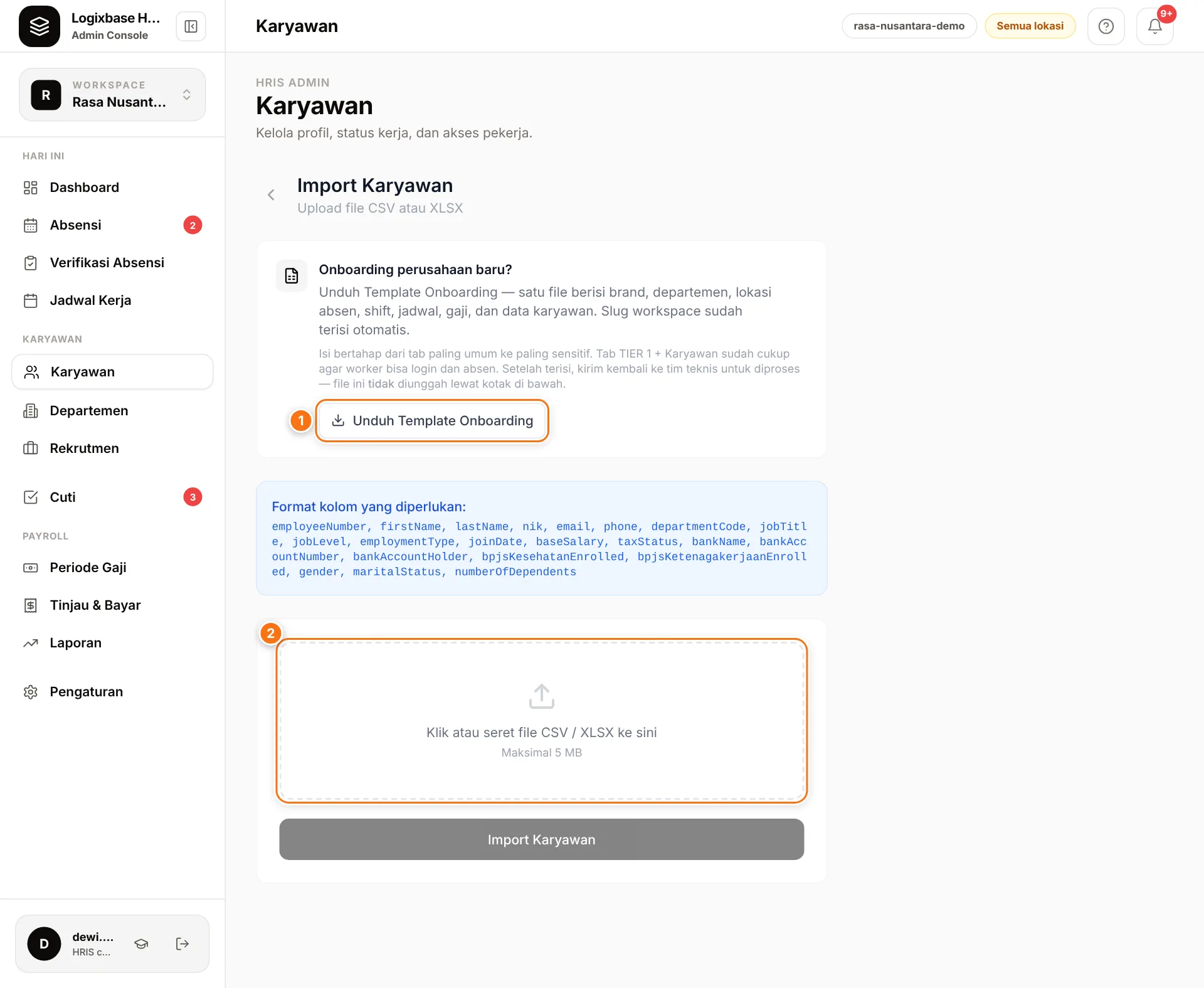
- Open Karyawan (Employees) and click Import CSV.
- Click the upload box (Klik atau seret file CSV / XLSX ke sini — click or drag your file here) and choose your file.
- Click Import Karyawan.
- On success you see Import berhasil (import successful) with the number of employees imported and skipped as duplicates. Click Lihat Daftar Karyawan (view employee list).
The import does not send invitations. Once the data is in, invite employees to the app one by one from the employee list.
If there are errors
The file is checked before anything is saved. If rows are wrong, you see Terdapat N error — tidak ada data yang diimport (N errors — nothing was imported) with the row numbers. Fix them in your spreadsheet and upload again.
| Message | How to fix |
|---|---|
| firstName wajib diisi (also for email, jobTitle, joinDate) | Fill in the required column on that row. |
| NIK harus 16 digit angka (NIK must be 16 digits) | Check the NIK; make sure the column is Text. |
| … duplikat dalam file (duplicate NIK, employee number or email in the file) | Remove the duplicate row. |
| Kode departemen tidak ditemukan (department code not found) | Create a department with that code, or add a departmentName column so the new department is created automatically. |
| Format file tidak didukung (file format not supported) | Save the file again as .xlsx. |
| Format data tidak valid (invalid data format) | Usually a date read as a number, or baseSalary containing dots or "Rp". Fix as described in the box above. |
An import that stops halfway
Format data tidak valid appears while data is being saved, so earlier rows may already be in. Fix the file and upload the same file again: employees who already exist (same email, NIK or employee number) are skipped automatically.
The import does not update employees who already exist; it skips them. The one exception: an empty department is filled from departmentCode. Make other changes on each employee's profile.
Onboarding template for new companies
The Onboarding perusahaan baru? (onboarding a new company?) card on the same page offers Unduh Template Onboarding (download onboarding template) (1): one workbook covering brands, departments, attendance locations, shifts, schedules, pay and employee data, with your workspace slug already filled in.
- Fill in the tabs from left to right; do not delete the column-code row (row 2) and do not rename tabs.
- The TIER 1 tabs (company structure) plus the 07_Karyawan tab are enough for employees to sign in and clock in. Pay and personal-data tabs can follow before the first payroll.
- The email in the employee tab links all tabs together and is also the employee's Google sign-in email.
This file is not uploaded on the Import Karyawan page. Send it to the Logixbase team; it is validated first, and you get a list of rows to fix if anything is wrong.
Want to go live with your company structure, shifts and employee data in one go? Fill in the onboarding template, then talk to our team about processing it.