Reports and exports
Attendance, brand hours, performance, wages and payroll summaries — read them on screen, download CSV, or build attendance reports as PDF/PNG ready to share with management and clients.
The numbers for your weekly meeting, a client invoice or a payroll recap are already in the Laporan (Reports) menu — no copying data into spreadsheets one row at a time. Pick a date range, read it on screen, and download when you need to.
Before you start
- Laporan is available to Admin, HR Manager, Manager and Finance. The tabs and data you see follow each person's permissions.
- The Finance Payment and Penggajian (payroll) tabs show rupiah amounts, so they only appear for roles allowed to see payroll reports (Admin, HR Manager, Finance).
- Reports are built from recorded attendance and payroll. Clean up flagged punches and corrections first so the numbers are accurate.
The Laporan menu has three parts: Ringkasan (summary), Jam Kerja (working hours) and Report Absensi (attendance report).
Summary
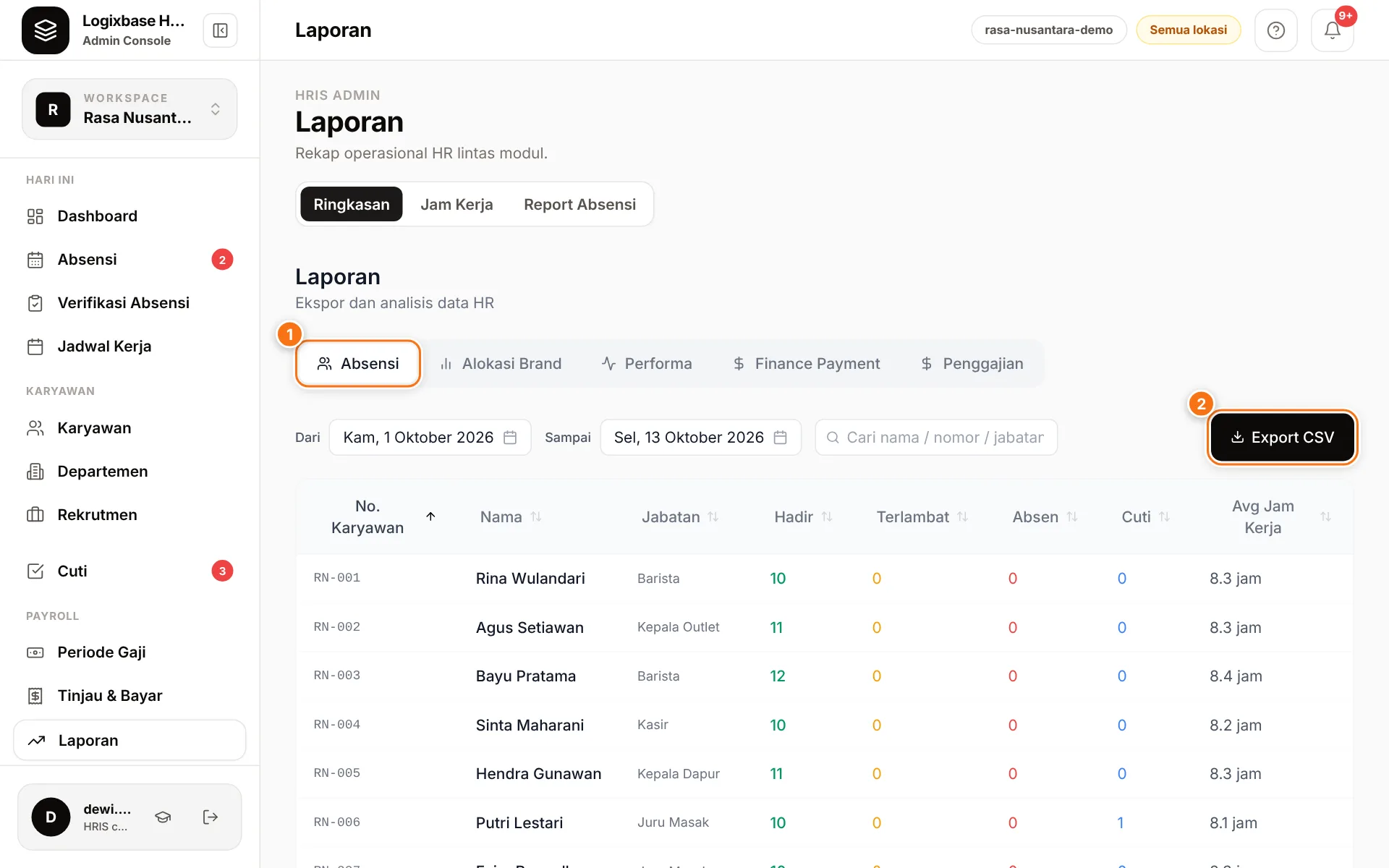
| Tab | Contents | Export |
|---|---|---|
| Absensi (attendance) | Per employee: present, late, absent, on leave, and average working hours | Export CSV |
| Alokasi Brand (brand allocation) | Hours per employee per brand/task (segments, total hours) | Not yet |
| Performa (performance) | On-time rate, attendance, average lateness, overtime, geofence compliance and correction rate | Export CSV |
| Finance Payment | Wages per worker or per brand (By Worker / By Brand): hours, hourly and item pay, reimbursements, total payable | Export CSV, Export breakdown CSV |
| Penggajian (payroll) | Each payroll period: status, headcount, gross and net totals, PPh 21, BPJS | Export CSV |
- Open Laporan › Ringkasan.
- Pick a tab, for example Absensi (1).
- Set the Dari (from) and Sampai (to) dates.
- Click Export CSV (2). The CSV file opens in Excel or Google Sheets.
Note
On the Absensi tab, the search box only filters what you see on screen — the export still contains every employee in the selected date range.
The Finance Payment tab is also where you record employee expense claims with Tambah reimbursement (add reimbursement). Export breakdown CSV contains a per-date breakdown and is only active when that breakdown exists for the range.
Working hours dashboard
Open Laporan › Jam Kerja to see when your team works — useful for planning staff numbers per hour or per day.
- Choose a Tampilan (view) — Harian (daily), Mingguan (weekly) or Bulanan (monthly) — and filter by Divisi (division) or Jam (hour). In the daily view, click a bar in the chart to filter to that hour.
- The tiles at the top show Total jam (total hours, compared with the previous period), Karyawan aktif (active employees), Rata-rata / karyawan (average per employee) and Puncak (peak).
- The table per employee shows division, brand, number of segments, hours and share of the total.
- Click Ekspor CSV to download.
Attendance report (PDF/PNG)
For a polished report you can send to management or a client.
- Open Laporan › Report Absensi and click Draft Baru (new draft).
- Enter a Nama Laporan (report name), choose the Granularitas (granularity: Harian, Mingguan or Bulanan), the Dari and Sampai dates and, if needed, a Departemen (department). Click Buat Draft (create draft).
- Click the Buka / Pratinjau (open / preview) icon. What you see in the preview is exactly what you download.
- Click Unduh PDF or Unduh PNG (download). Or click Simpan & Ekspor (save and export) to store a final version: its status changes to Exported and a PDF button appears in the report list.
Use Duplikat (duplicate) to copy a report's settings — for example for next month — then change the name and dates before Buat Draft.
Payroll exports
- From a period's detail page under Periode Gaji (payroll periods): Sheet (CSV) and PDF for the whole team's recap.
- Payslips per employee: Cetak / PDF (print / PDF) and Download PDF (arsip) (archive PDF) in the payslip window.
The steps are covered in Run payroll and Payslips and payment.
Not exportable yet
- The employee list on the Karyawan page.
- Leave history under Cuti (Leave) › Riwayat (history).
- The Alokasi Brand tab (on-screen only).
Want to see these reports with sample data before you use your own? Book a short demo with our team.