Third-party access
Share a read-only attendance dashboard with a client, site owner, auditor or partner — you choose which employees and data they see, set an expiry date, and revoke access any time.
Outsourcing clients, site owners, auditors and partners often ask for proof of attendance for the team you place with them. Instead of sending screenshots every week or handing out an admin account, create Akses Pihak Ketiga (third-party access): a read-only dashboard that contains only the employees and data you choose, with an expiry date, and that you can revoke at any time.
Before you start
- Sign in as Admin or HR Manager and open Pengaturan (Settings) › Akses Pihak Ketiga.
- Have the third party's Google account email ready. They must sign in with that account.
- Decide the scope: one department, or specific employees.
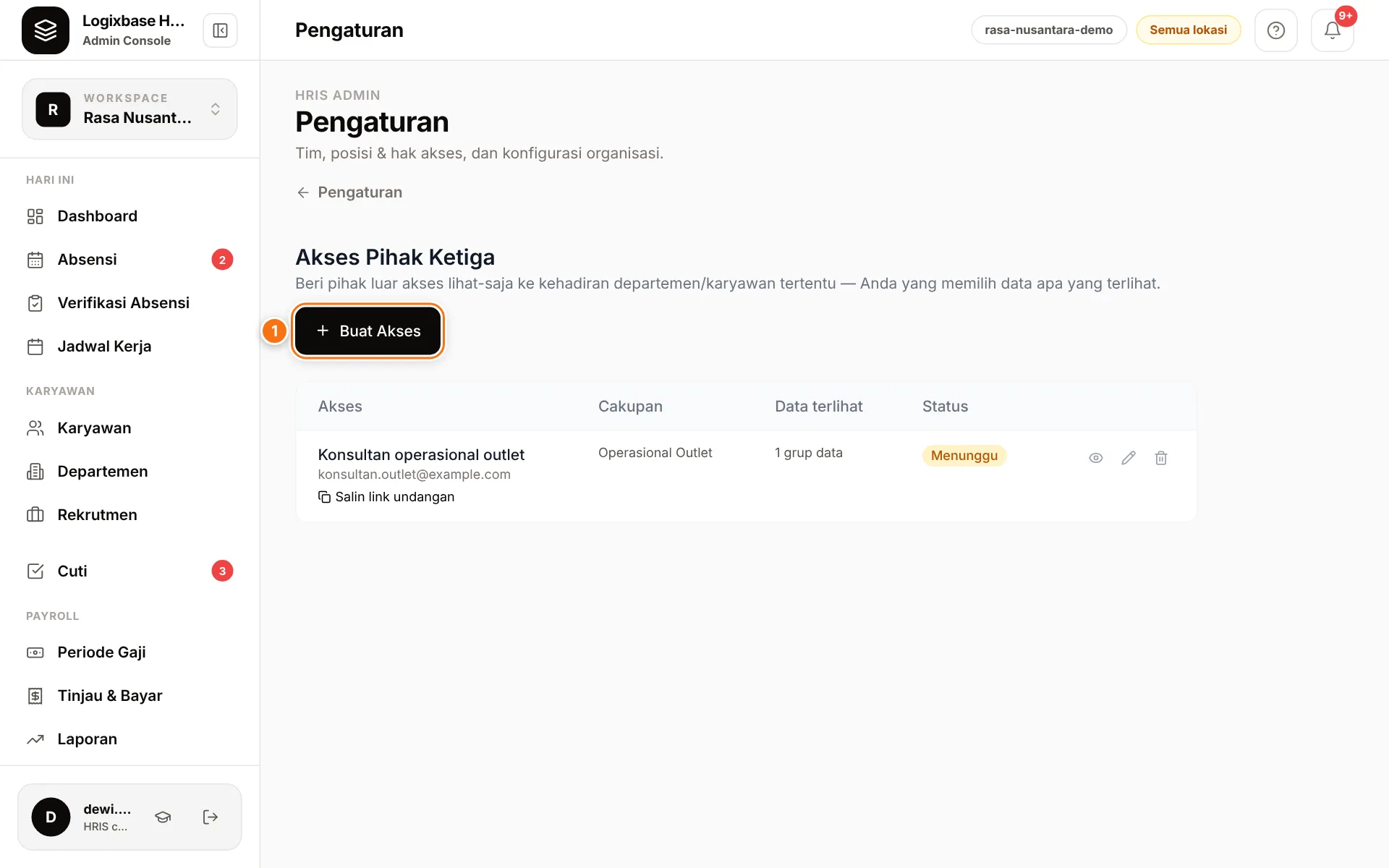
Create access
- Click Buat Akses (create access). The Buat Akses Pihak Ketiga window opens.
- Enter the Nama akses (access name, e.g. the client's name) and the Email pihak ketiga (third party's email).
- Choose the Cakupan (scope): Satu departemen (one department), or Pilih karyawan (pick employees) and tick their names.
- Under Data yang boleh dilihat (data they may see), tick only what is needed. Kehadiran & jam clock (attendance and clock times) is always included; the other options are Jam kerja / lembur / keterlambatan (work, overtime and late hours), Lokasi GPS & geofence, Foto selfie clock-in & clock-out and Catatan / jurnal kerja (work notes).
- Tick Ringkasan penggajian (payroll summary) only if truly needed, then tick the statement agreeing to share payroll data.
- Fill in Berlaku hingga (valid until). It is optional but strongly recommended.
- Click Buat & dapatkan link (create and get link).
GPS location and selfies are labelled Sensitif (sensitive) because they are personal data under Indonesia's PDP law; Ringkasan penggajian is labelled Sangat sensitif (highly sensitive). For payroll, you can also untick Termasuk periode terhitung (Siap Dibayar) (include calculated periods) so the third party only sees final periods (paid or locked).
Send the invitation
Once the access is created, you see a summary (Untuk akun Google for Google account, Cakupan scope, Data terlihat visible data, Berlaku hingga valid until) and the invitation link.
- Click Salin pesan undangan (copy invitation message) to copy a bilingual message (Indonesian and English) explaining the access, then send it over WhatsApp or email. Or use Salin link saja (copy link only).
- The invitation link is valid for 7 days. Until it is accepted, the status is Menunggu (waiting) and you can copy the link again with Salin link undangan in the list.
- The third party opens the link, taps Masuk dengan Google untuk menerima (sign in with Google to accept), and lands on the dashboard. Later they simply sign in at hris.logixbase.com with the same Google account.
What the third party sees
The third party sees a page titled Dashboard pemantauan — lihat saja (monitoring dashboard — view only) and cannot change anything.
- A context card with the company name, scope, number of employees and expiry date.
- The Ringkasan (summary) tab: combined figures for everyone in scope — attendance rate, on-time rate, average lateness, total working hours, overtime hours and geofence compliance — plus daily attendance per employee (schedule, clock-in and clock-out times).
- The Mingguan (weekly) tab: a week-by-week view of everyone in scope.
- Extra per-employee columns (working hours, geofence, selfie, notes) only appear if you allowed them.
- If Ringkasan penggajian is shared: pay summaries per period (gross, deductions, net), downloadable payslips per employee, and a Penggajian (payroll) tab with a downloadable period recap (Sheet or PDF). Bank account numbers and tax/BPJS breakdowns are not shown.
Want to check before you send? Click the eye icon (Lihat tampilan pihak ketiga, view as third party) in the access list to open a preview that matches their view exactly.
Protect privacy and revoke access
- Share only what is needed. Start with attendance only; add GPS, selfies or payroll only for a clear reason.
- Always set Berlaku hingga. After that date the status becomes Kedaluwarsa (expired) and the data stops showing.
- Revoke any time. Click the trash icon, then Ya (yes) at the Cabut? (revoke?) prompt. The status becomes Dicabut (revoked) and the third party can no longer sign in.
- Every view is recorded. Each time the third party opens data, the access is written to the audit log.
- Changing access. The pencil icon (Ubah, edit) lets you change the name, visible data, payroll sharing and expiry. The email and scope cannot be changed — revoke the access and create a new one.
Common problems
- The third party sees "Akun Google tidak cocok" (Google account doesn't match): they signed in with another Google account. Ask them to tap Ganti akun Google (switch account) and use the email you invited.
- The invitation link passed 7 days before it was opened: revoke that access and create a new one to get a fresh link.
- The third party sees "Akses tidak tersedia" (access not available): the access was revoked or passed its Berlaku hingga date. Create a new access if it is still needed.
Have a client or partner with special monitoring needs? Tell our team what they need.