Profile, ID card and notifications
What's on the Saya page of the employee app — your employment details, uploading your KTP ID card, turning on notifications, reading HR announcements, and signing out.
The Saya (Me) page is the home of your account: your employment details, your KTP (Indonesian ID card), notification settings and the sign-out button. Take a minute to check it — correct details make everything with HR go more smoothly.
What's on the Saya page
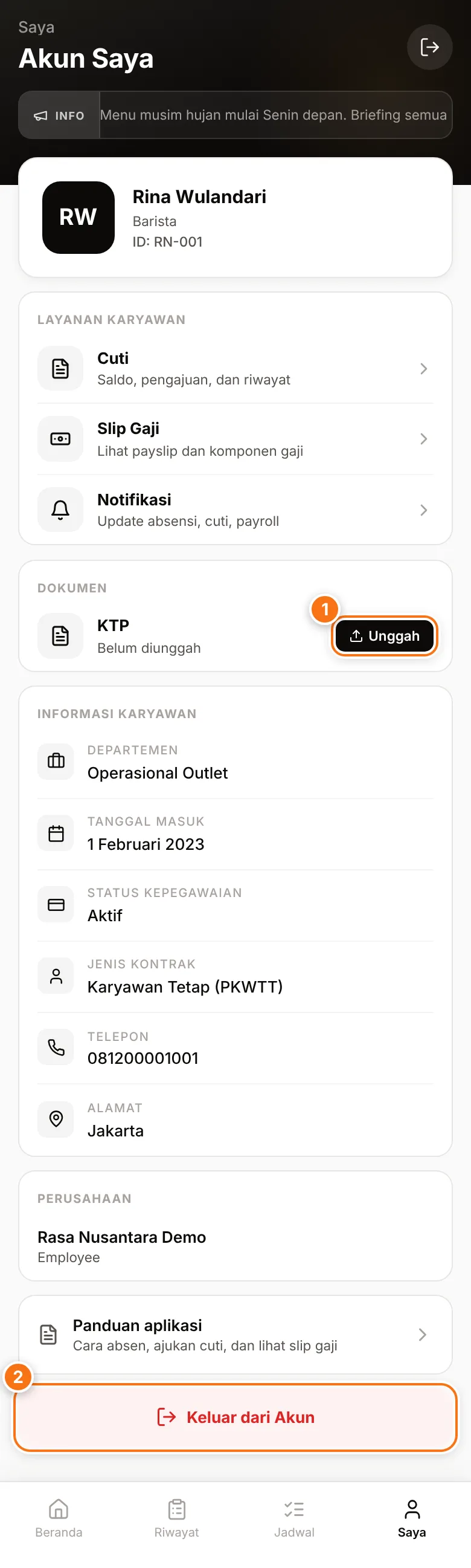
Tap Saya in the bottom menu. You'll see:
- Your name card — name, job title and employee number (ID).
- Layanan karyawan (Employee services) — shortcuts to Cuti (Leave), Slip Gaji (Payslip) and Notifikasi (Notifications).
- Dokumen (Documents) — your KTP photo.
- Informasi Karyawan (Employee information) — Departemen (Department), Tanggal Masuk (Start date), Status Kepegawaian (Employment status), Jenis Kontrak (Contract type), Telepon (Phone) and Alamat (Address).
- Perusahaan (Company) — the company you have open and your role.
- Panduan aplikasi (App guide) — opens these guides whenever you need help.
Something wrong in your details?
Informasi Karyawan is read-only — you can't edit it yourself. If anything is wrong, such as your phone number or address, ask HR to correct it.
Uploading your KTP photo
HR usually needs your KTP to complete your employment records, for example for BPJS and tax. Uploading it yourself in the app is quicker — and safer — than sending a photo over chat.
- Open Saya and find the Dokumen section.
- On the KTP row that says Belum diunggah (Not uploaded yet), tap Unggah (Upload) (1).
- Take a photo of your KTP with your phone camera (on some phones you can also pick an existing photo). Make sure the whole card is clear and free of glare.
- Wait until Mengunggah... (Uploading) finishes. The status changes to Terlampir (Attached).
- Tap the small KTP image to view it. To replace the photo, tap Ganti (Replace).
Accepted files: JPG, PNG or WebP, up to 5 MB. If you see an error, tap Coba lagi (Try again).
Your KTP is kept safe
Your KTP photo is stored in a private storage area that the public can't open, and it can only be viewed by people at your company who have permission, such as HR. See also Security and data privacy.
Notifications and the information center
- Tap the bell icon at the top right of Home (a red number shows unread notifications), or open Saya → Notifikasi.
- The Pusat Informasi (Information center) page groups notifications into Baru (New) and Sudah dibaca (Read) — for example leave decisions, attendance correction decisions and polls from HR.
- Tap a notification to open the related page.
- To mark everything as read, tap the check-mark icon Tandai semua dibaca (Mark all as read) at the top right.
Turning on notifications outside the app
If your company has turned on phone notifications, the Saya page shows a Notifikasi card with Aktifkan Notifikasi (Turn on notifications). With it, you're alerted — for example when there's a new poll — even when the app is closed.
- On Saya, tap Aktifkan Notifikasi.
- When your phone asks for permission, choose Allow.
- The card changes to Notifikasi aktif (Notifications on). To turn them off, tap the card again.
- On iPhone, install the app on your home screen first, then open it from the HRIS Worker icon. See how to install the app.
- If it says Notifikasi diblokir (Notifications blocked), allow notifications for this app in your browser or phone settings.
- No Notifikasi card on the Saya page? The feature isn't active for your company yet, or your browser doesn't support it. You can still read notifications in Pusat Informasi.
Announcements and polls from HR
- Announcements from HR scroll in the Info strip at the top of the app's screens, for the period HR has set.
- Polls appear as a card on Home. Tap your choice, or type your answer and tap Kirim Jawaban (Send answer). You can change your answer while the poll is open.
Signing out
- Open Saya.
- Scroll down and tap the red Keluar dari Akun (Sign out of account) button (2). The sign-out icon at the top right works too.
- You're back on the sign-in screen.
Sign out if you're using a borrowed or shared phone. Don't worry — offline attendance that hasn't been sent yet isn't lost right away: it's sent when you sign in again on the same phone within 2 days.