Payslips and proof of payment
Open, print, and download payslips; record each employee's transfer and proof of payment; control when payslips appear in the employee app; and handle corrections after payday.
Every period produces a payslip per employee that you can print and download, plus a tidy record of each transfer and its proof of payment. When an employee asks "has my salary been transferred?", the answer is in one place.
Before you start
- The period has been calculated — see Running monthly payroll.
- Admin, HR Manager, and Finance users can record payments.
Opening and printing a payslip
- Open Payroll › Periode Gaji (Pay periods) and choose the period.
- In the Slip per karyawan (Payslip per employee) table, click Slip on the employee's row.
- Choose the Rinci (Detailed) view (1) — with a day-by-day breakdown of hours — or Ringkas (Compact).
- Click Cetak / PDF (Print / PDF) (2) to print or save exactly what is on screen, Download PDF (arsip) (archive PDF) for the official PDF generated by the server, or Sheet for a CSV file of this payslip.
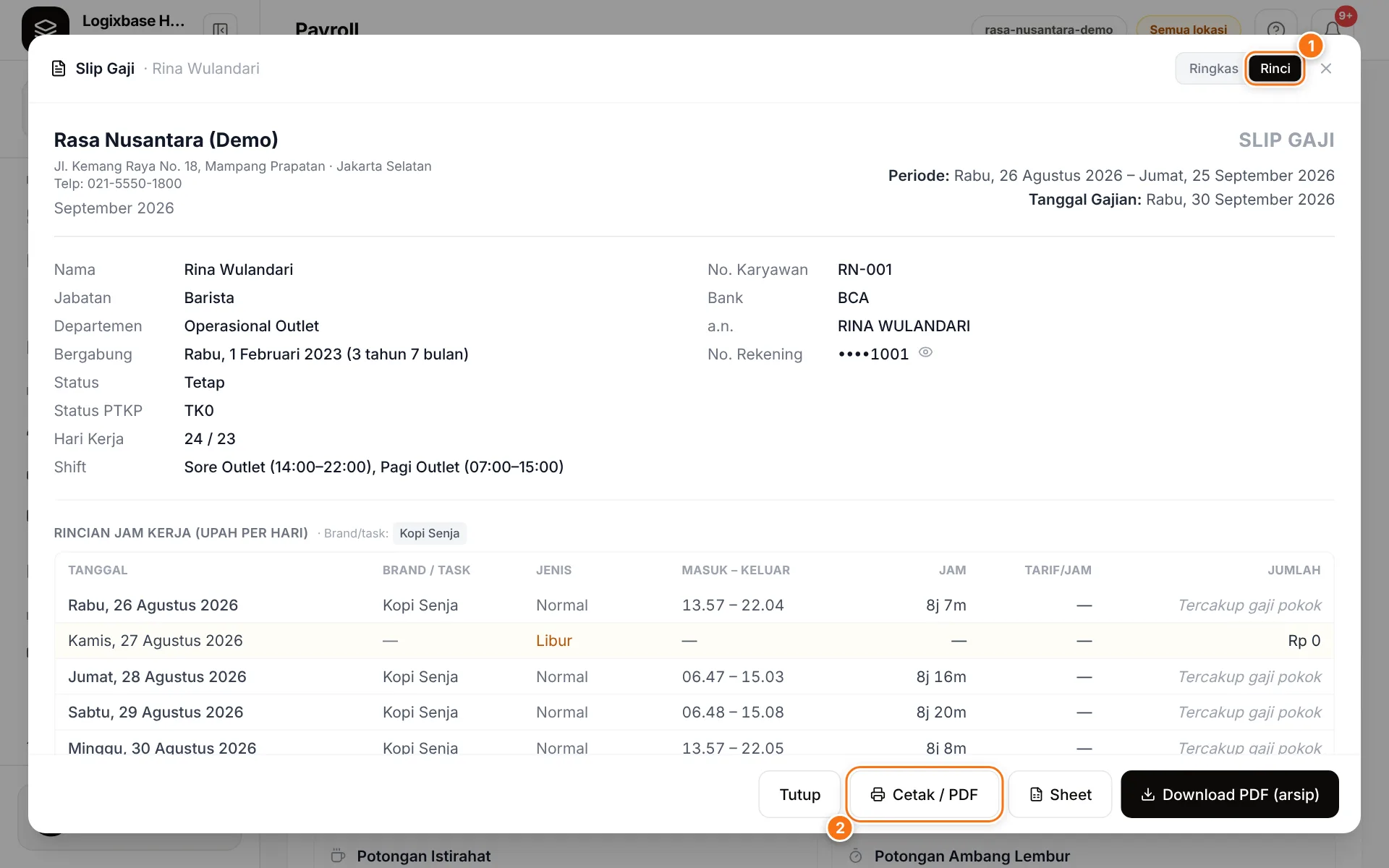
The payslip shows the employee's details, Penghasilan (earnings), Potongan (deductions, including BPJS (karyawan) and PPh 21), Gaji Bersih (net pay), and the amount in words. The NIK and bank account number are masked; click the eye icon to reveal them. The signature and company stamp come from Pengaturan › Perusahaan & Lokasi › Penanda tangan & cap perusahaan (Settings › Company & locations › Signatory & company stamp).
Recording transfers and proof of payment
Salaries are transferred from your bank, outside the system. The payment dialog helps you copy the transfer details without typos and keeps the proof.
- In the Slip per karyawan table, click Bayar (Pay) in the Pembayaran (Payment) column. Once recorded, the button becomes Bukti Bayar (Proof of payment).
- Under Data transfer (klik salin) (transfer details, click to copy), click Salin (Copy) next to Bank, Nama Rekening (account name), No. Rekening (account number), and Total Gaji (Net) (net pay), then paste them into your banking app.
- After transferring, tick Sudah dibayar (Paid) and fill in Referensi / No. transaksi (opsional) (reference / transaction number, optional).
- Under Bukti bayar (Proof of payment), drag and drop or click to upload the transfer receipt (JPG, PNG, WEBP, or PDF, up to 10 MB per file).
- Click Simpan (Dibayar) (Save as paid).
The Pembayaran column now shows Dibayar. This is a per-employee transfer record; the period status only changes when you click Tandai Dibayar (Mark as paid) on the period page. Proofs of payment are stored privately, every change is recorded in the audit trail, and the history also appears in the employee profile › Riwayat Gaji (Pay history) › Pembayaran Manual & Bukti Bayar (Manual payments & proof of payment).
Controlling when employees see their payslip
By default, employees see their payslip in the app with the status Draft as soon as the period is calculated — the figures can still change until the period is Dibayar. You can override this per employee with Ketersediaan slip untuk pekerja (payslip availability for the worker) in the payment dialog:
| Option | Result |
|---|---|
| Ikuti periode (default) (follow the period) | Follows the default rule: the payslip appears once the period is calculated. |
| Selalu tampilkan ke pekerja (always show) | The payslip is always shown. Under the default rule this behaves the same as Ikuti periode; the difference only matters if the "show payslips only when final" feature is enabled. |
| Sembunyikan dari pekerja (hide) | The employee cannot see this period's payslip until you change the setting back. |
Want all payslips to appear only after salaries are paid?
Showing payslips only once they are final is an optional feature — contact us to enable it.
What employees see
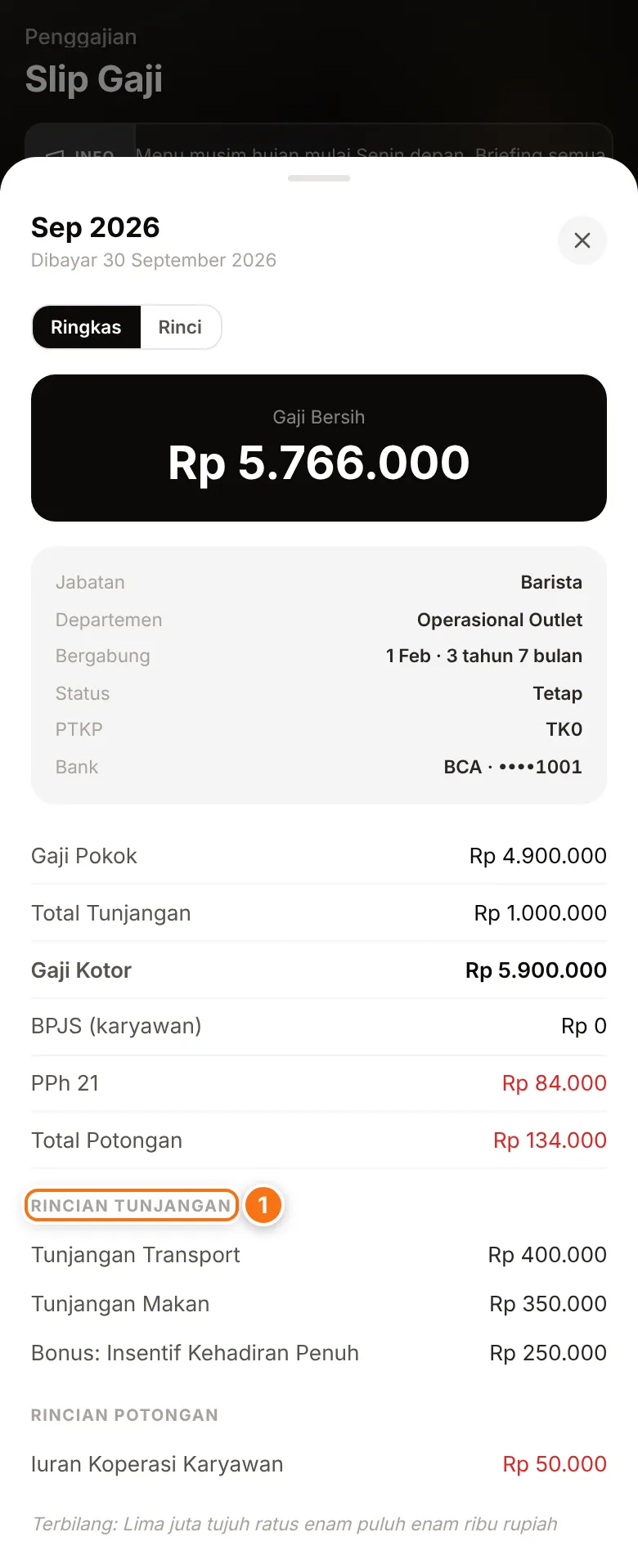
- The Slip Gaji (Payslip) menu lists each period with Gaji bersih (net pay) and the status Draft, Dibayar, or Terkunci (Locked). The payslip is named after the period's Bulan (month) and Tahun (year), for example "Jun 2026" — not the Nama Periode (period name).
- That status follows the period: an employee you have already marked Sudah dibayar still sees Draft until the period is marked Dibayar. The top of the payslip details shows "Dibayar" with the period's Tanggal Gajian (payday) — even on a Draft payslip.
- The details show Rincian Tunjangan (allowance breakdown) (1), Rincian Potongan (deduction breakdown), and — in the Rinci view — Rincian Jam Kerja (hours breakdown) plus year-to-date totals.
- Unduh Slip PDF (Download payslip PDF) appears once the period is marked Dibayar or Terkunci; the PDF is generated automatically a few moments later. After Buka Kunci (Unlock), employees see "Slip PDF sedang diperbarui…" (payslip PDF is being updated) until the period is locked again.
- Addition or deduction lines without Tampilkan di slip (show on payslip) are hidden, but their amounts still count in the totals.
- The app does not send a notification when payslips are published. Let employees know yourself, for example with an Info Banner in Communication.
The employee guide is Viewing your payslip.
Exports
- Period summary — the Sheet (CSV) and PDF buttons in the Slip per karyawan section: one row per employee with working days, base pay, allowances, bonus, deductions, and net pay. The summary does not include bank account numbers — use the payment dialog for transfers.
- Per employee — Sheet and Download PDF (arsip) in the payslip window.
- Across periods — Laporan › Penggajian (Reports › Payroll) with Export CSV; see Reports.
Corrections after payment
A Dibayar or Terkunci period cannot be recalculated — payslips that have been paid stay as they are. Your options:
- Underpaid or overpaid — add a Tambahan & Potongan line with the category Penyesuaian (adjustment) in the next period: a Charge (+) for an underpayment, a Deduction (−) for an overpayment, with a clear label.
- Transfer recorded by mistake — open the payment dialog, untick Sudah dibayar or replace the proof of payment, then save.
- Attendance in a locked period needs editing — an Admin or Finance user clicks Buka Kunci. The status returns to Dibayar; attendance becomes editable, but payslip figures are not recalculated.
- Recalculating a period that is already Dibayar — this is an optional feature; contact us to enable it.
While a period is still Siap Dibayar (Ready to pay), simply fix the data and click Hitung Ulang (Recalculate).
Common problems
- An employee can't see their payslip — the period hasn't been calculated yet, the payslip is set to Sembunyikan dari pekerja, or the period was deleted.
- The Unduh Slip PDF button hasn't appeared — the period isn't Dibayar yet, or the PDF is still being generated; try again shortly.
- The proof of payment won't upload — use JPG, PNG, WEBP, or PDF, under 10 MB.