Staff across brands and outlets
Set up brands or tasks with their hourly rates, assign brands to each employee, let employees switch brand mid-shift, and see hours per brand in the Alokasi Brand report.
Many Indonesian businesses run several brands with the same crew: a barista who serves coffee brand A in the morning and brand B in the afternoon, or a warehouse picker who handles orders for two clients. Logixbase HRIS records every working hour together with its brand. You see how many hours each brand or outlet really used, and everyone has a clear rate for each brand they work for.
Why it matters
- Correct cost per brand. Shared crew hours are no longer charged to a single brand.
- A fair, clear basis for pay. Rates per brand and per employee live in the system, not in a side spreadsheet.
- No manual tallying. Employees pick the brand on their own phone, so you never have to guess from chats.
How it works
- A brand/task is the unit that working time is allocated to: a brand, an outlet, a client, or a type of work. Everything lives in one workspace and one employee list — a brand is not a separate company.
- Each brand has default hourly rates: Rate Normal (normal rate) and Rate Khusus / Lembur (special/overtime rate).
- Each employee has a list of brands/tasks they may choose, with one Default brand.
- In the employee app, the brand is chosen at clock-in. Employees with more than one brand can Ganti Brand (Switch brand) mid-shift: the old brand's session closes and the new brand's session opens in one step, so hours split cleanly per brand.
- The Alokasi Brand (Brand allocation) report shows each employee's total hours per brand.
Before you start
- You are signed in as an Admin.
- Every workspace already has one default brand, created automatically with your company's name. If all your employees work for one brand, you do not need to change anything.
1. Add brands/tasks
- Go to Pengaturan › Komponen Gaji & Brand (Settings › Salary components & brands).
- Scroll to the Brand/task & rate default per jam (Brand/task & default hourly rate) section.
- In the Tambah brand/task baru (Add new brand/task) box (2), pick a color, then fill in Nama brand/task (Brand/task name), Rate Normal, and Rate Khusus / Lembur.
- Click Tambah (Add). The new brand appears in the list right away and can be edited at any time.
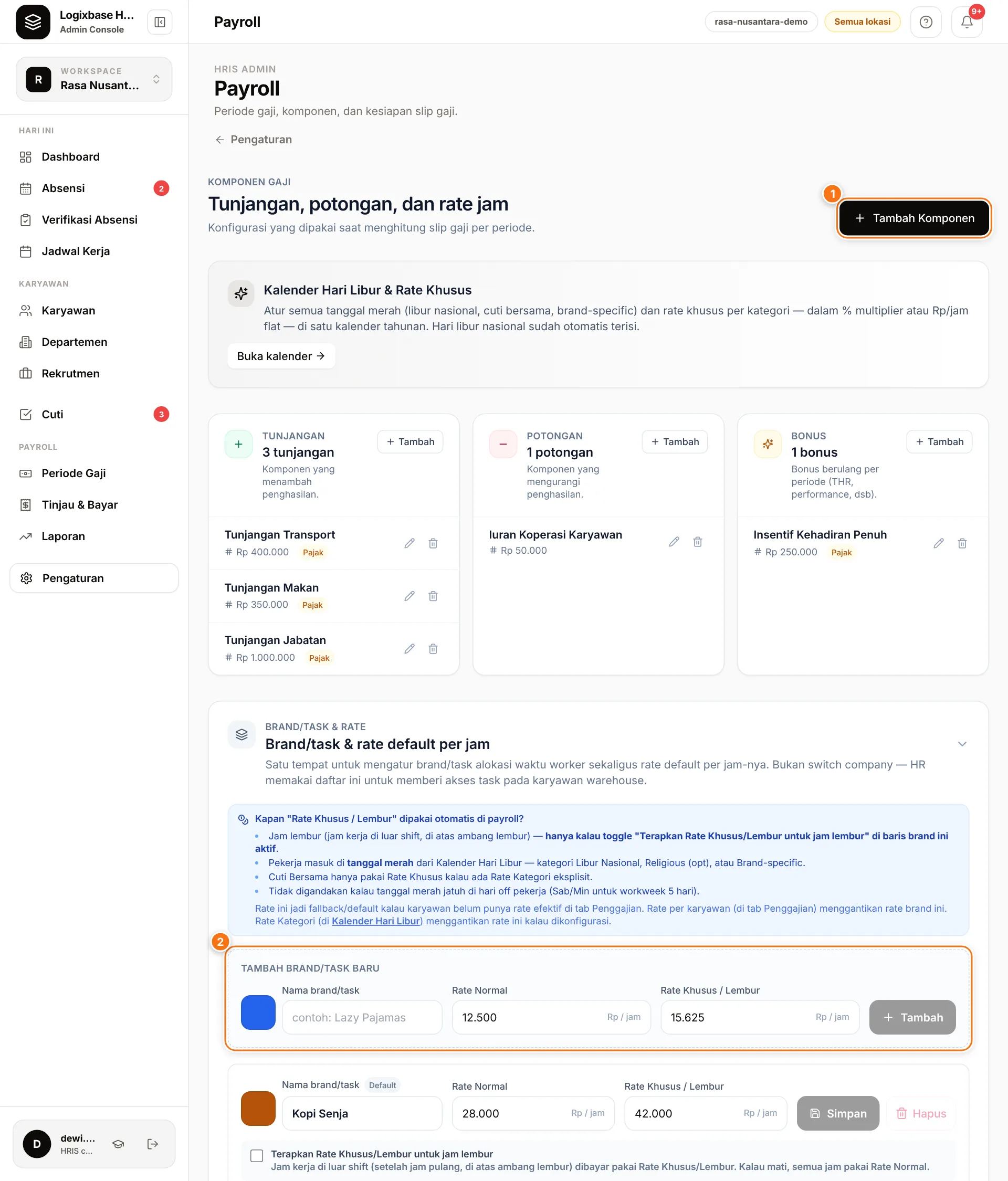
The color helps employees recognise the brand in the app. Rate Khusus / Lembur cannot be lower than Rate Normal, and the maximum rate is Rp 2,000,000 per hour. Pay for work on public holidays is set in the holiday calendar, which can also hold holidays for a single brand (the Brand-specific category).
2. Assign brands to each employee
- When you add an employee, choose the Brand in the form. This field is required, and it is filled in automatically when the workspace has only one brand.
- For an employee who works for several brands, open their profile and go to the Brand / Task section.
- Tick every brand/task they may choose when clocking in, then mark one as Default.
- Click Simpan (Save). Each row also shows that brand's rate, so you see the effect right away.
3. Set a personal rate (optional)
If someone is paid differently from the brand rate — a senior employee, for example — give them a personal rate:
- Open the employee's profile, go to the Penggajian (Payroll) section, and click Kelola Rate & Lembur (Manage rates & overtime).
- Under Rate per karyawan (Rate per employee), click Tambah Rate (Add rate).
- Choose the Brand / Task, fill in Berlaku dari (Effective from), Rate Normal, and Rate Lembur (Overtime rate), then click Simpan (Save).
A personal rate replaces the brand's default rate for that person. When there are several, the system uses the newest rate whose Berlaku dari date is not after the work date. That means you can enter next month's raise today.
What employees see
- When clocking in, the first step, Brand aktif (Active brand), lists the brands they are allowed to use; their default brand is labelled Brand utama (Main brand).
- While they are working, the clock-in screen shows a Brand Aktif card with a Ganti Brand button — only for employees with more than one brand. They choose the new brand, capture location and a selfie as usual, and see Ganti Brand berhasil (Brand switched).
The full guide for employees is in how to clock in.
See working hours per brand
Open Laporan (Reports), the Alokasi Brand tab, and choose a date range with Dari (From) and Sampai (To). The table shows No. Karyawan (Employee no.), Nama (Name), Brand/Task, Segmen (Segments), and Total Jam (Total hours) for every employee-and-brand pair. Use the search box to filter by name, number, or brand. See also reports.
Cross-brand payroll
Cross-brand payroll is an optional feature
By default, a pay period includes the employees and working hours recorded under the workspace's default brand — the brand created automatically with your company's name. If your employees work for more than one brand and you want all their hours paid in a single period, each at its own brand's rate, contact us to turn on cross-brand payroll and reporting before you run payroll.
Common problems
- An employee does not see the Ganti Brand button. It only appears while they are clocked in and have more than one brand under Brand / Task. Add the brand in their profile and click Simpan.
- A new brand does not show up in the employee app. The brand must be ticked under that employee's Brand / Task.
- Hours at another brand are missing from payroll. See the cross-brand payroll note above.
Next steps
Do your brands, outlets, or clients have their own pay rules? Tell us how your business is structured — we will help you map out the brands, rates, and pay periods.