Running monthly payroll
The monthly payroll cycle step by step — create or open a period, calculate, verify attendance, recalculate if needed, mark as paid, then lock the period.
Salaries are calculated directly from recorded attendance — hours worked, overtime, leave, and holidays — so there is no manual recap. Every period goes through four steps: Hitung → Verifikasi Absensi → Bayar → Kunci (Calculate → Verify attendance → Pay → Lock), and each one is recorded in the audit trail. You still transfer the money yourself from your bank; the system records that salaries have been paid.
Before you start
- The pay cycle and employee salary data are ready — see Setting up payroll.
- Clean up attendance in the period's date range: Absen Bermasalah (flagged punches), Koreksi Absensi (correction requests), and employees who never clocked out. Wrong attendance means wrong pay — see Attendance corrections.
- You need the Admin, HR Manager, or Finance role. Only Admin and Finance can lock a period.
Period statuses
| Status | Meaning |
|---|---|
| Draft | Created, not yet calculated. |
| Diproses (Processing) | The calculation is running. |
| Siap Dibayar (Ready to pay) | Calculated; figures can still change with Hitung Ulang (Recalculate). |
| Dibayar (Paid) | Marked as paid; it can no longer be recalculated. |
| Terkunci (Locked) | Final; attendance in the period's date range is frozen. |
On Periode Gaji (Pay periods), switch between the Daftar (list) and Backlog (board with Backlog, Sedang Berjalan, and Selesai lanes) views.
Step 1: create or open the period
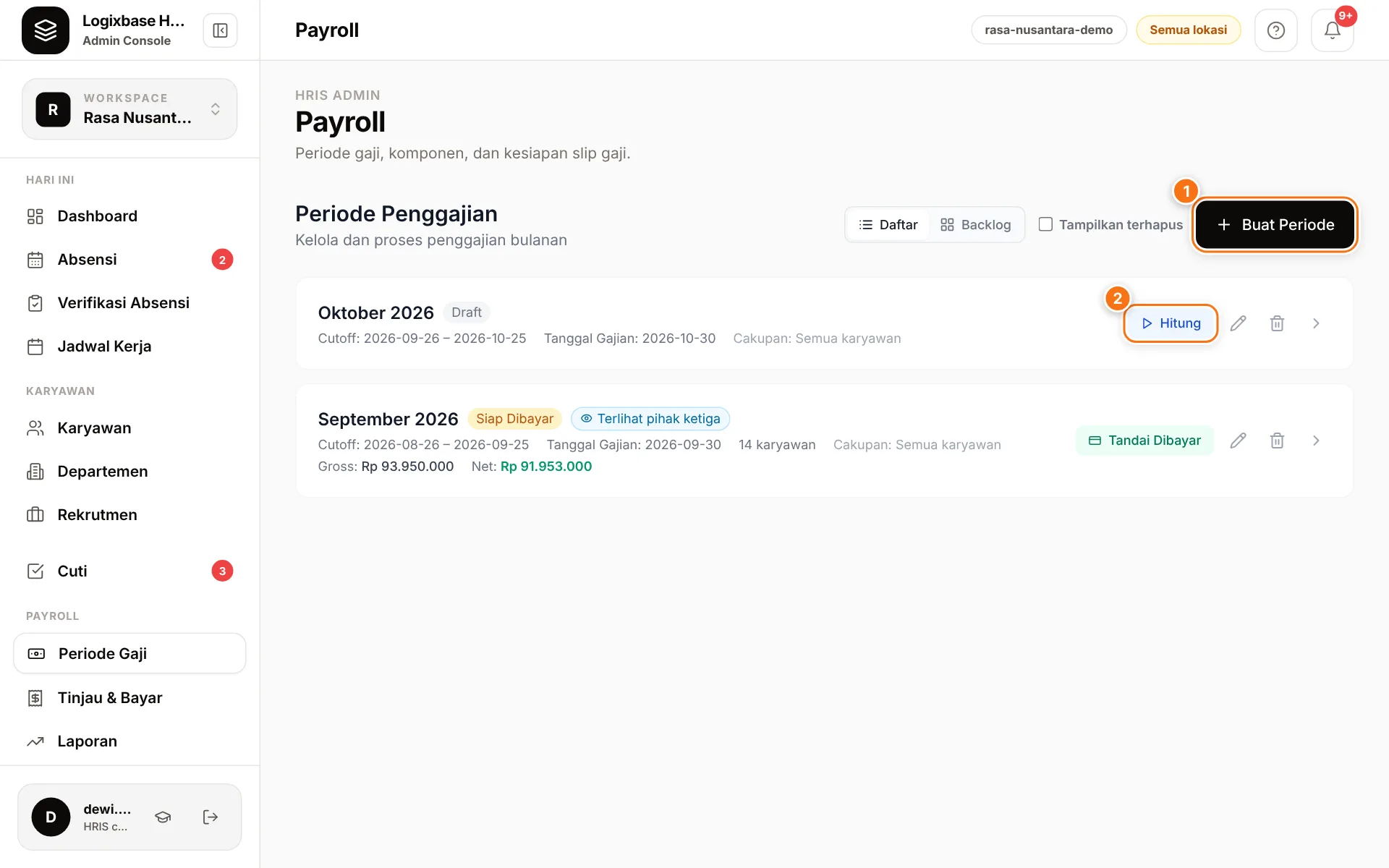
- Open Payroll › Periode Gaji.
- If this month's period was already created with Generate periode (Generate periods), click Hitung (Calculate) (2) on its row, then open the period.
- If not, click Buat Periode (Create period) (1). Fill in Nama Periode (period name), Cutoff Mulai (cutoff start), Cutoff Selesai (cutoff end), and Tanggal Gajian (payday), and make sure Bulan (month) and Tahun (year) are right — the employee app names the payslip after them. Cakupan Default (default scope: departments or employees) and Catatan (notes) can be left empty; empty means all employees. One period covers every brand in the company — you don't need a period per brand.
- Click Buat (Create). The system runs the calculation straight away and opens the period page.
Don't create two periods for the same month
If you use Generate periode, open the existing period — don't click Buat Periode for the same month. Two periods with the same date range mean the same salaries are calculated twice.
Step 2: review, pay, and lock
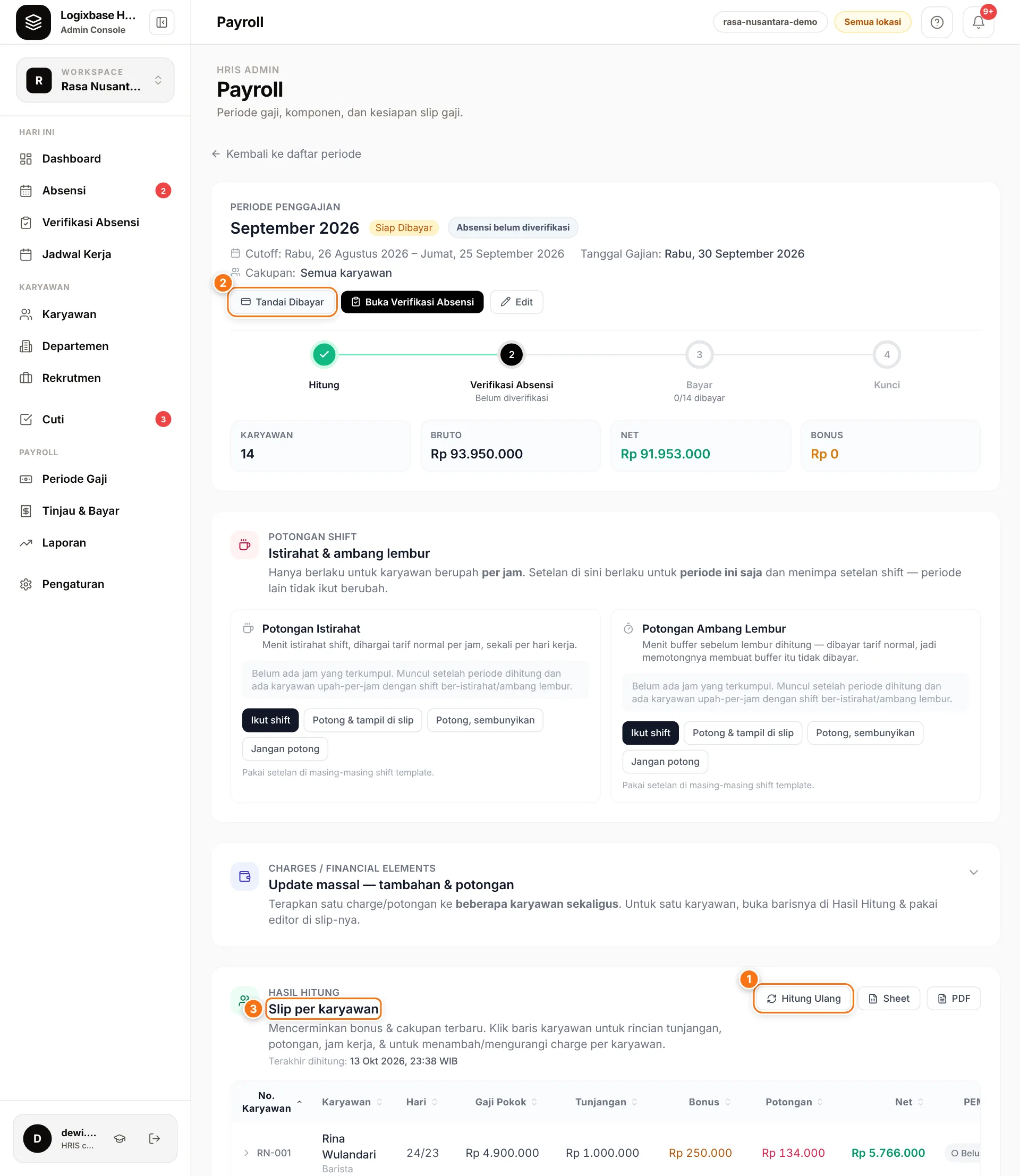
- Review the Slip per karyawan (Payslip per employee) table (3): working days, Gaji Pokok (base pay), Tunjangan (allowances), Bonus, Potongan (deductions), and Net. Click a row for the breakdown, or Slip to view the payslip.
- Click Buka Verifikasi Absensi (Open attendance verification) to check each employee's hours, then Tandai terverifikasi (Mark as verified). This step is recommended, not required, and only available to Admin and HR Manager.
- After fixing attendance or salary data, click Hitung (1) — after the first calculation the button is called Hitung Ulang.
- Transfer the salaries from your bank. Record each transfer and its proof of payment if you like — see Payslips and proof of payment.
- Click Tandai Dibayar (Mark as paid) (2), check the number of employees and the Total Net, then confirm.
- Click Kunci Periode (Lock period; on the period list: Kunci), type the period name exactly as shown, then click Kunci.
Once locked, the status becomes Terkunci and attendance in the period's date range can no longer be edited.
Absensi berubah setelah periode dihitung
This banner ("attendance changed after the period was calculated") means attendance was edited since the last calculation. Click Hitung Ulang — the system won't allow Tandai Dibayar until the figures are refreshed.
Things to know when calculating
- One period, every brand. Employees from every brand are calculated, and hours worked at each brand are paid at that brand's rate. Someone who works at several brands gets a wage line per brand on their payslip, for example Upah Lembur · Outlet Kemang. The period report's Sheet and PDF downloads include a Rekap per Brand (per-brand summary): hours and wages at each brand, plus the base salary and allowances of the employees whose home brand it is.
- A warning before anyone is paid twice. If an employee about to be calculated already has a payslip in another period over the same dates — an old single-brand period, another company-wide period, or the other way round — Hitung stops and names that period and how many employees were already paid there. A payslip that was paid still counts even after its period is deleted. Usually this is a mistake: delete the unpaid period, change this period's dates, or take those employees out of its scope. If it is deliberate — a separate bonus period, say — answer OK to Tetap hitung? (Calculate anyway?); that choice is recorded in the audit log. Periods that share no employees, drafts not yet calculated, and THR periods never trigger the warning.
- One calculation at a time. While one period is being calculated, Hitung on another period of the same company waits: a "sedang dihitung" (being calculated) message appears — wait until it finishes, then calculate again.
- Leavers still get their final payslip. Employees who were terminated (PHK) or resigned are calculated in the period their effective date falls in: base salary is paid up to that date, hourly pay follows their attendance, and the payslip no longer disappears on Hitung Ulang. An employee transferred to another company gets no final payslip at the old company — the new company already pays that whole month.
- Siap Dibayar periods recalculate automatically every time you open them, so the figures follow the latest attendance.
- Read the warning banners. "N karyawan tanpa gaji pokok" (N employees without a base salary) means their base salary is still Rp 0. "N karyawan punya hari hadir yang belum terhitung" (N employees have attendance days not yet counted) usually means the brand/task on those days differs or the employee never clocked out. Fix it, then click Hitung Ulang.
- Unpaid leave does not reduce pay automatically. Check the Cuti tdk dibayar (unpaid leave) column in Verifikasi Absensi, then add a deduction through Tambahan & Potongan if needed.
- Scope. If you pick both departments and employees, employees outside the chosen departments are not calculated — the system shows a warning.
Unlocking a period
Admin and Finance users can click Buka Kunci (Unlock) on the period list and type the period name to confirm. The status returns to Dibayar and attendance becomes editable again, but a Dibayar period still cannot be recalculated. To correct pay that has already gone out, see Corrections after payment.
Tinjau & Bayar
The Payroll › Tinjau & Bayar (Review & pay) page shows each employee's pay per period (gross, deductions, net) and their attendance on one screen — handy for a final check before paying. Its Tandai Dibayar button applies to every employee in that period, not just the employee you are viewing.
Common problems
- The Hitung Ulang button is disabled — the period is already Dibayar or Terkunci.
- You created a period by mistake — an Admin can delete it with the trash icon. Draft periods are deleted permanently. Other periods are only marked as deleted (for Dibayar and Terkunci, type HAPUS to confirm), their payslips disappear from the employee app, and they can be restored via Tampilkan terhapus (show deleted) › Pulihkan (Restore).
- An employee is missing from the table — check that they are active and check the period's Cakupan (scope) with the Edit button on the period page.
Next steps
Want to see a full payroll cycle run on your own company's data? Book a demo — we'll walk you from attendance to payslip.