Pay components: allowances, deductions, bonuses
Build your catalog of allowances, deductions, and bonuses, set hourly rates per brand/task, then add one-off additions or deductions, reimbursements, and THR in each pay period.
Pay components keep every payslip consistent: recurring allowances, deductions, and bonuses are calculated automatically each period, while this month's exceptions are added once. The result is less manual arithmetic and fewer questions from employees.
Choose the right tool
| Need | Use | Example |
|---|---|---|
| Every period | A pay component (Tunjangan, Potongan, Bonus) | Meal allowance, cooperative dues |
| This period only | Tambahan & Potongan on the period page | Target bonus, salary advance, correction |
| Expense refund | Reimbursement | Parking, fuel |
| Hourly pay | Brand/task rate | Employees on the Per Jam (hourly) pay type |
Before you start
- Komponen Gaji & Brand (Pay components & brands) can only be opened by Admin and Finance users. Tambahan & Potongan (Additions & deductions) and reimbursements can be entered by Admin, HR Manager, and Finance.
- Employee salary data is complete — see Setting up payroll.
Creating a pay component
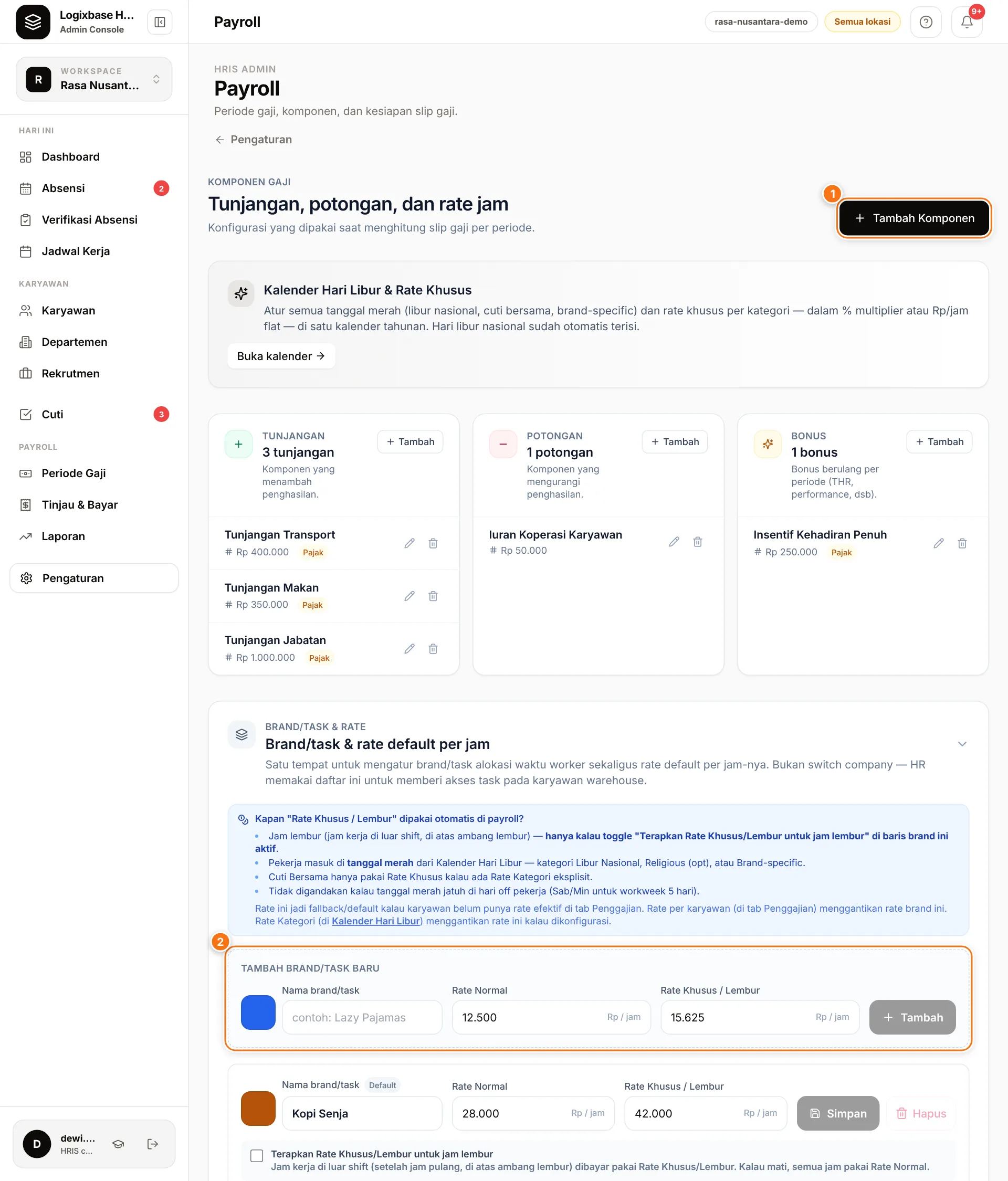
- Open Pengaturan › Komponen Gaji & Brand (Settings › Pay components & brands).
- Click Tambah Komponen (Add component) (1), or Tambah (Add) in the Tunjangan, Potongan, or Bonus column.
- Enter a Nama (Name), then choose the Tipe (Type): Tunjangan (allowance), Potongan (deduction), or Bonus.
- Choose the Kalkulasi (Calculation): Nominal Tetap (fixed amount — fill in Nominal Default (Rp)) or % Gaji Pokok (percentage of base salary — fill in Persentase Default (%)).
- Kena Pajak (Taxable) is ticked by default: keep it if this allowance or bonus adds to the PPh 21 base, untick it if not. Urutan Tampil (Display order) sets its position on the payslip.
- Click Simpan (Save).
- Nominal Tetap is paid in full every period — it is not reduced for absences.
- % Gaji Pokok is calculated from the base salary in the employee record.
- Kena Pajak applies to allowances and bonuses. Deductions are always taken after tax. BPJS contributions are still calculated from the base salary, not from components.
Other calculation options
The Kalkulasi list also shows Komisi per Sesi, Lembur (Gaji Pokok ÷ Hari Kerja ÷ 8), and Potongan Istirahat sesuai jadwal (Gaji Pokok ÷ Hari Kerja ÷ 8). These are optional features that are not active by default; components using them are skipped when payroll is calculated. Contact us to enable them.
Rekap Lembur: overtime pay in rupiah
If your company uses overtime approval and the Lembur (Gaji Pokok ÷ Hari Kerja ÷ 8) component, a Payroll › Rekap Lembur (overtime recap) menu appears for roles that can view payroll. The page prices approved overtime in rupiah per employee for one pay period — the same figure as the Lembur line on the payslip for that period. Use it when salaries are paid outside Logixbase, or to check before you calculate payroll.
- Open Payroll › Rekap Lembur.
- Pick the Periode gaji (pay period). Periods follow the payroll cutoff day in Settings (for example the 25th: 26 September – 25 October for October); change Tanggal potong (cutoff day) if yours differs, or pick Akhir bulan (end of month) for a calendar month.
- Check the Catatan (notes) column. An employee without a base salary (Gaji Pokok) cannot be priced yet — click isi di profil (fill in the profile) on their row to complete it.
- Click Unduh Excel (download Excel) for the per-employee recap with totals.
- Only approved overtime counts. Requests still waiting for a decision are counted above the table but are not in the total.
- Hourly rate = base salary ÷ the period's workdays ÷ 8. Workdays come from the employee's schedule; days of the period with no schedule yet (a schedule that starts mid-period, or a new joiner) count from their weekly work pattern (usually Monday–Friday), as payroll does. That is why the recap is always one full pay period.
- A fixed hourly rate set for an employee, if any, replaces the rate derived from the base salary.
- Employees who worked overtime but do not have the Lembur component are still listed, at Rp 0, so you can see them. So are employees on Jeda (paused): payroll does not pay them for that period.
- A Lembur component linked to one employee more than once is flagged, because payroll pays it that many times too — ask our team to tidy it up.
- Every Excel download is recorded in the audit log.
Linking components to employees
Important
A component in the catalog only reaches the payslips of employees it is linked to. The Komponen Gaji column in the Karyawan (Employees) list shows "N komponen" (N components) or "Belum ada tunjangan/potongan" (no allowances/deductions yet). Linking a component to an individual employee is not yet available as a button in the admin app: fill in the 14_Komponen_Karyawan sheet of the Unduh Template Onboarding (Download onboarding template) workbook on the Import Karyawan page and send it to our team to process — or contact us. For the current month, use Tambahan & Potongan.
Hourly rates per brand/task
Per Jam (hourly) employees are paid hours worked × the brand/task rate. These rates are also the basis for overtime pay and public-holiday pay for every pay type.
- In Komponen Gaji & Brand, open the Brand/task & rate default per jam (Brand/task & default hourly rate) section.
- Under Tambah brand/task baru (Add a new brand/task) (2), enter the Nama brand/task (brand/task name), Rate Normal (normal rate), and Rate Khusus / Lembur (special/overtime rate) in Rp per hour, then click Tambah.
- For an existing brand/task, change the figures on its row and click Simpan.
- Rate Normal — the hourly wage for Per Jam employees.
- Rate Khusus / Lembur — for overtime hours, which are calculated from the shift and its Ambang Lembur (overtime threshold) — see Shifts and schedules.
- Work on public holidays is paid according to the category rates in the holiday calendar — a percentage of the Rate Normal or a fixed Rp per hour. The Rate Khusus / Lembur is the fallback when no category rate matches.
- For Bulanan (monthly) and Harian (daily) employees, overtime and public-holiday work is paid on top of the base salary as Upah Lembur (overtime pay) or Upah Hari Libur (holiday pay).
- Mode Upah/Jam (Hourly pay mode) in each employee's Penggajian section decides whether hours outside the schedule count as overtime: Rate khusus aktif (jam di luar jadwal = lembur) (the default) or Rate reguler (semua jam = normal) (all hours at the normal rate).
- A per-employee rate replaces the brand rate: open the employee profile › Penggajian › Kelola Rate & Lembur (Manage rates & overtime).
- The special rate cannot be lower than the normal rate, and the maximum is Rp 2,000,000 per hour. The main brand cannot be deleted.
Note
The Terapkan Rate Khusus/Lembur untuk jam lembur (apply the special/overtime rate to overtime hours) checkbox on each brand row is an optional feature that is not active by default. Until it is enabled, each employee's Mode Upah/Jam decides.
Per-period additions and deductions
For this month's exceptions — a target bonus, a salary advance, a correction — add a line directly to the period, without creating a component.
- Open Payroll › Periode Gaji (Pay periods) and choose the period.
- For one employee: click their row in the Slip per karyawan (Payslip per employee) table, then click Tambahan & Potongan (if lines already exist, click Tambah Baru (Add new) first). For many employees: open the Update massal — tambahan & potongan (Bulk update) section and pick the employees (or Pilih semua, select all).
- Fill in the Label, the optional Tanggal (date), and the Kategori (category): Fee, Tunjangan, Bonus, Kasbon, Penyesuaian, or Lainnya.
- Choose the Arah (direction) — Charge (+) — menambah (adds) or Deduction (−) — mengurangi (subtracts) — and the Tipe: Fixed (Rp) (fill in Nominal (Rp)) or Percentage (%) (fill in Persen (%) and Basis). Change the Qty if needed.
- Tick Kena Pajak if the charge is subject to PPh 21 — it is unticked by default. Tampilkan di slip (show on payslip) is already ticked; untick it only if the employee shouldn't see this line. Click Tambah (or Tambah ke N karyawan, add to N employees).
- A Siap Dibayar (Ready to pay) period is recalculated immediately; a Draft period picks the line up when you click Hitung (Calculate). Rupiah amounts for percentage lines appear after Hitung Ulang (Recalculate).
- Basis: Gaji Kotor (Bruto) (base pay + allowances, before additions), Gaji Pokok (this period's base pay), or Gaji Dasar (kontrak) (the base salary in the employee record).
- Deductions are taken after tax. Lines without Tampilkan di slip are hidden from the employee but still count in the totals.
- In a Dibayar (Paid) or Terkunci (Locked) period, additions and deductions can no longer be changed.
Bonuses and THR
- Recurring bonus — create a component of type Bonus.
- One-off bonus — add a Charge (+) with category Bonus in Tambahan & Potongan.
- THR (religious holiday allowance) — create a THR period under Payroll › Periode Penggajian (period type THR Keagamaan). The system works out who is entitled, calculates a full or pro-rated THR, and withholds its PPh 21. See THR.
Reimbursements
- Open Laporan (Reports), tab Finance Payment.
- In the Tambah reimbursement (Add reimbursement) card, choose the employee (Pilih worker) and Pilih brand/task, then fill in the expense date, Kategori, Amount, and Notes.
- Click Simpan Reimbursement (Save reimbursement).
The reimbursement is picked up by the period whose cutoff range includes the expense date when that period is calculated (or recalculated), and appears on the payslip as a non-taxable Reimbursement line.
Common problems
- A component doesn't appear on the payslip — it isn't linked to that employee yet, or the period was calculated before the component existed. Once linked, click Hitung Ulang.
- A component can't be deleted — the message "Komponen gaji masih digunakan oleh karyawan" means employees are still linked to it.
- You can't add an addition or deduction — the period is already Dibayar or Terkunci. Record it in the next period with the category Penyesuaian (adjustment).