Monitoring daily attendance
See who is in, late or missing in real time, check the selfie and GPS location of every punch, and verify attendance before payroll.
The Dashboard and the Absensi (Attendance) page give you an always-current view of attendance, without waiting for a month-end recap. Problems get handled the same day, and Verifikasi Absensi (Attendance verification) makes sure hours are right before pay is calculated.
Before you start
- Admin and HR Manager see every employee. Manager sees only employees in their own department. Finance has no access to the Attendance page.
Dashboard: today at a glance
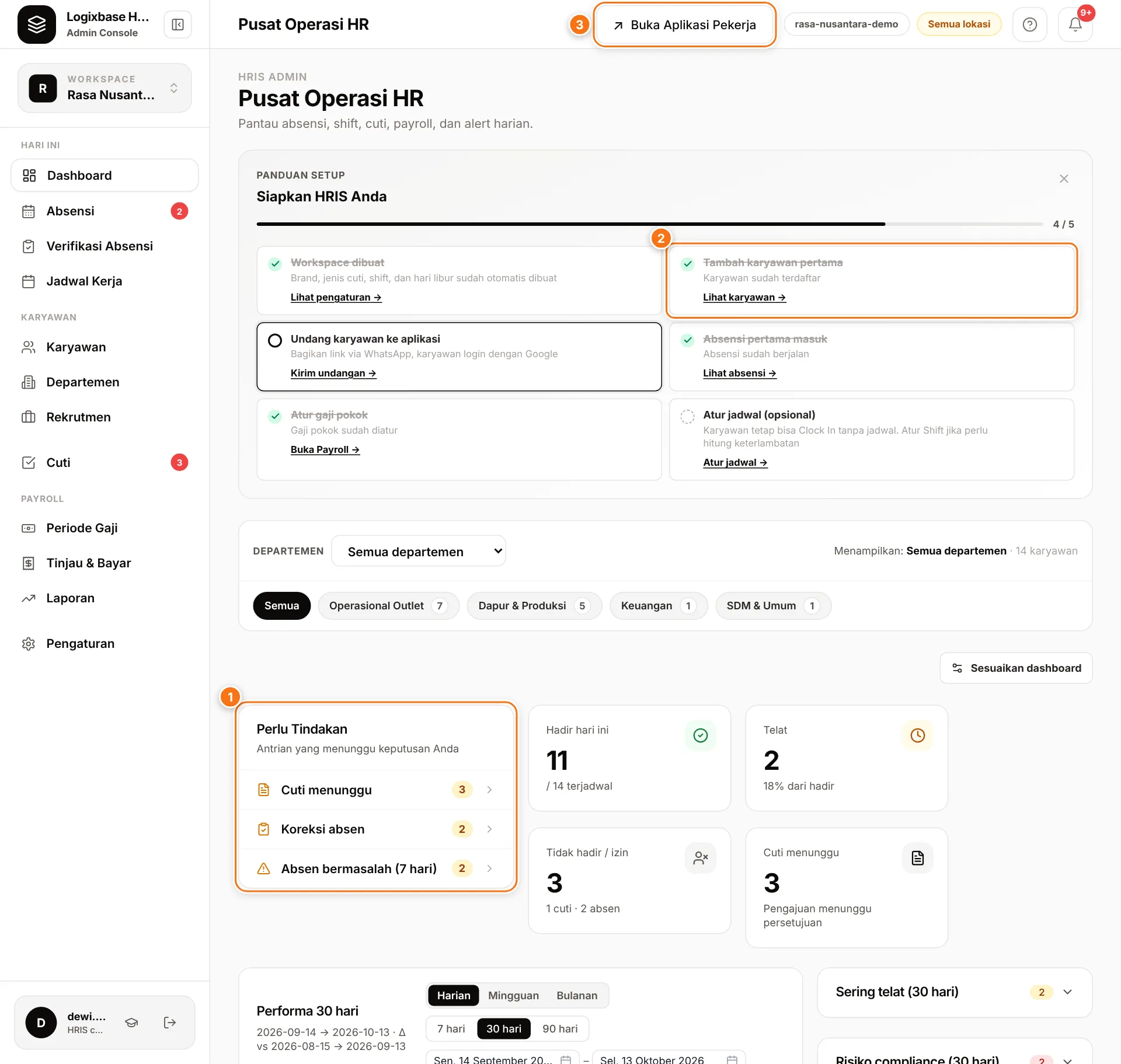
- Perlu Tindakan (1) (Needs action): the queues waiting for you — pending leave, attendance corrections, and flagged punches from the last 7 days (plus pending overtime if overtime approval is enabled). Click a row to jump to that queue.
- Hadir hari ini (Present today): how many have clocked in out of everyone scheduled.
- Telat (Late): how many clocked in after their start time, and their share of those present.
- Tidak hadir / izin (Absent / on leave): scheduled employees who haven't clocked in, plus those on leave.
- Absensi langsung (Live attendance): today's clock-ins and clock-outs per employee.
Click Sesuaikan dashboard (Customize dashboard) to choose, reorder and resize widgets, or pick a department to filter the numbers.
The Attendance page
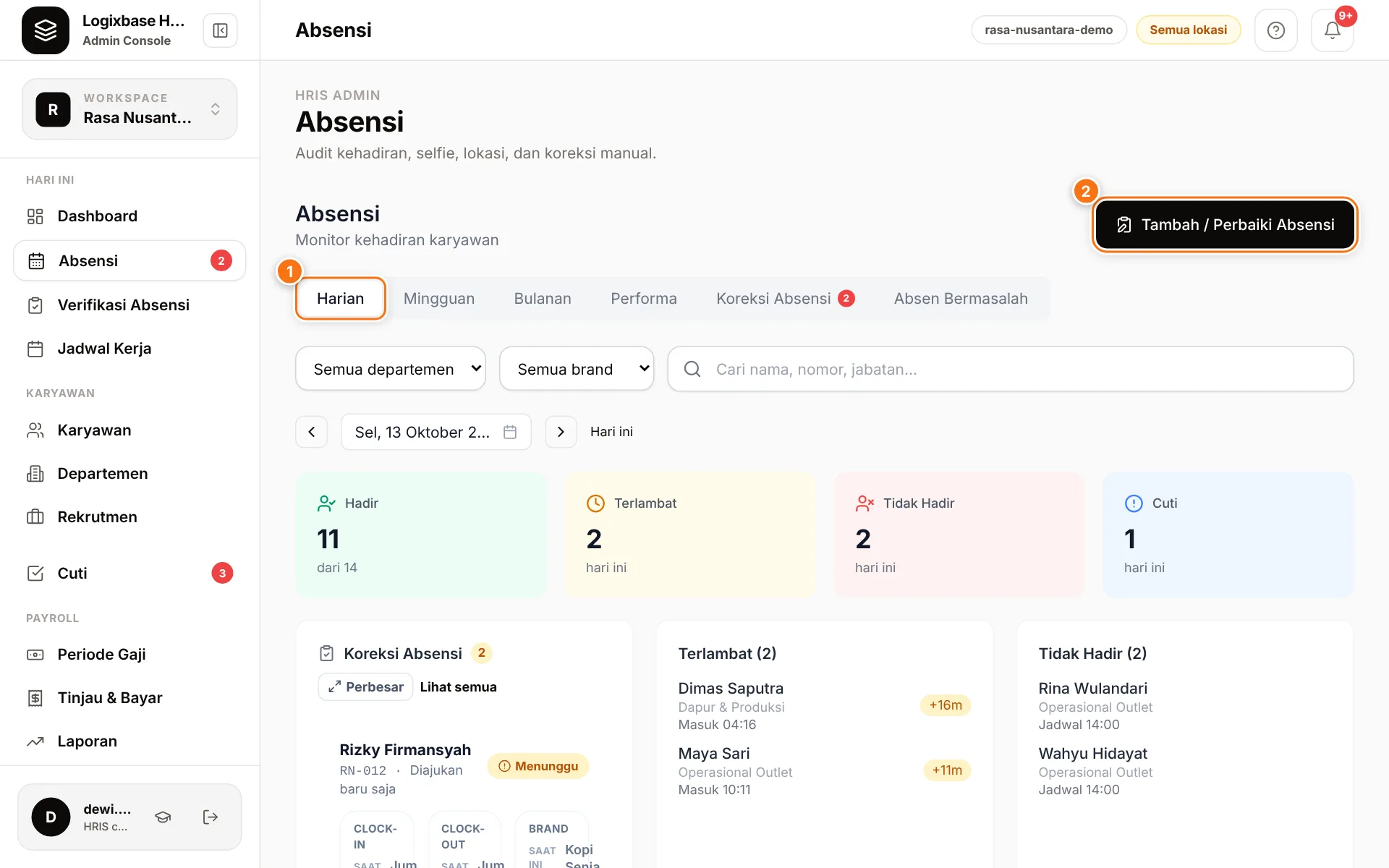
- Open Absensi in the sidebar. The Harian (1) (Daily) tab opens on today.
- Move between dates with the arrows or pick a date; click Hari ini (Today) to come back.
- Narrow the view with the department filter, the brand filter (when you have more than one), the search box, or the status filter on the table.
- Click an employee's row to see the details of each session.
The Harian tab shows Hadir (Present), Terlambat (Late), Tidak Hadir (Absent) and Cuti (Leave) cards, lists of who is late (with their clock-in time) and who is absent (with their scheduled time), then the Live Attendance table, which refreshes automatically every minute. The Tambah / Perbaiki Absensi (2) (Add / fix attendance) button is covered in Corrections and flagged attendance.
The other tabs:
- Mingguan (Weekly): a seven-day grid per employee.
- Bulanan (Monthly): a full-month Kalender (Calendar), or a Ringkasan Periode (Period summary) per payroll period.
- Performa (Performance): on-time rate, attendance, average lateness and geofence compliance, by day, week or month.
What each status means
| Status | Meaning |
|---|---|
| Sedang bekerja (Working) | Clocked in, not yet clocked out |
| Selesai (Done) | Clocked in and out |
| Belum hadir (Not in yet) | No clock-in yet today |
| Tidak hadir (Absent) | No clock-in on a past date (on the weekly grid: Absen) |
| Cuti (Leave) | On approved leave |
| Telat (Late) | First clock-in more than 5 minutes after the shift start (on the weekly grid: Terlambat) |
| Libur / Off | Holiday or the employee's day off per the schedule |
Statuses come from clock-ins that actually happened, not from manual entry. Late employees still count as Hadir (present). During the day, the Tidak Hadir card also includes scheduled employees who haven't arrived yet. A session someone forgot to clock out of stays Sedang bekerja until it is closed. An Override label means HR replaced the status label by hand.
View the selfie and GPS location
In an opened row, every clock-in and clock-out shows:
- the selfie photo (click to enlarge);
- the location status: Dalam radius (inside radius), Luar radius (outside radius) with the distance, or Tanpa lokasi (no location);
- a Lihat di peta (View on map) link that opens the GPS point in Google Maps;
- a Wajah tidak terdeteksi (no face detected) tag when the face check found no face;
- a Manual tag for sessions entered by HR.
Verify attendance before payroll
Verifikasi Absensi is the bridge between attendance and payroll. It shows working hours only, never pay.
- Open Verifikasi Absensi in the sidebar and choose a Periode (period). Periods are created first under Periode Gaji (Payroll periods).
- Check the Perlu diperiksa (needs review), Belum clock-out (not clocked out) and Luar lokasi (outside location) counts.
- In Rekap per karyawan (summary per employee), click a row to see attendance per day: times, photos, locations and notes.
- Fix anything wrong on the Absensi page.
- Add a note if useful, then click Tandai terverifikasi (Mark as verified).
Verification is a sign-off, not a requirement: a period can still be paid without it. If attendance changes after you verify, Absensi berubah setelah diverifikasi (attendance changed after verification) appears; review again and click Verifikasi ulang (Verify again). Once the payroll period is locked, verification can no longer change. This page is for Admin and HR Manager; Finance is deliberately left out, so the person checking hours isn't the one processing pay.
Sessions with no clock-out
A session that hasn't been clocked out isn't counted as working time yet. Close those sessions before you calculate pay; the Belum clock-out count helps you find them.