Sign in and install the app on your phone
How to sign in to the employee app with your invite link and Google account, fix a mismatched account, choose a company, and add the app to your phone's home screen.
The Logixbase HRIS employee app opens in your phone's browser at worker.logixbase.com. You sign in once with your Google account, then add it to your home screen so it opens with one tap — which makes clocking in faster every day.
Before you start
- HR has entered your details and sent you an invite link (usually on WhatsApp).
- You have a Google account whose email is exactly the one HR registered.
- On Android, open the link in Chrome. On iPhone, open it in Safari.
First sign-in with your invite link
- Tap the invite link from HR. It starts with worker.logixbase.com/join/ and is valid for 7 days.
- The Anda diundang (You're invited) page shows the Perusahaan (Company), Peran (Role), Untuk akun (For account — your email, partly hidden) and Berlaku hingga (Valid until).
- Tap Masuk dengan Google untuk menerima (Sign in with Google to accept).
- On Google's screen, choose the account whose email matches Untuk akun.
- You join automatically and land on Beranda (Home).
This link is only for you
The invite is tied to your email, so a colleague can't use it to sign in. Every employee gets their own link from HR.
If HR's message only contains the address worker.logixbase.com (because your account is already linked), open that address and sign in with the Google account for the email named in the message.
Signing in again later
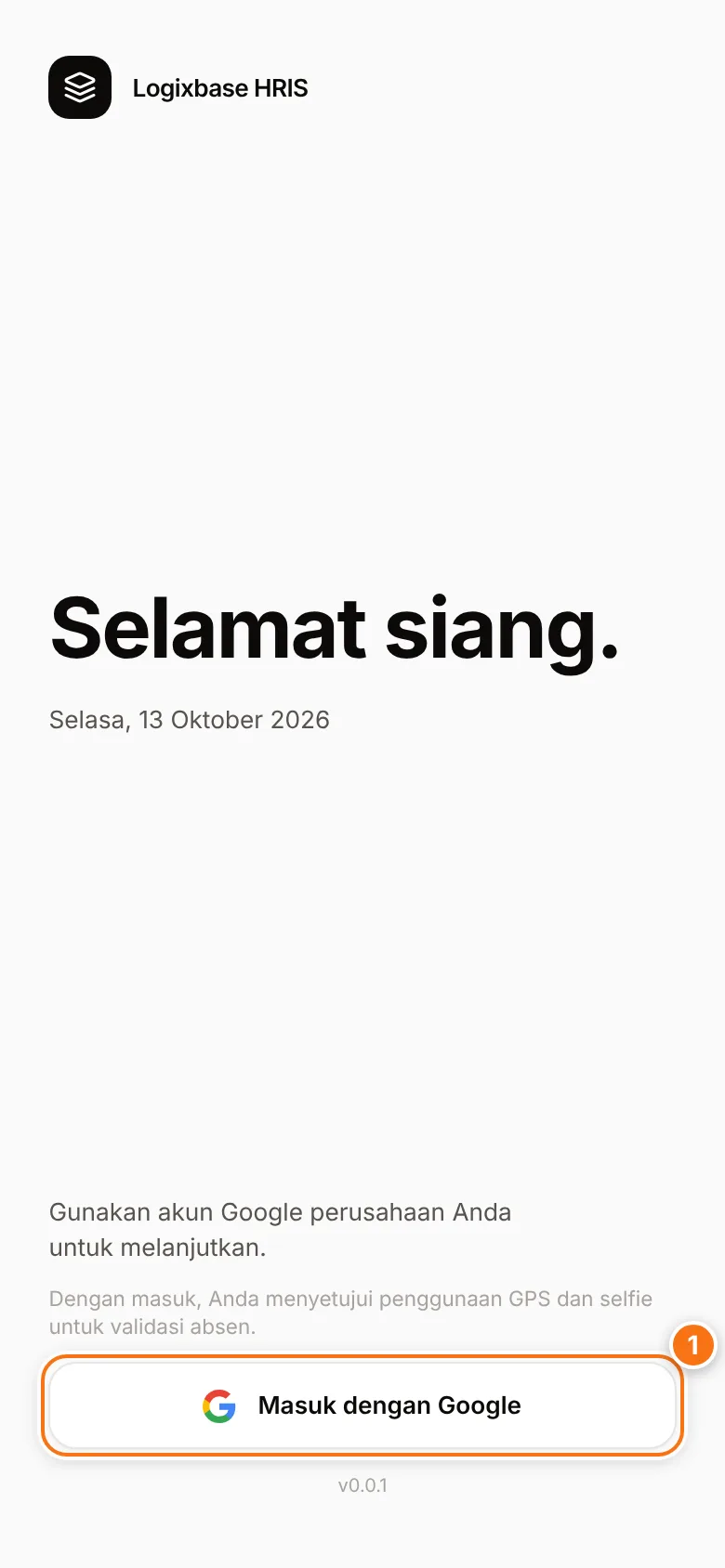
Open the HRIS Worker icon on your phone or go to worker.logixbase.com. If asked to sign in, tap Masuk dengan Google (Sign in with Google) (1) and choose the same account. After that you don't need to sign in every time you open the app, unless you tap Keluar (Sign out).
By signing in you agree to the use of GPS and a selfie to validate your attendance — both are used when you clock in and out.
Lost the invite link?
As long as the invite is less than 7 days old, you can also go straight to worker.logixbase.com and sign in with the Google account HR registered. A link you already used keeps working too — it shows Undangan sudah diterima (Invitation already accepted) and a Masuk dengan Google button.
If you see one of these messages
Akun Google tidak cocok
"Google account doesn't match": you signed in with a different Google account from the one on the invite. The screen shows the account you're using and the email the invite is for.
Tap Ganti akun Google (Switch Google account) and choose the right account. If it isn't in the list, pick the option to use another account and sign in with that email.
Akun Google ini belum punya akses
"This Google account doesn't have access yet" appears on the sign-in screen when the Google account you used hasn't been invited. Check that its email is the one HR registered. If you came from an invite link, tap Buka undangan kembali (Open the invite again) and try again with the right account. If the email is right and the message stays, contact HR.
Akses worker belum tersedia
"Employee access not available yet": you're signed in, but your Google account isn't linked to an employee record. Usually the account isn't the email HR registered. Open HR's invite link again — if the account is wrong, the app offers Ganti akun Google. If the email is correct, ask HR to activate your access.
Undangan tidak tersedia
"Invitation unavailable": the link is more than 7 days old or has been replaced by a newer one. Ask HR to create and send a new link, then open the newest one.
Working for more than one company
If your Google account is an employee at several companies that use Logixbase HRIS, the app shows Pilih Perusahaan (Choose company) when it opens. Tap the company you're working for right now.
To switch to another company, close the app completely and open it again (or open worker.logixbase.com again in your browser) — the Pilih Perusahaan screen appears again.
Install the app on your home screen
An installed app opens straight from the HRIS Worker icon, with no address to type. On iPhone, notifications can also only be turned on once the app is installed.
Android (Chrome)
- Sign in to the app in Chrome and go to Beranda (Home).
- When the Pasang HRIS Worker (Install HRIS Worker) card appears at the bottom ("Buka lebih cepat dari layar utama, tanpa browser." — open faster from your home screen, without the browser), tap Pasang aplikasi (Install app).
- Confirm in Chrome's install dialog.
- The HRIS Worker icon appears on your home screen.
iPhone (Safari)
- Sign in to the app in Safari. The Pasang HRIS Worker card shows the install hint.
- Tap Safari's Share button (the square with an arrow pointing up).
- Choose Add to Home Screen (on an iPhone set to Indonesian: Tambah ke Layar Utama), then confirm.
- Open the app from the HRIS Worker icon. The first time you open it from the icon, you may need to sign in with Google once more.
Don't see the "Pasang HRIS Worker" card?
It doesn't show if the app is already installed, if you closed it once with the ×, or while you're on the clock-in screens. You can still install from the browser menu: in Chrome, tap the three-dot menu and choose the option to install the app or add it to the home screen. In Safari, use the Share button as above.
Signing out
Open Saya (Me) and tap Keluar dari Akun (Sign out of account) at the very bottom. Do this if you're using a phone that isn't yours.