Attendance history and correction requests
Check your daily attendance history, understand each status, send HR a correction or a missed attendance request, and see your 2-week shift schedule on your phone.
In Riwayat (History) you can make sure every working hour is recorded correctly — this is the data HR uses for your attendance and pay. If something is wrong or you forgot to clock in or out, request a correction straight from your phone. HR reviews and approves it, so there's no need to report it over chat.
Viewing your attendance history
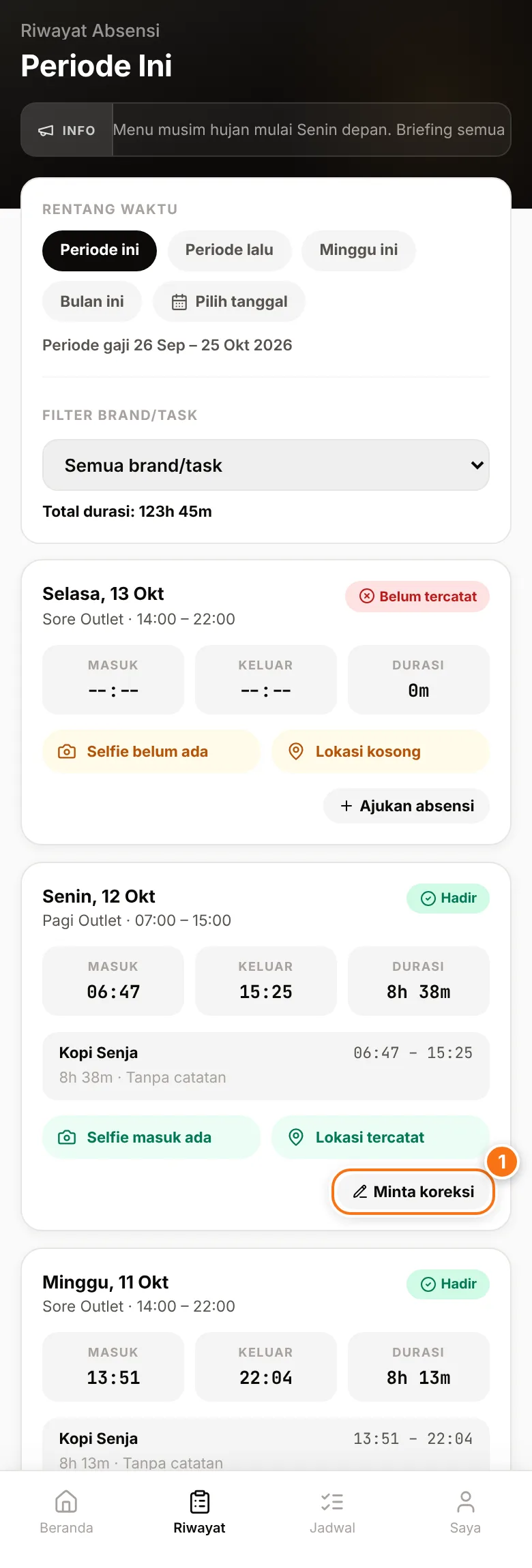
- Tap Riwayat (History) in the bottom menu.
- Choose a date range: Periode ini or Periode lalu (this or last pay period, when available), Minggu ini (this week), Bulan ini (this month) or Pilih tanggal (choose dates — up to 31 days at a time).
- If you work for several Brands, pick one in Filter brand/task. Total durasi (Total duration) shows your working hours for that range.
- Each day card shows Masuk (In), Keluar (Out) and Durasi (Duration), and whether your selfie and location were recorded (Selfie masuk ada — clock-in selfie present, Lokasi tercatat — location recorded).
What each status means
| Status | Meaning |
|---|---|
| Hadir | Present — you clocked in on time. |
| Terlambat | Late — you clocked in after your shift start. |
| Cuti | Leave — an approved leave day. |
| Libur / Off | A public holiday / your scheduled day off. |
| Tidak ada jadwal | No schedule for that day yet. |
| Belum tercatat / Belum hadir | A working day with no clock-in. If you actually worked, submit an attendance or correction request. |
You may also see notes such as Pulang cepat (Left early), Lembur (Overtime) and Diperbarui oleh (Updated by — the HR staff member who last changed that record).
Requesting a correction
Use this if you forgot to clock out, the recorded time is wrong, or you forgot to clock in altogether.
- In Riwayat, find the day that needs fixing.
- Tap Minta koreksi (Request correction) (1). If that day has no attendance record at all, the button is called Ajukan absensi (Submit attendance).
- The Tanggal (Date) is locked to the day you picked — you only change the times.
- Fill in Jam masuk usulan (Proposed clock-in time) and/or Jam keluar usulan (Proposed clock-out time). For Ajukan absensi, the clock-in time is required.
- Write an Alasan (Reason) of at least 3 characters, for example "Forgot to clock out because my phone died".
- Tap Kirim Permintaan Koreksi (Send correction request) — or Ajukan Absensi. Permintaan Terkirim (Request sent) appears with "Menunggu persetujuan HR" (Waiting for HR approval).
For a shift that runs past midnight, just enter a clock-out time earlier than the clock-in time. The app automatically treats it as the next day.
After you send the request
- The day card shows Menunggu persetujuan (Awaiting approval). While it's pending, you can't send a second request for the same day.
- HR reviews your request in their Koreksi Absensi (Attendance corrections) menu and approves or rejects it.
- You get a Koreksi Absensi Disetujui (approved) or Koreksi Absensi Ditolak (rejected, with the reason if given) notification under the bell icon.
- Once approved, the times in Riwayat update and the card shows Diperbarui oleh with the HR staff member's name.
Request it early
A correction can no longer be applied once HR locks the pay period. Send it while the period is still open so your hours are counted.
Viewing your shift schedule
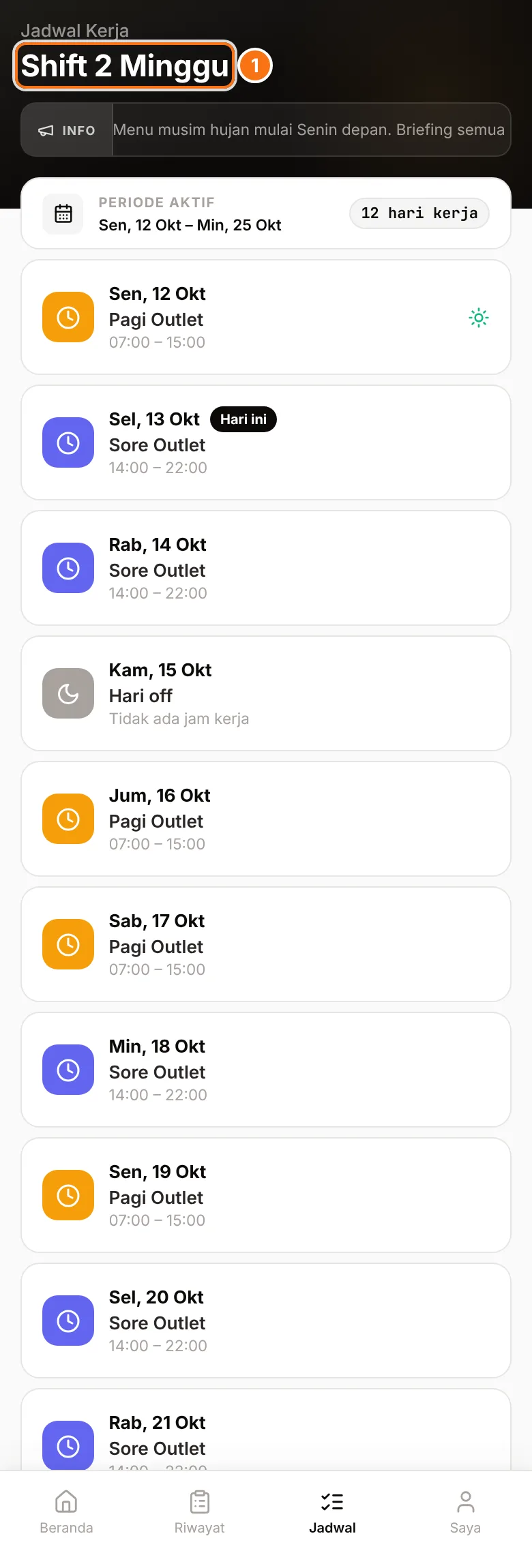
- Tap Jadwal (Schedule) in the bottom menu (or the Jadwal tile on Home).
- The Shift 2 Minggu (2-week shifts) page (1) shows this week and next week, starting on Monday. At the top you see Periode aktif (Active period) and how many working days you have.
- Each day shows the shift name and hours, Hari off (Day off), or the name of the holiday. Today is marked Hari ini (Today).
If it says Belum ada jadwal aktif (No active schedule yet), HR hasn't created a schedule for this period. When HR changes your schedule, the change shows on this page — make a habit of checking it before you leave for work.
Common problems
- No Minta koreksi button on a day — there's probably already a request Menunggu persetujuan for that day. Wait for HR's decision.
- "Alasan minimal 3 karakter" (Reason must be at least 3 characters) — write a clearer reason.
- "Jam masuk wajib diisi" (Clock-in time is required) — for Ajukan absensi, fill in Jam masuk usulan first.
- Riwayat gagal dimuat (History failed to load) — check your internet connection, then tap Coba lagi (Try again).