Holidays and special rates
Manage the national and company holiday calendar, then set special rates for employees who work on public holidays, applied automatically when pay is calculated.
Employees who work on a public holiday usually earn a higher rate. The Hari Libur (Holidays) calendar tells the system which dates are holidays, and Rate Kategori (Rate categories) decides how much is paid. Payroll then calculates holiday pay automatically, with no manual sums.
Before you start
- Admin and HR Manager can change the calendar and the rate rules.
- Rates are chosen by each employee's work pattern (5 or 6 working days). The default is 5 days; change it on the employee's profile under Pola Kerja & Lanjutan (work pattern & advanced) if needed.
Holiday calendar
Go to Pengaturan (Settings) › Hari Libur. The Kalender Hari Libur & Rate Khusus (Holiday calendar & special rates) page has two tabs, Kalender (Calendar) and Rate Kategori, plus a year switcher at the top right.
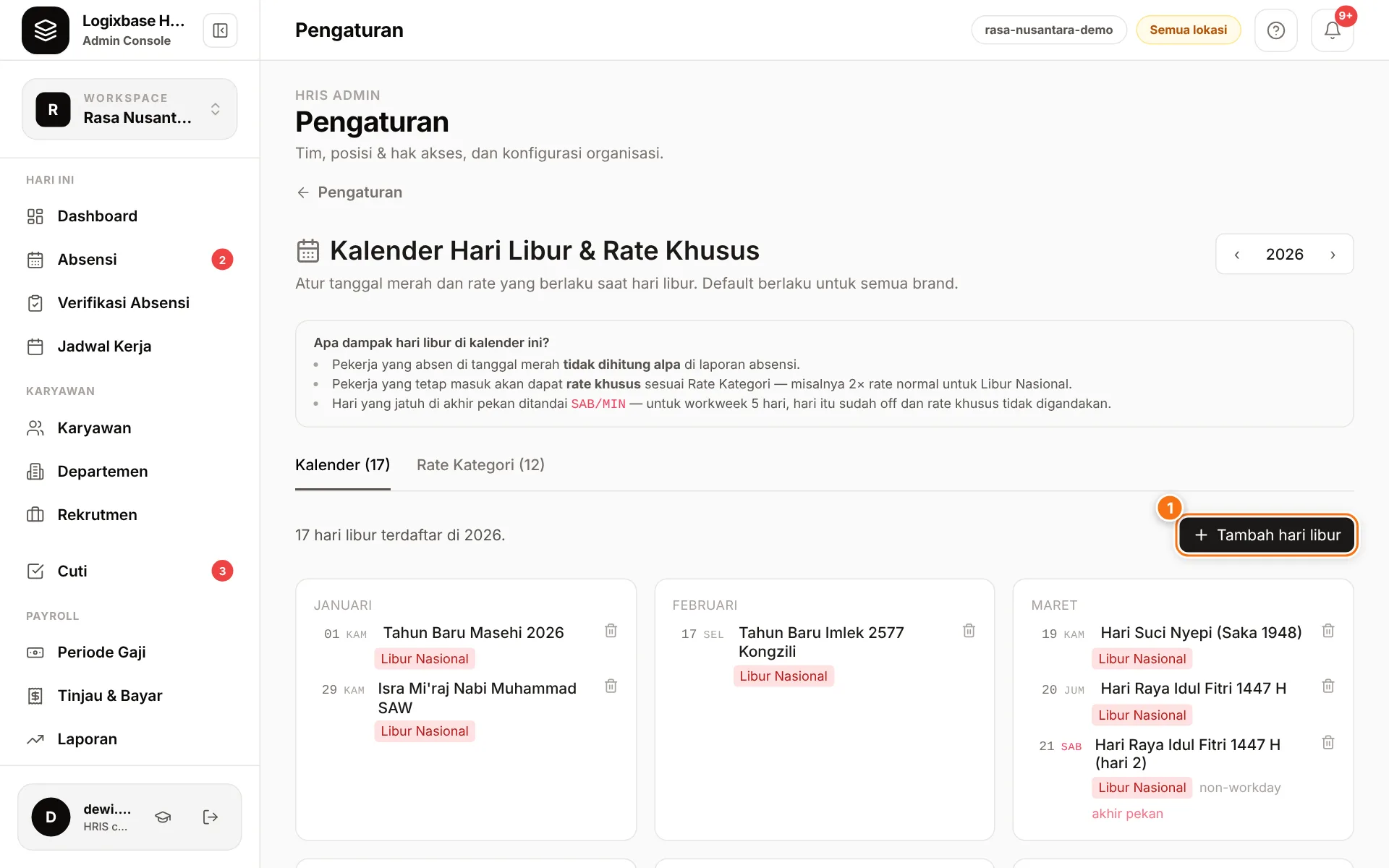
- New workspaces already contain the 2026 and 2027 national holidays from the joint ministerial decree (SKB 3 Menteri). If your 2026 calendar is still empty, the page fills it automatically, or you can click Import SKB 2026.
- Collective leave days (cuti bersama) are not added automatically, because many companies keep operating or deduct them from annual leave. Add them yourself if your company takes them off.
- Dates that fall on a weekend are tagged akhir pekan (weekend). Dates tagged non-workday don't affect working days and don't trigger a special rate.
| Category | Used for |
|---|---|
| Libur Nasional (National holiday) | Official public holidays |
| Cuti Bersama (Collective leave) | Collective leave days your company observes |
| Religious (opt) | Optional religious holidays |
| Brand-specific | Your company's own holidays |
Add a holiday
- On the Kalender tab, click Tambah hari libur (1) (Add holiday).
- Fill in Tanggal (date), Label (for example "Cuti Bersama Lebaran") and Kategori (category).
- Click Simpan (Save).
Delete a date with the bin icon. Each date can only be added once, and dates in a month whose payroll period is locked can't be added.
Set special rates
Each rule on the Rate Kategori tab combines a category, a work pattern, an hour range and a rate.
- Open the Rate Kategori tab and click Tambah aturan (Add rule).
- In the Tambah aturan rate (Add rate rule) form, choose the Kategori and the Pola (pattern): 5 hari (5 days), 6 hari (Sabtu pendek) (6 days, short Saturday) or 6 hari (penuh) (6 full days).
- Fill in Dari jam (from hour) and Sampai (to). Leave Sampai empty for no upper limit.
- Choose the Tipe (type): % multiplier (a percentage of the employee's normal hourly rate) or Rp / jam (a fixed amount per hour for everyone).
- Fill in Nilai (value) and Berlaku dari (effective from), check the worked example under the form, then click Simpan.
Default rules: national holidays at 200% for the first hours (then 300% and 400%), and collective leave at 150%. Edit a rule with the pencil icon or delete it with the bin icon.
Hour ranges
Payroll currently applies the rule that covers the first hour to every hour worked on that holiday — for example 200% for a national holiday on the 5-day pattern. The 300% and 400% rows are not used in the calculation yet.
Effect on pay and attendance
- Hours worked on a holiday are paid at the special rate: the employee's normal hourly rate times the rule's percentage, or the fixed amount per hour. The normal hourly rate comes from the brand/task rates set in Salary components.
- On the payslip this pay appears as Upah Hari Libur (holiday pay). Monthly and daily employees receive it on top of their base salary; hourly employees receive it instead of their normal rate for those hours.
- If no rule matches the employee's category and work pattern, the employee's overtime rate is used.
- In Verifikasi Absensi (Attendance verification), holidays appear as holidays, not absences.
- Schedules are not cleared automatically on holidays. Set employees who are off to Off in Shifts and work schedules.
Common problems
- A Saturday holiday gives no special rate to six-day employees. The date is tagged non-workday because the default calendar assumes a 5-day week. Delete the date, then add it again with Tambah hari libur.
- "Tanggal berada dalam periode terkunci" (the date is in a locked period). The payroll period for that month is already locked.
- Next year's calendar is still empty. Add the dates with Tambah hari libur, or contact us.