Shifts and work schedules
Create shift templates (hours, break, overtime threshold, Office/WFA/Flexible type), fill the schedule calendar quickly, and understand how lateness is determined.
A shift tells the system when someone should work. From it, the system works out lateness, overtime and break deductions, and whether to check the punch location. A tidy schedule also puts every employee's shifts on their phone.
Before you start
- Sign in as Admin or HR Manager. Managers can view shifts and schedules but cannot change them.
- Add your employees first (see Employees).
Create a shift template
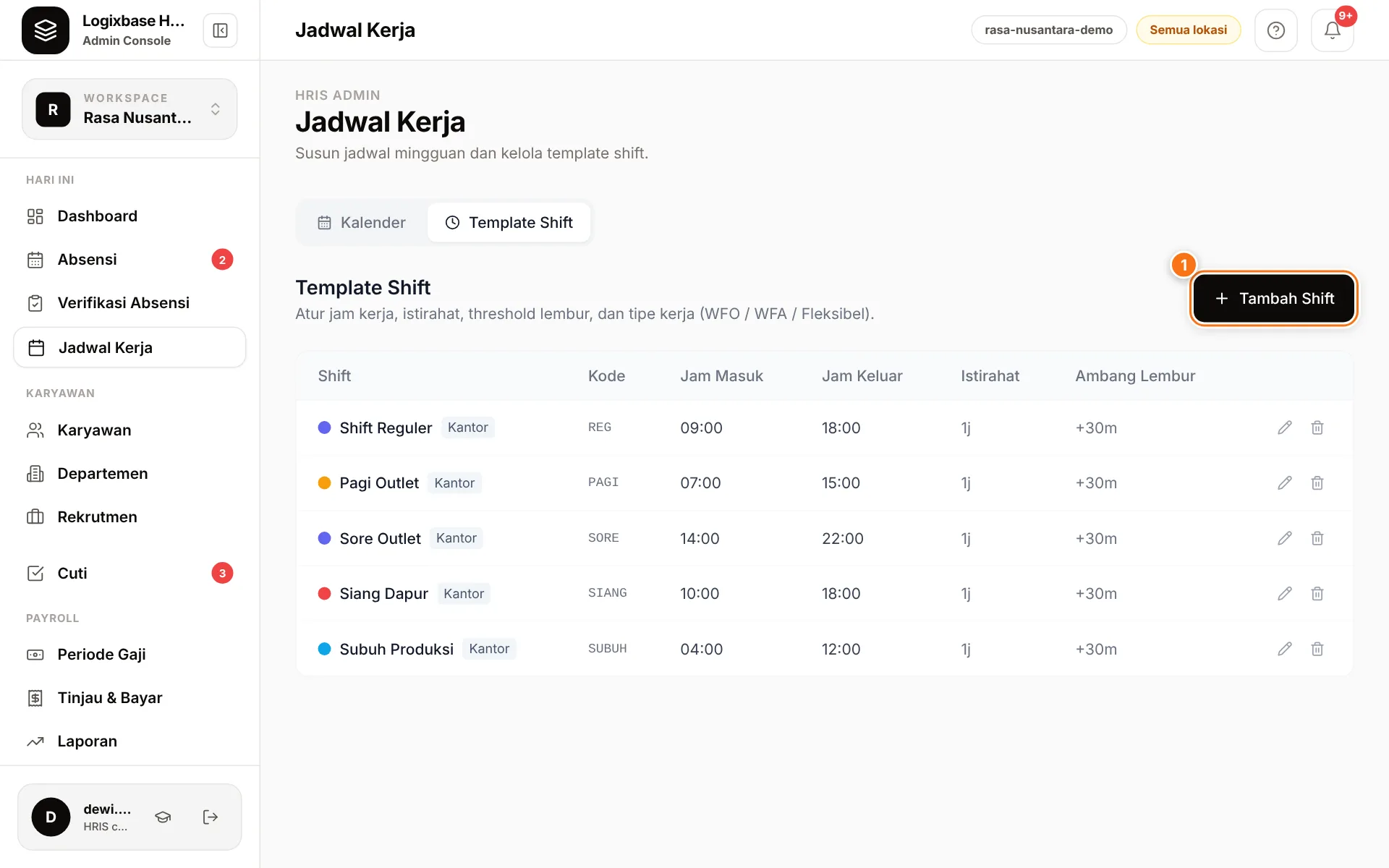
- Open Jadwal Kerja (Work schedule) and choose the Template Shift (Shift templates) tab.
- Click Tambah Shift (1) (Add shift).
- Enter Nama Shift (shift name, e.g. "Morning shift") and Kode (code, up to 8 capital letters or digits, e.g. PAGI).
- Choose a Tipe Shift (shift type): Kantor (Office), WFA or Fleksibel (Flexible).
- Enter Jam Masuk (start time) and Jam Keluar (end time). If the end time is earlier than the start (for example 22:00–06:00), the shift is treated as a night shift and tagged Malam (night).
- Fill in Istirahat (menit) (break, minutes) and Ambang Lembur (menit) (overtime threshold, minutes).
- Pick a Warna (colour), then click Simpan (Save).
Shift types
| Type | Punch location | Lateness |
|---|---|---|
| Kantor (Office) | Checked against the work-location radius; outside punches go to flagged attendance | Counted from the start time |
| WFA | Any location; outside-radius punches aren't flagged, GPS is still recorded | Still counted |
| Fleksibel (Flexible) | Any location | Never marked late; start and end times are targets and the basis for overtime |
Punches without a location, faked GPS and selfies without a face are still flagged for every type.
Break and overtime threshold
- Istirahat is the scheduled break length. By default hours count in full from clock-in to clock-out; the break is only deducted when Deduct breaks from working hours is on.
- Ambang Lembur is the buffer before overtime starts. Overtime is based on how long a session lasts (clock-in to clock-out), not on the clock-out time: whatever exceeds the shift span (start time to end time, with the break already inside it) plus the threshold counts as overtime. Example: a 09:00–18:00 shift with a 60-minute break and a 30-minute threshold. Someone who works 09:00–19:00 gets 30 minutes of overtime; someone who arrives at 10:00 and leaves at 19:00 gets none.
Pay deductions from the shift
The Potongan gaji dari shift (pay deductions from the shift) section has two optional settings. Both apply only to employees paid Per Jam (hourly); monthly and daily employees are not affected.
- Potong istirahat dari gaji (deduct break from pay): the shift's break minutes are deducted once per working day at the employee's normal hourly rate, shown on the payslip as Potongan Istirahat. Not applied on holidays or special-rate days, and skipped when Potong istirahat dari jam kerja (deduct breaks from working hours) is already on.
- Potong ambang lembur dari gaji (deduct the overtime threshold from pay): minutes inside the threshold are normally paid at the normal rate; this option deducts them again so they become unpaid, shown as Potongan Ambang Lembur.
- Tampilkan ke pekerja di slip gaji (show to the employee on the payslip): when unticked, the deduction still reduces net pay but is hidden from the employee's payslip. Keep it ticked so employees understand their pay.
Fill the schedule calendar
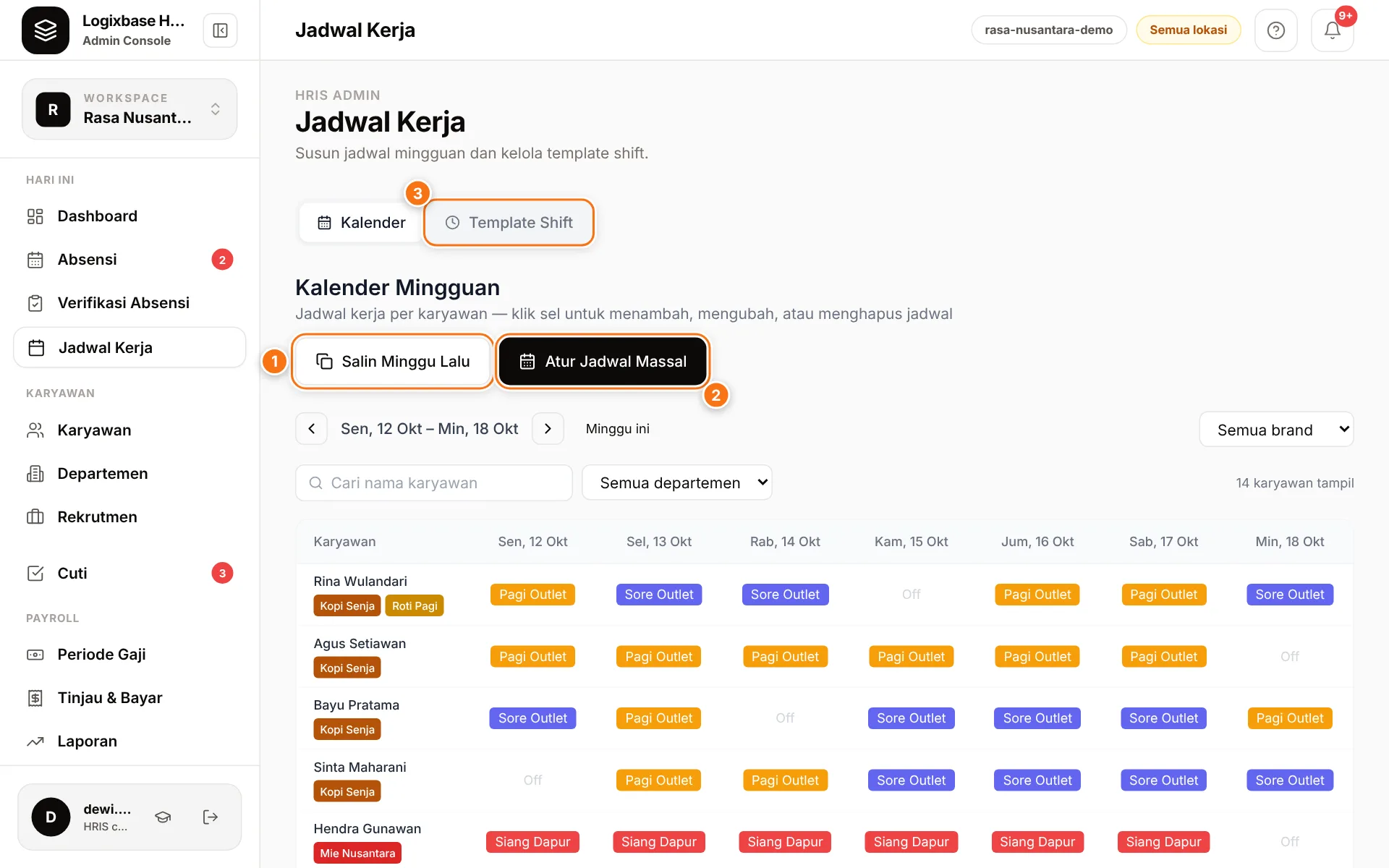
The Kalender (Calendar) tab shows one week: employees in rows, days in columns. There are three ways to fill it:
- One cell: click a cell to open Atur Jadwal (Set schedule), choose a shift or Off (the employee's day off), tick other days under Terapkan ke hari (apply to days) if needed, then click Simpan. Hapus jadwal (Delete schedule) clears the cell.
- Salin Minggu Lalu (1) (Copy last week): copies last week's shifts into the still-empty cells of the week on screen, for the employees currently shown. Existing schedules are never overwritten, and the dialog shows how many will be copied before you confirm.
- Atur Jadwal Massal (2) (Bulk schedule): choose employees, set the Pola Mingguan (weekly pattern) for Mon–Sun (a shift or Off; Terapkan Senin ke semua hari kerja (Sen–Jum) copies Monday to Mon–Fri), enter Mulai (start) and Selesai (end) dates, then click Terapkan Jadwal (Apply schedule).
Bulk schedule overwrites existing schedules
The pattern is applied to every day in the date range and replaces existing schedules for the selected employees. Avoid past dates, because schedules also feed reports and payroll.
Narrow the grid with the brand filter, Cari nama karyawan (search employee name) and the department filter. The Template Shift tab (3) is on the same screen.
Public holidays
Schedules are not cleared automatically on public holidays, but employees are no longer recorded as absent on a holiday in the Hari Libur (Holidays) calendar — unless their brand is marked as staying open that day; rostered staff of an open outlet who don't clock in are still recorded as absent. Set the cell to Off if you also want the schedule to show the day off.
How lateness is determined
- The first clock-in of the day is compared with the shift's Jam Masuk (start time).
- An employee is late when they clock in more than 5 minutes after the start time. Late minutes count from the start time: clocking in at 08:07 for an 08:00 shift records 7 minutes late.
- The 5-minute tolerance is the same for every shift and cannot be changed.
- Fleksibel shifts and punches without a shift are never late.
- Clocking out more than 5 minutes before Jam Keluar (end time) is recorded as leaving early.
Schedules in the employee app
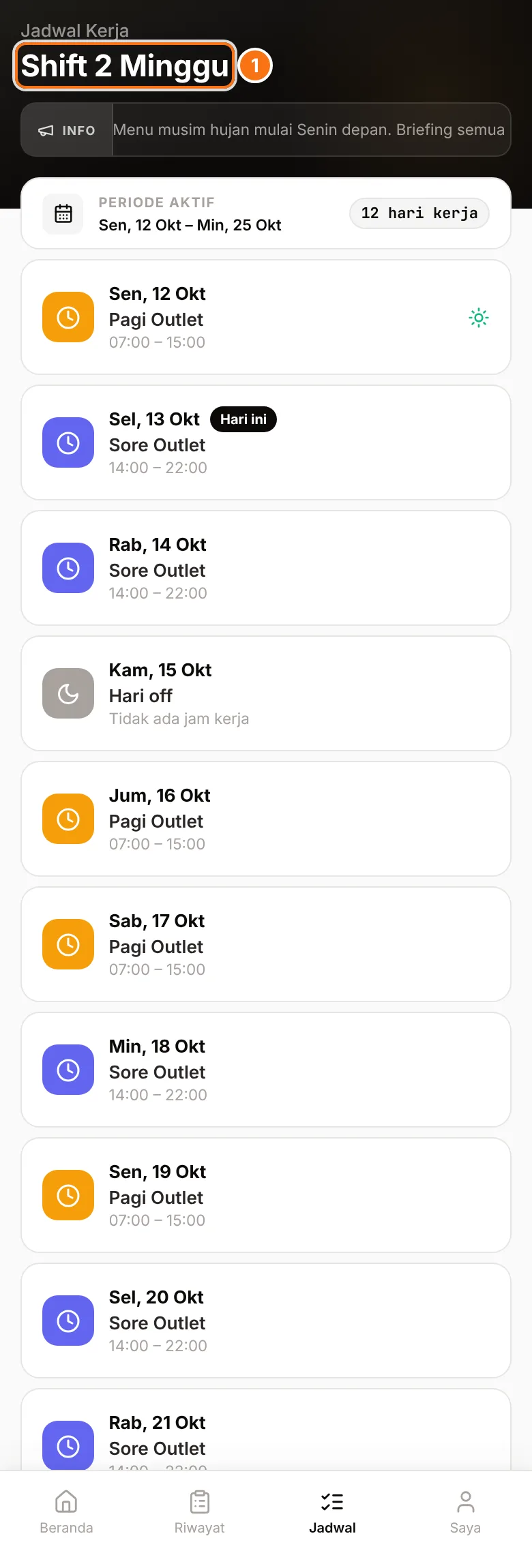
Employees see their schedule under Jadwal (Schedule), in the Shift 2 Minggu (2-week shifts) view: this week and next, with shift names, hours and days off.
Next steps
Complex roster — rotations, many outlets or split shifts? Tell us how your team works and talk it through with our team.