Clocking in and out (selfie + GPS)
How to clock in and out in the employee app — choose your Brand, capture GPS, take a selfie, then send. Covers being outside the radius, no signal, forgetting to clock out and switching Brand.
Attendance in Logixbase HRIS uses a selfie and your GPS location, so your working hours are recorded clearly and you can check them yourself at any time. Every clock-in or clock-out takes four short steps. Don't worry: the app never rejects your attendance because of your location or signal.
Before you start
- You're signed in to the app. Not yet? See Sign in and install the app on your phone.
- GPS (Location) is switched on on your phone.
- Allow Location and Camera access when your phone asks. The selfie is required; your location is captured when available.
Clock in
1. Start from Home
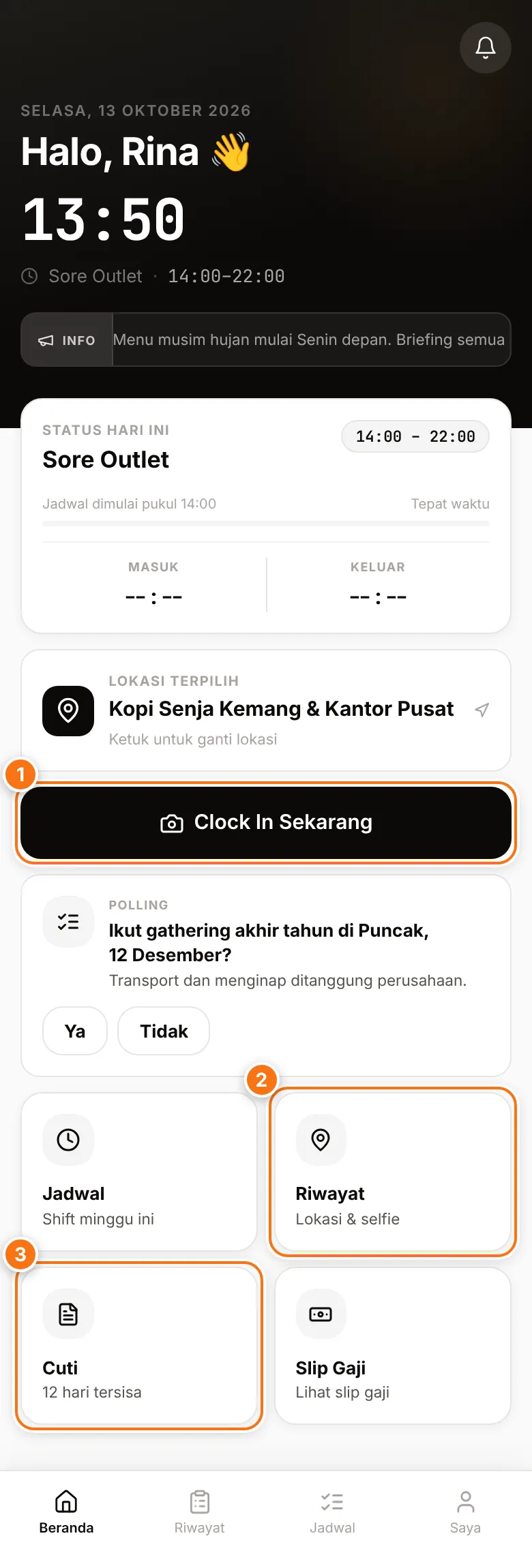
- On Beranda (Home), tap Clock In Sekarang (Clock in now) (1).
- Under Brand aktif (Active brand — step 1 of 4), check the Brand you work for today. A Brand is a business unit, outlet or task set up by HR. Your main Brand is already selected — tap another Brand if that's where you work today.
- If you're assigned to several work locations, check that Lokasi kerja (Work location) is right. Tap Ganti (Change) to pick another — the app remembers your choice for next time.
- Fill in Catatan kerja (Work note) if needed, for example "packing order". If the field has a red asterisk (it says Wajib diisi sebelum lanjut., required before continuing), your company requires a note.
- Tap Lanjut verifikasi GPS (Continue to GPS check).
2. Location check
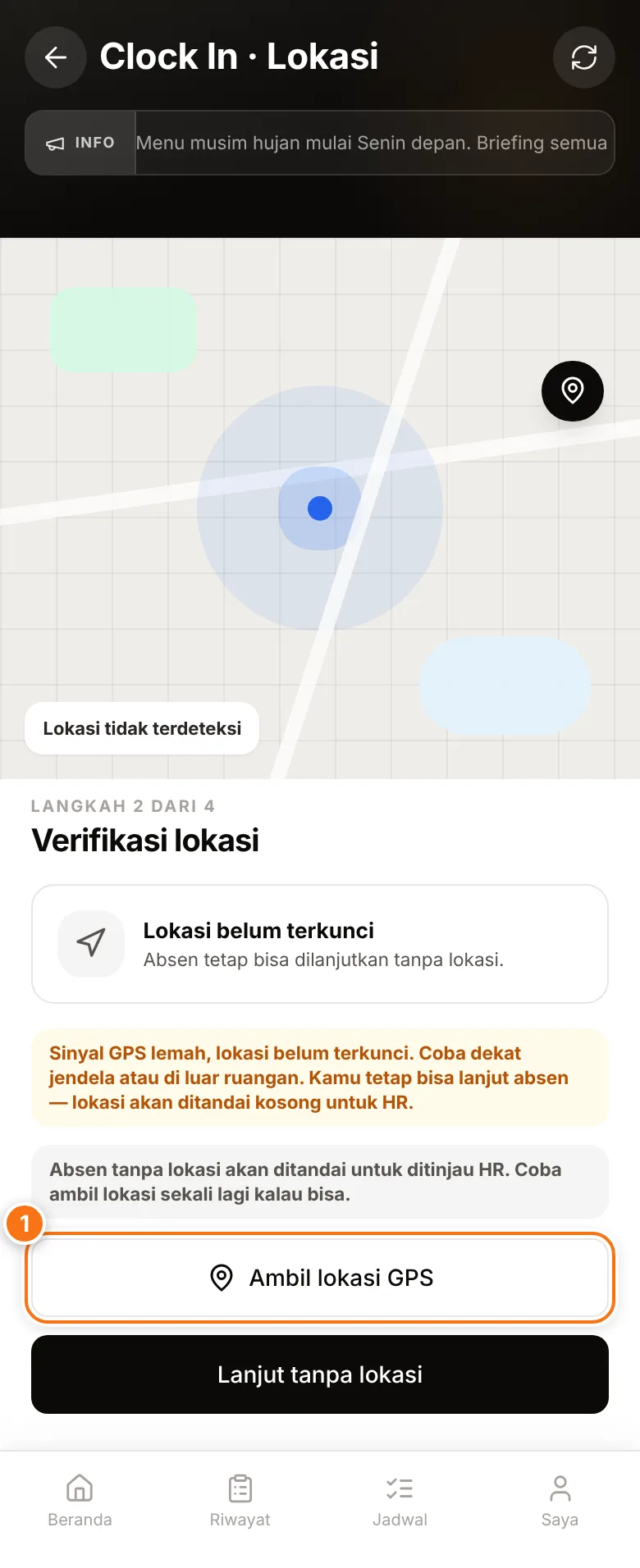
- The app starts finding your location right away. Allow location access if asked.
- Wait for GPS berhasil diambil (GPS captured). If the search finishes but it says Lokasi belum terkunci (Location not locked yet), tap Ambil lokasi GPS (Get GPS location) (1) to try again — ideally near a window or outdoors.
- Tap Lanjut ambil selfie (Continue to selfie). As long as no location is locked, this button reads Lanjut tanpa lokasi (Continue without location) — you can still continue, and HR will review this record.
3. Take your selfie
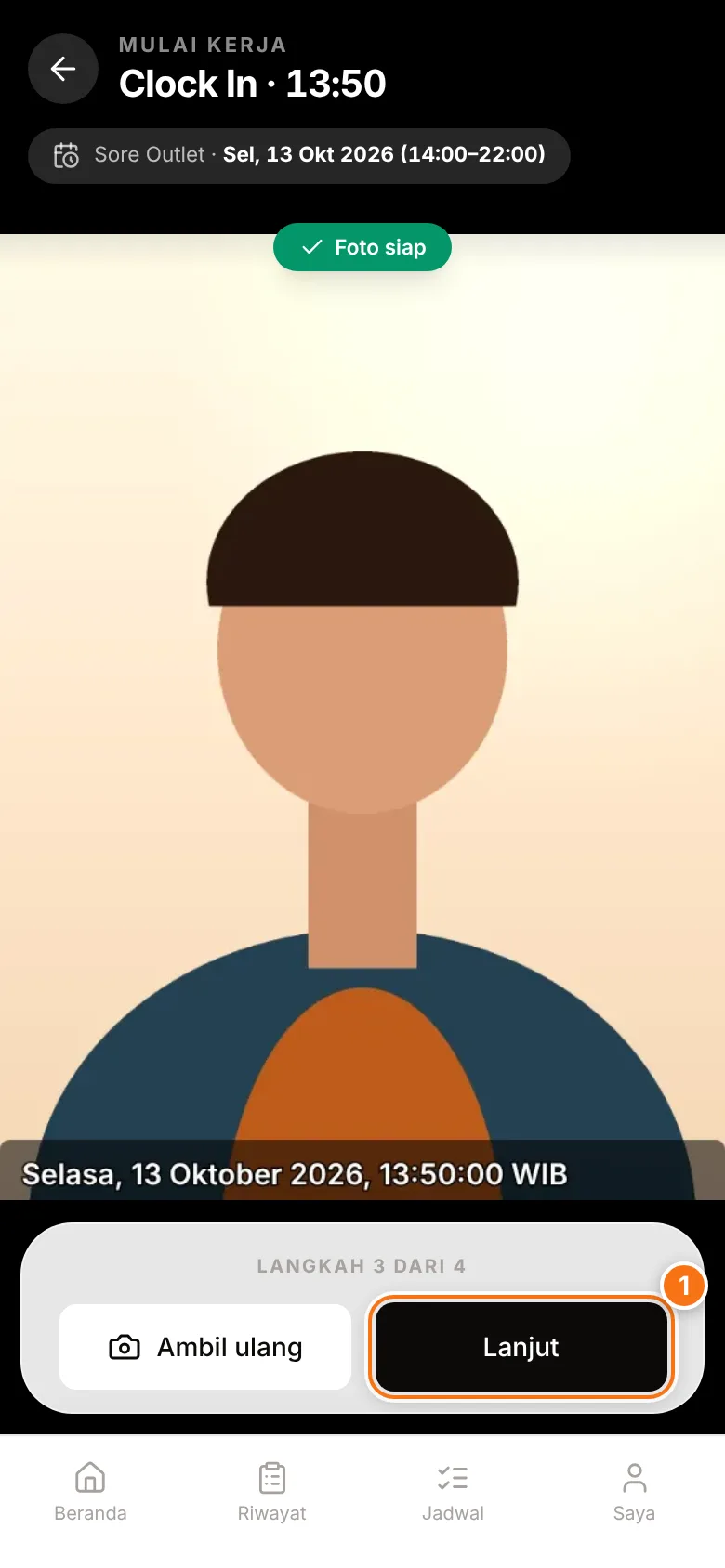
- Allow camera access if asked.
- Fit your face inside the oval frame, then tap the large round button at the bottom to take the photo.
- Check the photo. If it's unclear, tap Ambil ulang (Retake). If it looks good, tap Lanjut (Continue) (1).
If Wajah tidak terdeteksi (Face not detected) appears, it's best to retake with your face clearly visible. You can still continue, but HR will see this flag.
4. Confirm and send
- On Konfirmasi presensi (Confirm attendance — step 4 of 4), check the date, time, Brand, location and photo.
- If needed, add a Lampiran foto (Photo attachment — optional) by tapping Pilih (Choose), for example a photo of goods or your work.
- Tap Kirim (Send).
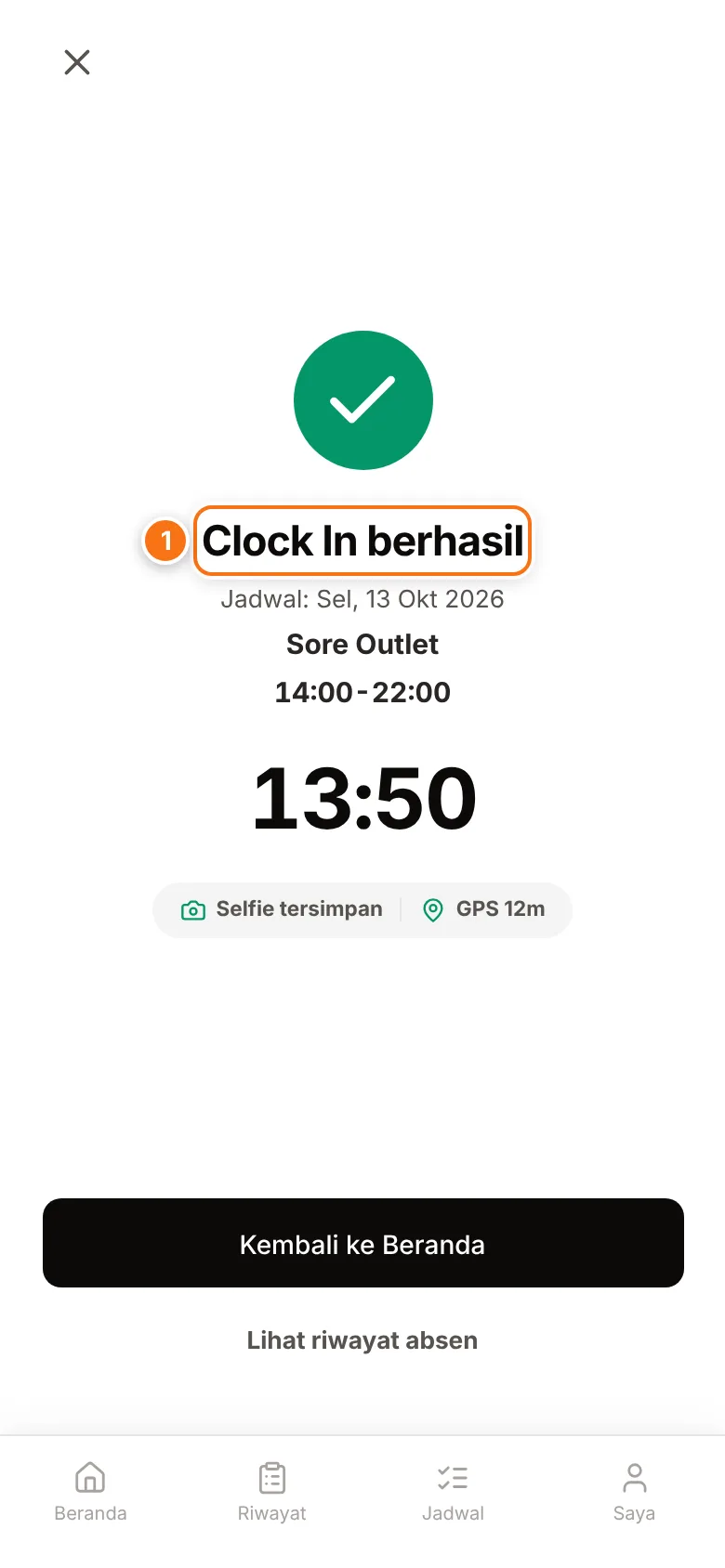
- Clock In berhasil (Clock-in successful) (1) appears. Tap Kembali ke Beranda (Back to Home). Home now shows Sedang bekerja (Working) and your start time.
Clock out
When you finish work, tap Clock Out Sekarang (Clock out now) on Home. The steps are the same: check Ringkasan hari ini (Today's summary), capture your location, take a selfie, then Kirim until Clock Out berhasil (Clock-out successful) appears.
If you clock out less than 2 minutes after clocking in, the app asks Yakin mau clock-out? (Sure you want to clock out?). Tap Batal, tetap bekerja (Cancel, keep working) if it was a mistake — you stay recorded as working. Tap Ya, clock-out (Yes, clock out) if you really are leaving.
Outside the radius or without location
- Every work location has a radius (shown as Radius … m in the location choices). Your distance is checked when the attendance is sent.
- Outside the radius or no location? Your attendance is still recorded. HR sees it in the list of records to review and may ask you for an explanation.
- For shifts set up as work-from-anywhere (WFA) or flexible, your location isn't flagged.
No internet signal
If you lose connection when you tap Kirim, you'll see Clock In tersimpan offline (Clock-in saved offline) or Clock Out tersimpan offline. The attendance is saved on your phone and sent automatically once you're online. The recorded time is when you tapped the button, not when it was sent. While it waits, Home shows how many absensi menunggu sinkronisasi (attendance records waiting to sync).
Open the app again once you have signal
Offline records are sent while the app is open and online. A record that hasn't been sent within 2 days can no longer be sent. If Home shows absensi offline gagal dikirim — ajukan koreksi (offline attendance failed to send — request a correction), tap that message and request a correction in History.
Forgot to clock out?
If you forgot to clock out yesterday, that session is still open. The next time you clock in, after you tap Kirim, a Lupa absen pulang? (Forgot to clock out?) window appears:
- Check Waktu pulang (Time you left). It's usually filled in already with your shift's end time (or 8 hours after your clock-in if you had no shift).
- Change it if it doesn't match when you actually left.
- Tap Tutup sesi & lanjut (Close session & continue). The old session is closed and today's clock-in is recorded.
If the Waktu pulang field is empty, your company has chosen not to close sessions automatically. Enter the time you actually finished work.
Switching Brand mid-shift
If you move to a different Brand during the same day, use Ganti Brand (Switch brand) so your hours are recorded under the right Brand. The button only appears if you're assigned to more than one Brand and you're currently working (clocked in).
- On Home, tap Clock Out Sekarang, then tap the back button (←) at the top left. Don't worry — you haven't clocked out. A clock-out is only sent when you tap Kirim.
- On the Absensi Hari Ini (Today's attendance) screen, in the Brand Aktif (Active brand) card, tap Ganti Brand.
- Choose the new Brand, then continue with location, selfie and Kirim until Ganti Brand berhasil (Brand switch successful) appears.
Several sessions in one day
If your company allows several sessions per day (for example a morning and an evening shift with a break in between), Home shows Sesi selesai (Session finished) after you clock out, with a Mulai Sesi 2 (Start session 2) button. Tap it when you're back at work; the steps are the same as clocking in. If it isn't allowed, Home shows Shift hari ini selesai (Today's shift is done).
Breaks
The break button only appears if your company has turned on break tracking. While you're working, tap Mulai istirahat (Start break) on Home (on the Absensi Hari Ini screen: slide Geser untuk mulai istirahat, "slide to start break"). When you're done, tap Selesai istirahat (End break). Ask HR how breaks are counted at your company.
Common problems
- "Izin lokasi ditolak" (Location permission denied) or "Izin kamera ditolak" (Camera permission denied) — open your browser or phone settings, find the Location/Camera permission for your browser or worker.logixbase.com, choose Allow, then try again.
- "Sinyal GPS lemah, lokasi belum terkunci" (Weak GPS signal) — move near a window or outdoors, then tap Ambil lokasi GPS. Still failing? Tap Lanjut tanpa lokasi.
- The camera won't open or "Kamera sedang dipakai aplikasi lain" (Camera in use by another app) — close other camera or video-call apps, then tap Coba lagi (Try again). Or tap Ambil foto dari kamera HP (Take a photo with the phone camera) to take the selfie with your phone's built-in camera app.
- The Clock In button is greyed out — today isn't a working day on your schedule (for example Hari Off, day off, or Libur Nasional, public holiday) and your company doesn't allow clocking in without a schedule. Check the Jadwal (Schedule) menu, then contact HR if you should be working today.
- "Belum ada Brand yang diizinkan. Hubungi HR/admin." (No Brand assigned yet — contact HR) — HR hasn't linked you to any Brand. Contact HR.