Viewing your payslip
How to open your payslip in the employee app, what Draft, Dibayar and Terkunci mean, what the allowance, deduction and working-hours details show, and how to download the PDF.
Your payslip is always on your phone, with every allowance, deduction, BPJS contribution and PPh 21 tax line. You can check the numbers calmly and ask HR about anything odd — before the pay period is closed.
Opening your payslip
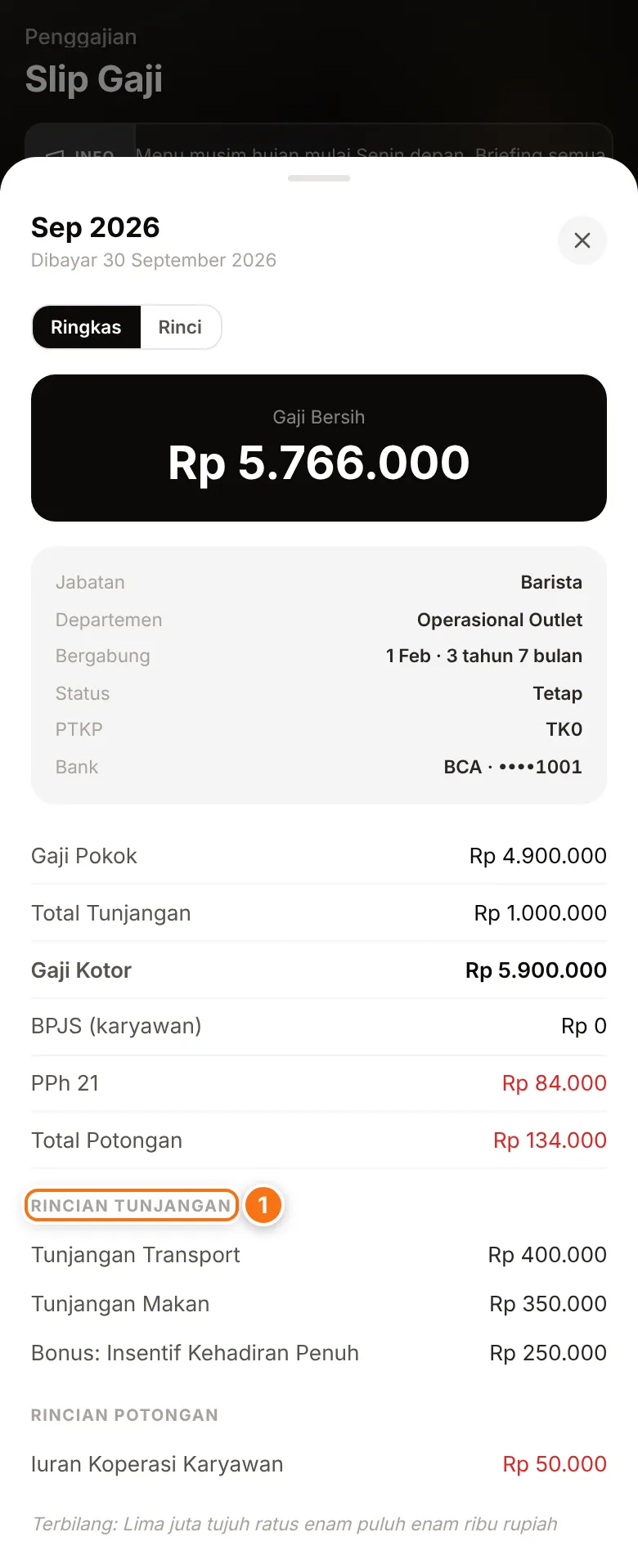
- Tap the Slip Gaji (Payslip) tile on Home (or Saya → Slip Gaji).
- The list shows each period (for example "Okt 2026"), the Gaji bersih (Net pay) and a status label.
- Tap a period to open its details.
- At the top is Gaji Bersih (Net pay) — the amount you receive. Below it is a summary: Gaji Pokok (Base salary), Total Tunjangan (Total allowances), Gaji Kotor (Gross pay), BPJS (karyawan) (your BPJS contribution), PPh 21 (income tax) and Total Potongan (Total deductions).
- Scroll to Rincian Tunjangan (Allowance details) (1) and Rincian Potongan (Deduction details) to see every component and its amount.
If it says Belum ada slip gaji (No payslip yet), HR hasn't issued a slip for you. It appears once HR has calculated pay for that period.
What each status means
| Status | Meaning |
|---|---|
| Draft | HR is still preparing pay for this period. The numbers can change until HR finalises them. |
| Dibayar | Paid — HR has marked pay for this period as paid. The PDF payslip can be downloaded. |
| Terkunci | Locked — the period is closed and the numbers are final. The PDF payslip can be downloaded. |
The status follows the company's pay period
The status label applies to the whole pay period, not to your personal transfer. So a slip can still show Draft even though your pay has already been transferred — it changes when HR marks the whole period as paid. At the top of the slip details, Dibayar with a date under the period name shows the scheduled payday. For the real status, look at the label in the payslip list.
More details on the slip
- Rinci / Ringkas (Detailed / Summary) — tap Rinci to see Rincian Jam Kerja (Working-hours details) per day (for example normal hours, overtime or holidays) and year-to-date totals (YTD Bruto, gross pay so far this year, and YTD PPh21, tax so far this year). For a monthly salary, the hours list may be empty.
- Cara hitung (How it's calculated) — on deductions calculated from your shift hours (for example a break deduction), tap Cara hitung to see the formula and a per-day breakdown.
- Your details — job title, department, PTKP tax status, NIK (ID number) and bank account. The NIK and account number are partly hidden; tap them to show the full number.
Downloading the PDF payslip
- Open a payslip with the status Dibayar or Terkunci.
- Tap Unduh Slip PDF (Download payslip PDF).
- The PDF opens in your browser. Save or share it from there.
The Unduh Slip PDF button only appears once HR marks the period Dibayar (paid) or locks it — a Draft slip has no PDF yet. If you see Slip PDF sedang diperbarui… (PDF payslip is being updated), HR has just changed that period — try again a little later.
If a number looks wrong
- Check your Riwayat (History) for that period: are there days with no clock-out, late arrivals or days not recorded? See Attendance history and correction requests.
- If an attendance record is wrong, request a correction while the slip is still Draft. Once the period is locked, corrections can no longer be applied.
- For questions about allowances, deductions, BPJS or tax, contact your company's HR and mention the payslip period.
Why hasn't my payslip appeared when my colleagues' have?
HR can control when each employee's payslip is shown. If yours isn't there yet, ask HR.