Corrections and flagged attendance
Review punches outside the radius or without GPS, decide on employees' correction requests, and fix attendance by hand with a reason recorded in the audit log.
Attendance mistakes happen: a forgotten clock-out, a dead phone, no GPS signal. Logixbase gives you three tools to tidy them up, and every change is recorded. Pay stays accurate, and every number can be explained if someone asks.
Before you start
- Admin, HR Manager and Manager (for their own department) can review and fix attendance.
- Override status and Reset hari ini (Reset today) are for Admin and HR Manager only.
Flagged attendance
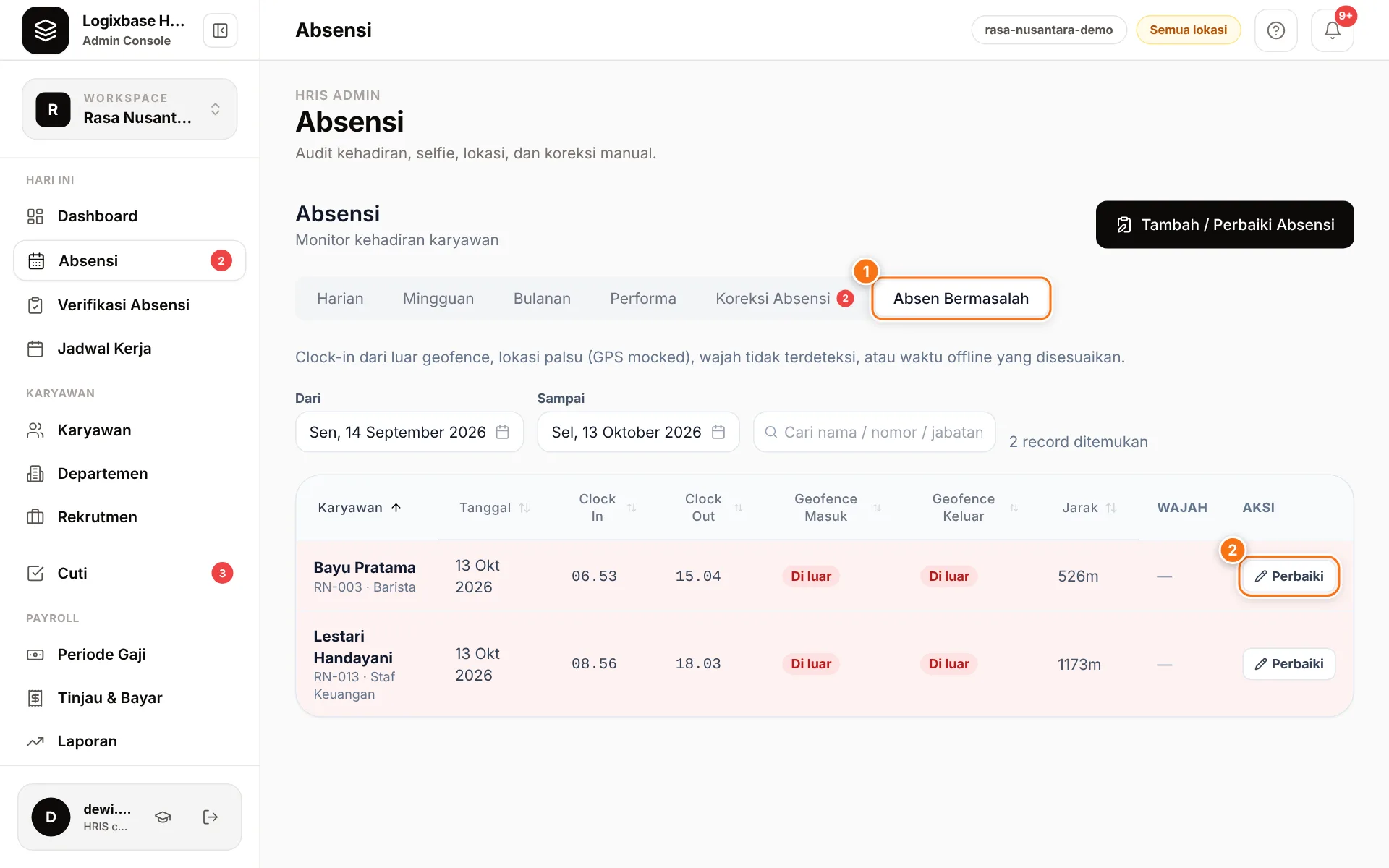
The Absen Bermasalah (1) (Flagged attendance) tab lists punches worth a look from every brand — the brand (outlet) shows under the employee's name:
- Di luar (Outside): outside the work-location radius (for Kantor/Office shifts or punches without a shift);
- Tanpa lokasi (No location): the phone couldn't get a GPS fix;
- GPS palsu (Fake GPS): the location was detected as faked;
- Tidak ada wajah (No face): no face was detected in the selfie;
- Waktu offline (Offline time): a punch saved offline whose time was adjusted.
- Open Absensi (Attendance) › Absen Bermasalah (1). It shows the last 30 days; change the date range or search by name if needed.
- Check the times, the clock-in and clock-out geofence status, the distance and any other tags. To see the selfie and map point, open the employee's row on the Harian (Daily) tab for that date.
- If the times are wrong, click Perbaiki (2) (Fix). The Tambah / Perbaiki Absensi (Add / fix attendance) form opens with the employee and date filled in.
- Once checked, click Tinjau (Review), write a short note (for example "confirmed with the outlet head"), then Simpan tinjauan (Save review). The punch moves from the Belum ditinjau (Not yet reviewed) tab to Sudah ditinjau (Reviewed), and the note is kept in the audit history.
Flagged punches are still accepted and counted as normal — reviewing one never changes pay. If a reviewed punch picks up a new problem (the clock-out also lands outside the radius, say), it comes back to Belum ditinjau. A punch fixed until nothing is wrong leaves the list by itself. The Dashboard's Perlu Tindakan (Needs action) count includes only punches not yet reviewed. A Manager sees only their own brand's punches and reviews only those of employees in their department. Nobody can review their own punch — the Tinjau button does not appear on it.
Correction requests from employees
Employees request corrections in the app via Riwayat (History) › Minta koreksi (Request correction), or Ajukan absensi (Submit attendance) when there is no record for that day (see History and corrections). Admins and HR Managers get a notification.
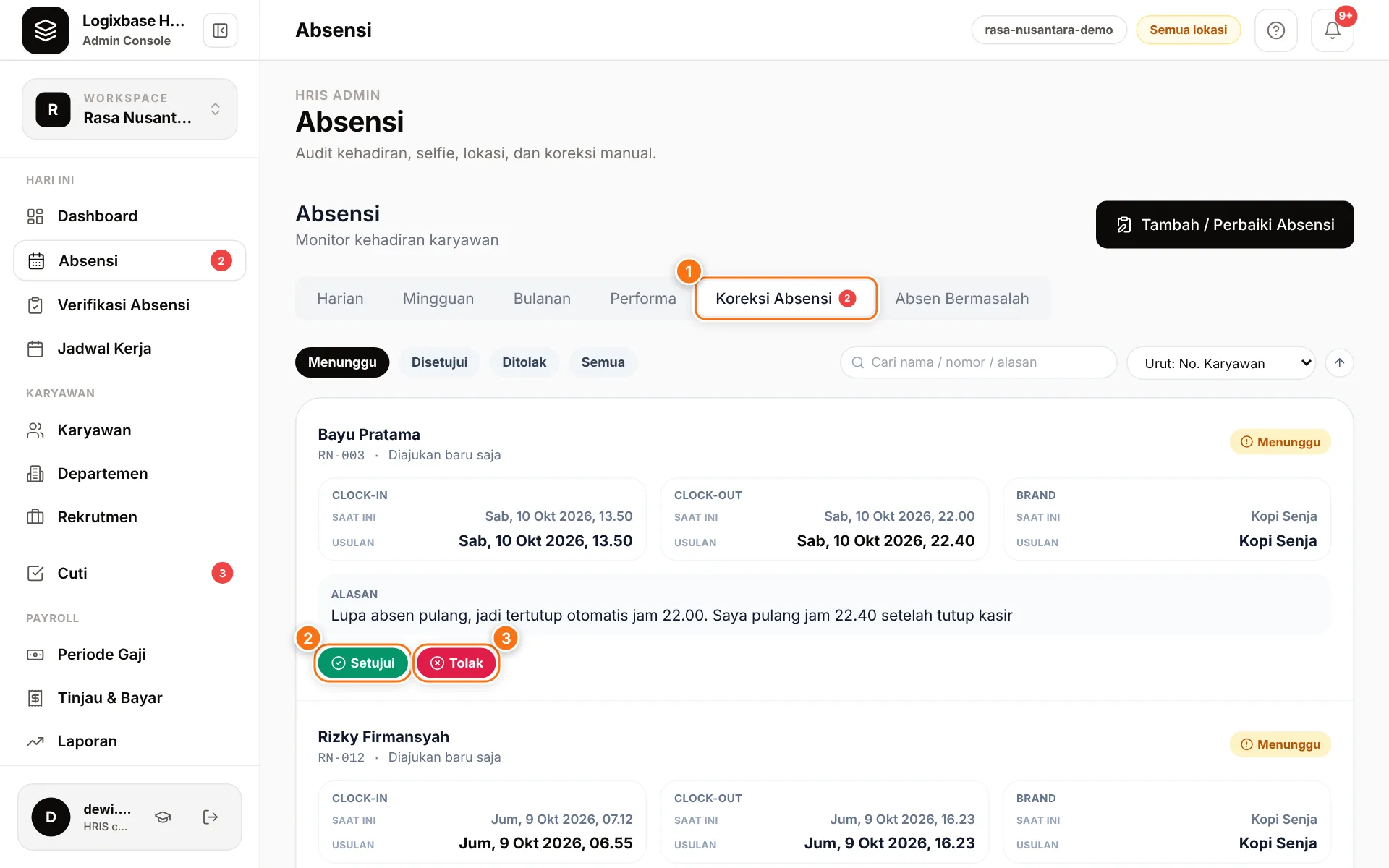
- Open Absensi › Koreksi Absensi (1) (Attendance corrections).
- Compare the current Clock-in, Clock-out and Brand with the employee's proposal, and read their reason.
- Click Setujui (2) (Approve) to apply the change. If that date has no record yet, a new one is created.
- Or click Tolak (3) (Reject). The attendance record stays unchanged, and you can add a note for the employee.
The employee is notified of the outcome. The Menunggu (Pending), Disetujui (Approved), Ditolak (Rejected) and Semua (All) filters show past decisions.
Add or fix attendance
To fill in a missed punch or correct a wrong time without waiting for a request:
- On the Absensi page, click Tambah / Perbaiki Absensi.
- Choose the Karyawan (employee) and Tanggal (date). The form tells you whether it will create a new record or edit the existing one, so you never get duplicates. If there are several sessions, pick the one to fix.
- Enter Jam Masuk (clock-in) and Jam Keluar (clock-out). Tick Keluar besoknya (shift malam) (clock-out next day, night shift) for shifts that cross midnight.
- Choose the Brand / Task.
- Write an Alasan (reason, required, at least 4 characters), then click Simpan Absensi (Save attendance) or Simpan Perubahan (Save changes).
Override status and Reset today
On the Harian tab, open an employee's row to see the Kontrol HR (HR controls) box:
- Override status replaces the status label (Selesai, Hadir, Tidak hadir, Cuti or Sedang bekerja — done, present, absent, leave, working) without changing the hours. A reason of at least 4 characters is required. Choose — Hapus override — (remove override) to go back to the automatic status.
- Reset hari ini permanently deletes all of the employee's sessions and photos for that date so they can clock in again. Type RESET and give a reason to confirm. A reset is refused when the payroll period is locked, when a session has already been approved (for example an approved correction or attendance added by HR), or when a correction request refers to the session.
Every change is recorded
Every manual change — add, edit, override, reset and correction decisions — is written to the audit log with who did it, when and why. In the attendance table, edited records show Diperbarui oleh (Updated by) followed by the editor's name, and sessions entered by HR carry a Manual tag.
Attendance in locked periods
Attendance can be changed as long as its payroll period isn't locked, even after pay has been calculated. If you change attendance after a period was calculated, run Hitung Ulang (Recalculate) on that period. Once the period is Terkunci (Locked), every change is refused until an Admin or Finance user unlocks it in Payroll.
Common problems
- Hours look far too long, even more than a day. Usually the employee forgot to clock out and tapped Clock Out the next day. Correct the clock-out time with Tambah / Perbaiki Absensi.
- An employee forgot to clock out. The session stays open until it is closed. At their next clock-in they are asked for their finishing time in Lupa absen pulang? (Forgot to clock out?) — see Attendance policy settings. You can also enter the clock-out time yourself.
- Reset refused because a session is already approved. Change the times with Tambah / Perbaiki Absensi instead.