Setting up payroll
The order to set up payroll — pay cycle and cutoff date, each employee's salary and tax data, components, holidays — plus how BPJS and PPh 21 are calculated automatically.
Set payroll up once, and every month salaries are calculated straight from attendance — no manual spreadsheet recap. Work through the four steps below in order: pay periods need a cycle, payslips need employee salary data, and components and holidays then refine the numbers. That way your first payslips are right the first time.
Before you start
- The pay cycle and components are set by an Admin or Finance user; employee salary data is edited by an Admin or HR Manager. See Who can do what.
- Your employees are already added — see Managing employees.
1. Set the pay cycle
The Tanggal cutoff (cutoff date) is the day each period starts. Example: enter 26, and the Mei 2026 (May 2026) period runs 26 April – 25 May 2026.
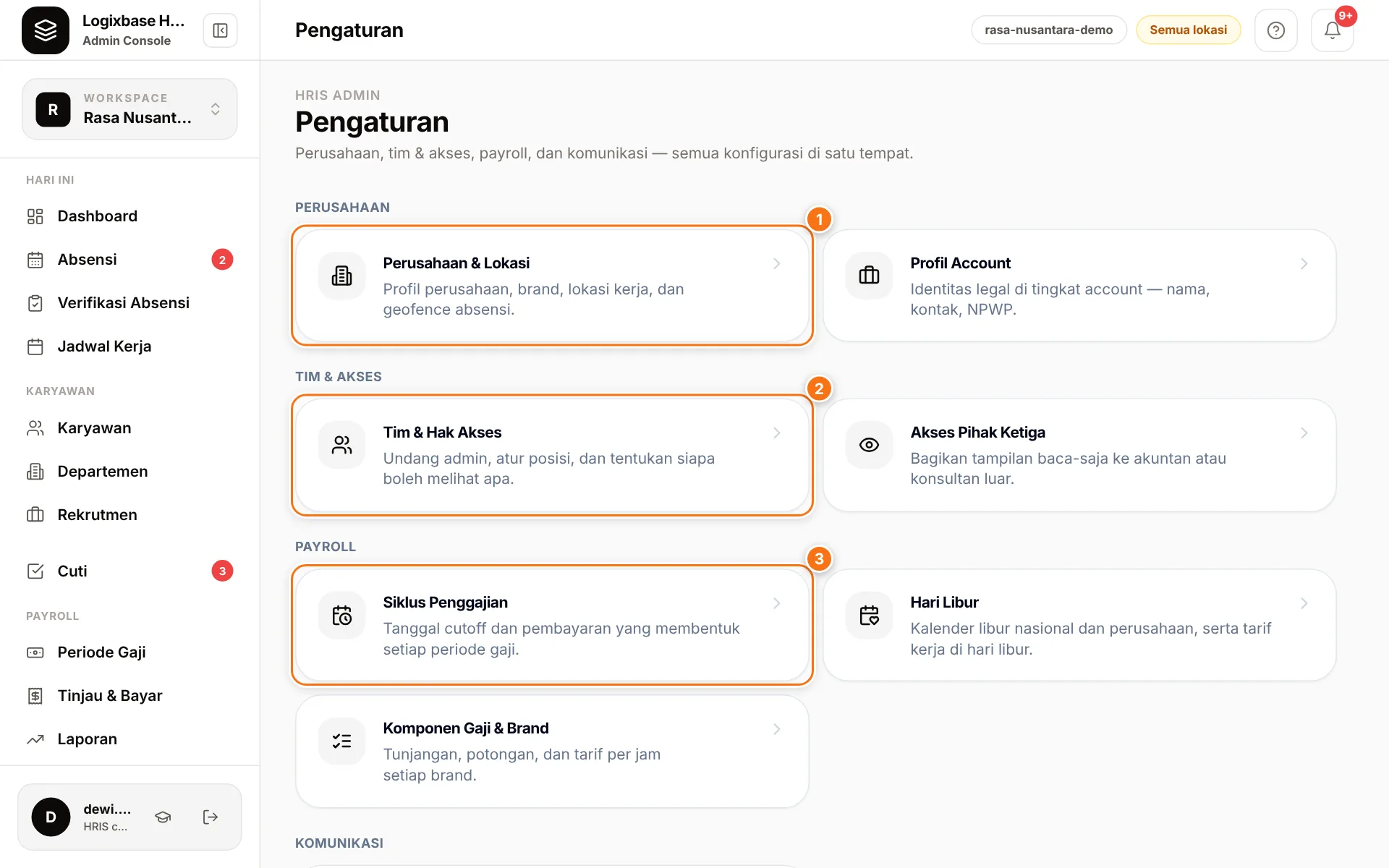
Open Pengaturan (Settings) and choose the Siklus Penggajian (Payroll cycle) card (3) in the Payroll group.
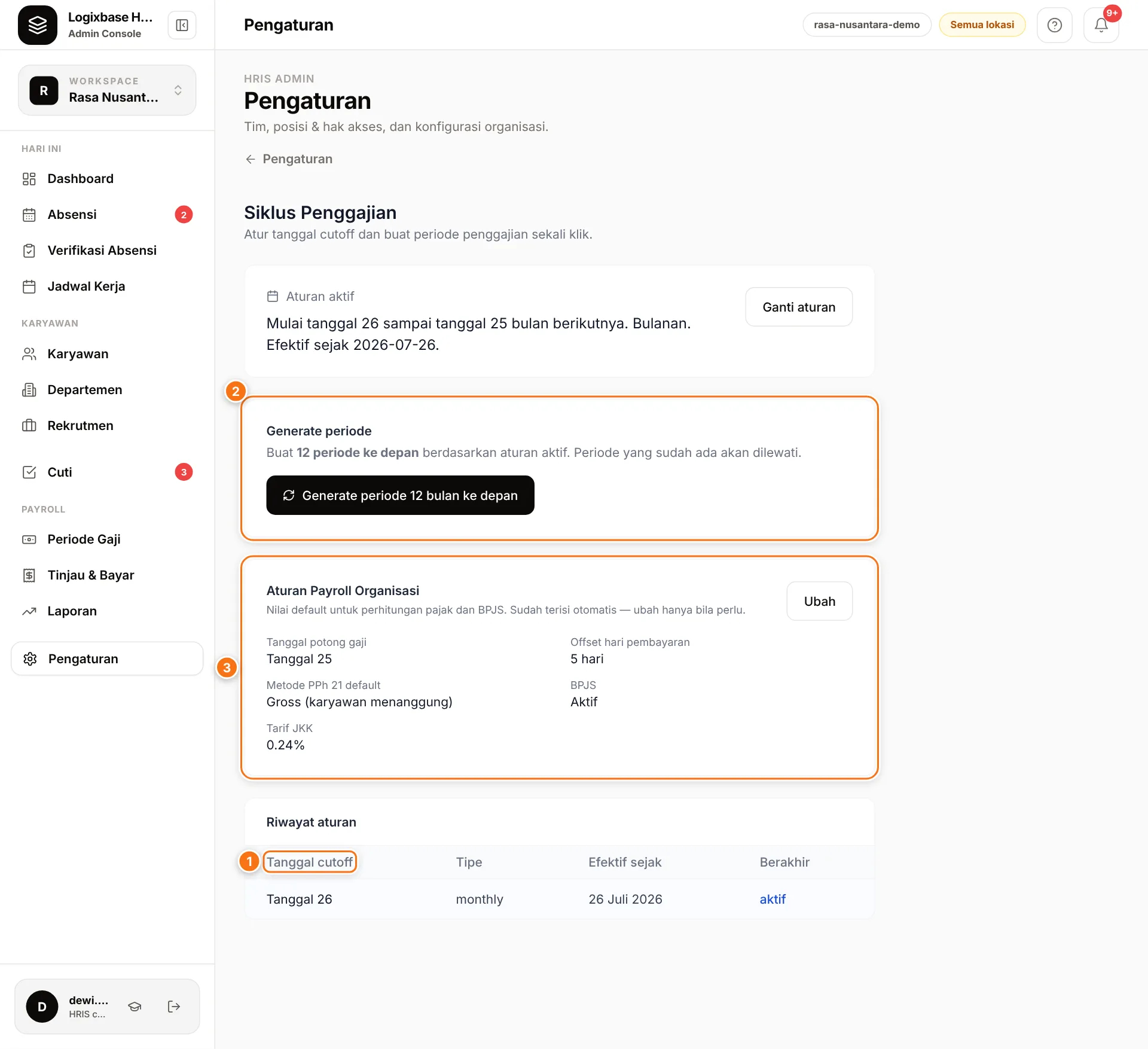
On the Siklus Penggajian page:
- Click Buat aturan (Create rule). Enter a number from 1 to 28 in Tanggal cutoff and fill in Efektif sejak (Effective from), then click Simpan (Save). The cycle type is always Bulanan (Monthly).
- Check the sentence under Aturan aktif (Active rule), for example "Mulai tanggal 26 sampai tanggal 25 bulan berikutnya" (from the 26th to the 25th of the next month). The same rule is listed in the Riwayat aturan (Rule history) table, with its day in the Tanggal cutoff column (1).
- In the Generate periode (Generate periods) card (2), click Generate periode 12 bulan ke depan (generate the next 12 months), then Generate.
The current month's period and the next 12 months now appear under Payroll › Periode Gaji (Pay periods) with the status Draft. Each period's Tanggal Gajian (payday) is set automatically to 5 days after the cutoff ends; change it per period with the Edit button on the period page. A month that already has a period — including one you created yourself with Buat Periode (Create period) — is skipped, so clicking Generate again is safe.
Changing the cutoff date
Click Ganti aturan (Change rule) and enter the new cutoff date and an Efektif sejak date later than the previous rule's. The old rule stays listed under Riwayat aturan (Rule history). If you choose 1 (each period = one full calendar month), automatically generated periods are named after the following month: 1–30 September becomes "Oktober 2026".
The Aturan Payroll Organisasi card
The same page has an Aturan Payroll Organisasi (Organization payroll rules) card (3). It comes pre-filled with defaults — including Metode PPh 21 default (default PPh 21 method) = Gross — and you don't need to change it to get started.
What payroll actually uses
- The period date range follows the Tanggal cutoff in the cycle rule, not the Tanggal potong gaji (payroll cutoff day) on this card.
- The automatic payday is 5 days after the cutoff ends, not the Offset hari pembayaran (payment day offset).
- PPh 21 uses each employee's own Status Pajak (PTKP) (tax status) and Metode PPh21 (PPh 21 method).
- The JKK contribution is currently calculated at 0.24%; the Tarif JKK (JKK rate) choice on this card does not yet change payslip calculations. If your company's JKK risk class is different, contact us before your first payroll.
2. Complete each employee's salary data
Open Karyawan (Employees), choose an employee, and complete the two sections below. Click a value to edit it, then press Enter to save. This step also appears in the Dashboard setup checklist as Atur gaji pokok (Set base salary).
The Penggajian (Payroll) section
- Tipe Gaji (Pay type): Bulanan (monthly base salary), Harian (enter a daily wage; paid × days present), or Per Jam (hourly — paid from hours worked × the brand/task rate; the base salary figure is only used as the BPJS base and for % components).
- Gaji Pokok (base salary).
- Kebijakan Bulanan (Monthly policy, monthly pay only): Tetap fixed (the default) pays the full base salary. Prorate hari hadir (by days present) and Prorate jadwal kerja (by scheduled days) adjust it to attendance or the schedule; the divisor is currently the Monday–Friday days in the period (public holidays included), so check the result in months with national holidays or for 6-day work patterns. Prorate dari tanggal bergabung (prorate from join date) is an optional feature that is not active (the full base salary is still paid) — contact us to enable it.
- Status Pajak (PTKP): TK/0 to K/3.
- Metode PPh21: keep Gross — PPh 21 is deducted from the employee's pay.
- Kategori Pajak (tax category): keep Pegawai (employee, TER rate) — casual daily workers included. Choose Bukan pegawai only for a partner with no employment relationship: their PPh 21 is Article 17 rates on 50% of gross, and they get no THR.
- NPWP (tax ID): if the NPWP is empty and no NIK is on file either, the employee's PPh 21 is increased by 20%. A valid 16-digit NIK counts as an NPWP.
- Bank Penerima Gaji (Payee bank): Bank, No. Rekening (account number), and Atas Nama (account holder) — used on the payslip and when recording transfers.
The BPJS & Pajak (BPJS & Tax) section
- Set Status BPJS Kesehatan and Status BPJS Ketenagakerjaan to Terdaftar (Registered), then fill in No. BPJS Kesehatan and No. BPJS Ketenagakerjaan. The default status is Belum (Not yet) — while it stays that way, no BPJS contributions are calculated.
- If you edit through the employee form, the BPJS & Pajak tab is not saved automatically: tick the UU PDP consent box, then click Simpan Data BPJS (Save BPJS data).
Find employees without a salary
The Komponen Gaji column in the Karyawan list shows "Gaji belum diisi" (salary not filled in). On Periode Gaji, Draft periods also show a "N tanpa gaji pokok" (N without base salary) chip — those employees are still included in the calculation, but with a base salary of Rp 0.
3. Add pay components
Allowances, deductions, recurring bonuses, and hourly rates per brand/task are managed in Pengaturan › Komponen Gaji & Brand (Pay components & brands). See Pay components: allowances, deductions, bonuses.
4. Set holidays and special rates
The Hari Libur (Holidays) calendar defines public holidays and the pay rate for working on them. National holidays are filled in automatically; review them and add company holidays in Holidays and special rates.
How BPJS and PPh 21 are calculated
BPJS is calculated automatically for employees with the status Terdaftar, from the Gaji Pokok in the employee record (not from allowances), with wage caps for BPJS Kesehatan and the pension programme (JP).
- Employee share — deducted from pay and shown as BPJS (karyawan) on the payslip: Kesehatan 1%, JHT 2%, JP 1%.
- Employer share — not deducted from pay: Kesehatan 4%, JHT 3.7%, JP 2%, JKK 0.24%, JKM 0.3%.
PPh 21 uses the average effective rate (TER, tarif efektif rata-rata) under PP 58/2023 and PMK 168/2023:
- Monthly gross = base pay for the period + overtime and holiday pay + allowances, bonuses, and additions marked Kena Pajak (taxable) + the premiums the employer pays for the employee: JKK, JKM, and BPJS Kesehatan.
- January to November: PPh 21 = TER rate × the month's gross. When a month has more than one period (a separate THR run, for example), the rate is taken from the month's combined gross; deleting one of them before it is paid marks the month's other periods for Hitung Ulang (Recalculate). The rate comes from the official table for category A (TK/0, TK/1, K/0), B (TK/2, TK/3, K/1, K/2), or C (K/3), chosen by the employee's Status Pajak (PTKP). Example: a gross of Rp10,454,000 in category A is taxed at 2.5% = Rp261,350.
- December, or the period an employee stops working (monthly-salaried employees): the year's tax is recalculated at 5% / 15% / 25% / 30% / 35% on the year's gross − the occupational cost deduction (biaya jabatan, 5%, at most Rp500,000 per month worked) − the employee's JHT and JP contributions − the annual PTKP. The PPh 21 already withheld in that year's earlier periods is then subtracted.
- Without an NPWP or a valid NIK, PPh 21 is increased by 20%.
Employees paid daily or hourly keep the TER rate every month, December included: PMK 168 recalculates the year only for permanent employees (pegawai tetap).
The year-end recalculation runs only when every month the employee worked that year is recorded in Logixbase. If your payroll moved here partway through the year, the earlier months have no data — those employees keep the normal TER rate, and after Hitung Ulang (Recalculate) the period page lists them with the months that are missing. Work out their annual PPh 21 with your tax consultant.
If the year's tax is lower than what was already withheld, the excess is returned on the payslip as Pengembalian Kelebihan PPh 21 (PPh 21 over-withholding refund). For employees whose tax the company bears (the Netto method), the excess does not appear on the payslip. The December calculation reads the earlier periods as they stand when you click Hitung (Calculate) — if you change an earlier month's period, click Hitung Ulang (Recalculate) on the December period. Paid periods still count even after they are deleted from the period list.
Periods that are already Dibayar (Paid) or Terkunci (Locked) are never recalculated, so their payslips stay as they were paid. Deductions (such as cooperative dues or salary advances) do not reduce the tax base. The Bagaimana PPh 21 Dihitung (How PPh 21 is calculated) panel in each employee's Penggajian section shows the TER category, the PTKP table, the rates, and a worked example.
Important
Logixbase HRIS helps you calculate; it does not give tax advice. Confirm the PPh 21 and BPJS method and results with your tax consultant before you pay your first payroll.
Who can do what
| Task | Admin | HR Manager | Finance |
|---|---|---|---|
| Siklus Penggajian and Generate periode | Yes | – | Yes |
| Komponen Gaji & Brand | Yes | – | Yes |
| Edit employee base salary, tax, bank, and BPJS data | Yes | Yes | – (view only) |
| Create and calculate periods, Tandai Dibayar (Mark as paid) | Yes | Yes | Yes |
| Lock and unlock periods | Yes | – | Yes |
A Manager cannot open payroll or see salaries. The Finance role is given as a position in Tim & Hak Akses (Team & access rights) — see Team and access rights.
Common problems
- The Siklus Penggajian or Komponen Gaji & Brand card is missing — only Admin and Finance users can open them.
- BPJS shows Rp 0 on the payslip — the employee's BPJS status is still Belum. Change it to Terdaftar, then click Hitung Ulang (Recalculate) on the period.
- PPh 21 is higher than expected — check the employee's NPWP and NIK (both empty means +20%) and Status Pajak (PTKP).
- December's PPh 21 looks very different from other months, or a Pengembalian Kelebihan PPh 21 line appears — that is the year-end recalculation in the last tax period, not an error. Compare it with PPh 21 Setahun (annual PPh 21) in the employee's payslip breakdown on the period page.
Next steps
Does your pay structure span several brands, shifts, or hourly wages? Our team can help you map it out and set it up with you.