Roles and permissions
What Admin, HR Manager, Manager, Finance, and Employee can and cannot do — including who may see salaries, bank details, NIK, and NPWP.
Everyone on your team should see only what they need: an outlet manager approves their team's attendance without seeing salaries, and finance runs payroll without being able to change attendance. Logixbase HRIS handles this with roles (called posisi, positions, in the app), and permissions are checked on the server — not just by hiding menus.
The five built-in roles
| Role | Who it is for | In short |
|---|---|---|
| Admin | Owner or head of HR | Full access, including inviting the team and setting permissions |
| HR Manager | Day-to-day HR staff | All HR operations and day-to-day payroll, without team settings and without locking pay periods |
| Manager | Head of an outlet, warehouse, or division | Attendance, leave, and announcements for their own department; no salaries |
| Finance | Finance team | Payroll through to locking the period, salary components, and pay data; no attendance or leave handling |
| Karyawan (Employee) | Every employee | Employee app only: clock in/out, history, schedule, leave, payslips, and their own profile |
Who can do what
| Capability | Admin | HR Manager | Manager | Finance |
|---|---|---|---|---|
| See the Dashboard and Laporan (Reports) | Yes | Yes | Yes, without payroll reports | Yes |
| View, correct, and approve attendance | Yes | Yes | Yes, own department | No |
| Verifikasi Absensi (Attendance verification) for pay periods | Yes | Yes | No | No |
| Manage shifts and Jadwal Kerja (Work schedule) | Yes | Yes | View only | No |
| Add, edit, import, and invite employees | Yes | Yes | View only, own department | View only |
| PHK (Terminate) an employee | Yes | No | No | No |
| See Bidang Sensitif (Sensitive fields: salary, bank, NIK, NPWP) | Yes | Yes | No | Yes |
| Approve or reject leave | Yes | Yes | Yes, own department | No |
| Manage Jenis Cuti (Leave types) and Saldo Cuti (Leave balances) | Yes | Yes | No | No |
| Create pay periods, Hitung (Calculate), Tandai Dibayar (Mark as paid) | Yes | Yes | No | Yes |
| Kunci (Lock) and Buka Kunci (Unlock) pay periods | Yes | No | No | Yes |
| Siklus Penggajian (Payroll cycle) and Komponen Gaji & Brand (Salary components & brands) | Yes | No | No | Yes |
| Edit Perusahaan & Lokasi (Company & locations) | Yes | Yes | No | No |
| Announcements (Info Banner) | Yes | Yes | Yes | No |
| Akses Pihak Ketiga (Third-party access) | Yes | Yes | No | No |
| Tim & Hak Akses (Team & access: invite staff, set positions) | Yes | No | No | No |
A few notes:
- HR Manager cannot create or edit salary components or the Siklus Penggajian (Payroll cycle) rule. Deleting a pay period and deleting a department are Admin-only.
- Karyawan (Employee) uses the employee app only. An employee can also be a staff member: when you invite an email that is already registered as a worker, the app offers Ya, Jadikan Manager (Yes, make them Manager — or whichever role you chose), and their clock-in access stays active.
Sensitive fields
Base salary, allowance and deduction components, bank account details, NIK (national ID number, from the KTP), and NPWP (tax ID) are Bidang Sensitif (Sensitive fields). A role without this permission sees a Terkunci (Locked) label on the employee profile, and the value is never sent to their device. By default, Admin, HR Manager, and Finance have this permission; Manager does not.
Permissions are checked on the server
Hidden menus are only cosmetic. Every data request is checked on the server against the user's position, so opening a page address directly does not grant any extra access. See also security and data privacy.
Managers are limited to their department
When you invite a Manager, you must choose a Departemen (Department) — that is what the Manager (butuh departemen) (Manager, needs a department) option means. The employee list, attendance, and leave approvals they handle are limited to that department. So make sure every employee is placed in the right department under Data Pekerjaan (Job data); employees without a department do not appear for department managers.
Setting up the Finance role
Finance is not in the role list when you invite someone. A new workspace only has the Admin, HR Manager, and Manager positions; the Finance position is copied from a template:
- Go to Pengaturan › Tim & Hak Akses (Settings › Team & access) and open Posisi & Hak Akses (Positions & permissions) (1).
- Under Template Sistem (System templates), find Finance, click Duplikat ke organisasi (Duplicate to organization), then click Duplikat Posisi (Duplicate position).
- Under Tim & Akses (Team & access), click Undang Anggota (Invite member) (2), enter the email, choose a role, click Buat Link Undangan (Create invite link), then Salin pesan (Copy message) and send it.
- Once the invite is accepted, change that person's Posisi (Position) column in the member list to Finance.
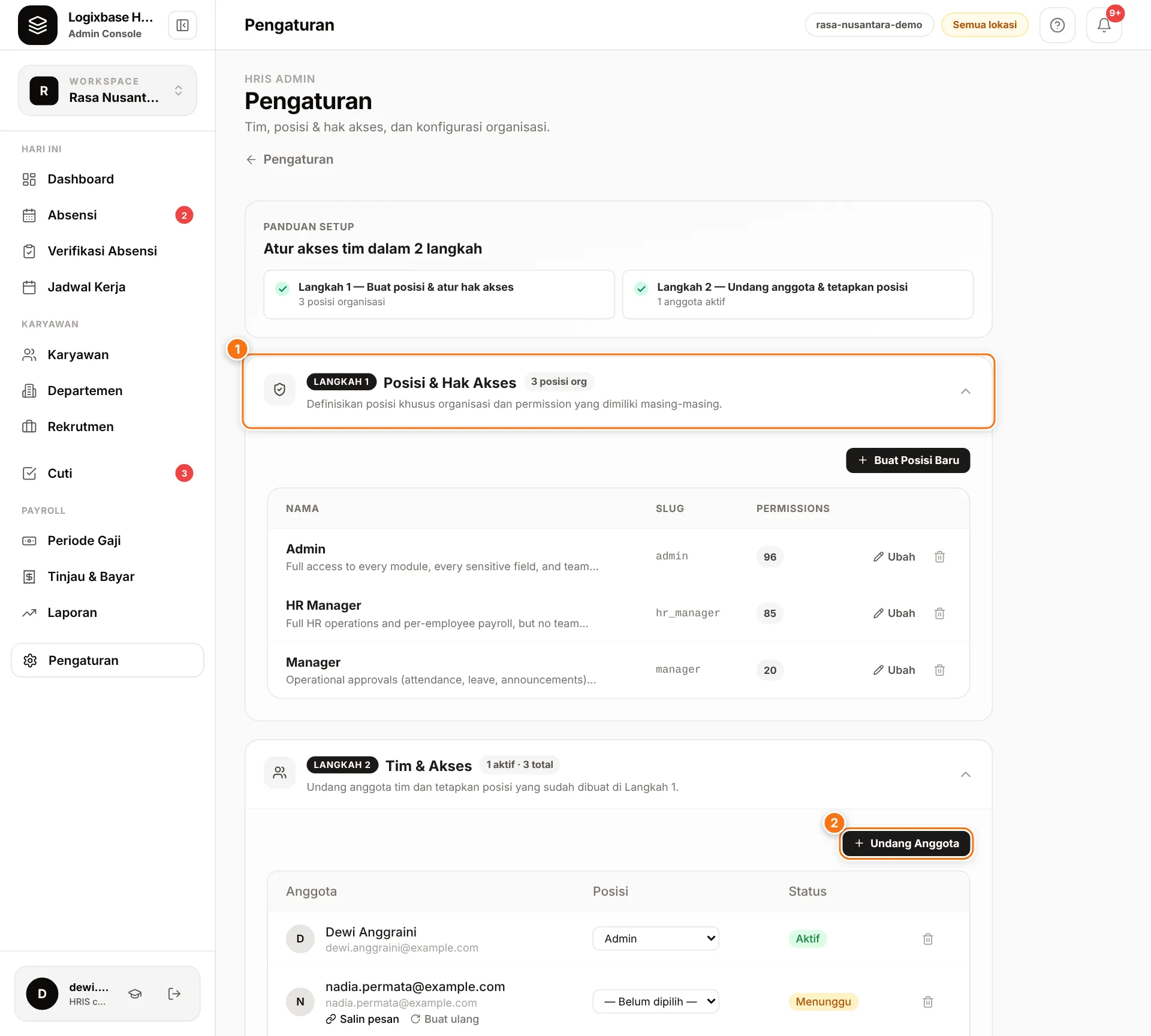
Until the position is changed, the person has the permissions of the role you chose when inviting them. The full steps for inviting your team are in Team & access.
Custom positions
Need another role, such as a warehouse lead who only handles attendance? In Posisi & Hak Akses, click Buat Posisi Baru (Create new position), fill in Nama (Name) and Deskripsi (Description), then tick permissions per module — including the Bidang Sensitif group at the bottom. The new position can then be chosen for team members in the Posisi column.